
Folder Management & Permissions in Qwilr
Overview
Qwilr allows creation of folders and subfolders in your account to organize your Qwilr pages. These folders also have access settings that can be updated so you can manage permissions for the Creators on your Qwilr team.
In this article
- Creating folders (including subfolders)
- Access levels & managing folder access
- Folder permissions for Saved Blocks and Images
- Applying access settings across subfolders
- Renaming, moving and deleting folders
- The “Shared with Me” folder
- Frequently Asked Questions
Creating folders (including subfolders)
Folders help you keep pages organized, whether that’s by team, client, region, or anything else that makes sense for your workflow.
Creating a folder
Anyone can create folders. When you create a folder, you’ll automatically get edit access to it.
- Go to the Pages tab from the top navigation.
- In the left sidebar, click + icon (next to Create Folder).
- Enter a name for your folder.
- Under Share folder, type the name or email of the person/team you want to share it with.
- Use the dropdown to choose their access level (e.g. Can edit or Can view or Limited).
- Press Create folder to save.
Your new folder will now appear in the left sidebar.

Creating subfolders
Subfolders are great when you want a little more structure inside a folder.
- Go to the Pages tab.
- In the left sidebar, click the three dots icon (⋮) on the folder you want to add a subfolder to.
- Click the Create Folder (+) button.
- Enter a name for your subfolder.
- (Optional) Under Share folder, choose who you want to share the subfolder with and set their access level.
- Click Create folder.
Your subfolder will appear underneath the parent folder in the left sidebar.

Note: You can have up to 7 levels of nested folders.

Note: When you create a subfolder, it copies the parent folder’s access settings as a starting point.
Access levels & managing folder access
When you share a folder, you can choose how much access someone has.
For page folders:
- Can edit - Can share the folder and edit all pages within it
- Can view - Can view all pages in the folder
- Limited - Can only view and edit their own pages they created

Note: All admins can edit all pages and folders in Qwilr by default and cannot be removed from access.
For Saved Block and Image folders:
- Can edit - Can share the folder and edit all blocks/images within it
- Can view - Can view and use all blocks/images in the folder

Note: The Limited access level applies to page folders only. Since saved blocks and images are usually created and maintained by a central team, block and image folders offer Can view and Can edit access only.
Who can share folders?
- Admins can share folders with anyone
- Creators can only share folders as long as they have edit access to the folder
Removing users
There are two ways someone can have access to a folder:
- Direct access (added individually)
- Inherited access (access comes from a parent folder)
Because of that:
- You can only remove users who were directly added to a folder
- If someone has access from the parent folder, you'll need to remove them from the parent folder where their access originates
Note: All admins can edit all pages and folders in Qwilr by default and cannot be removed from access.
You can remove someone’s access to a folder at any time.
-
Go to the Pages tab.
In the left sidebar, find the folder.
Click the three-dot menu (⋮) next to the folder name.
Select Share folder.
In the sharing window, find the user you want to remove.
Click their permission dropdown (e.g. Can edit).
Select Remove access.
This checkbox is like a shortcut to remove the user from all the subfolders at the same time.If you have "Main folder 1" with the subfolder "2" and you remove Jag from main folder 1- when the checkbox is ON: Jag gets removed from main folder 1 and 2
- when the checkbox is OFF: Jag gets removed from main folder 1 only
- Click Remove to confirm.
The user will no longer have access to that folder.

Note: Creators cannot remove the only access they have to a folder.
Creators can remove their own access to a folder as long as they still have access another way (for example, through a team). If removing a permission would leave them with no access to the folder, the action won't be possible.
Team changes
If someone is removed from a team that has folder access, they’ll lose that team-based access. However, they’ll still keep any access they were given individually.
Folder permissions for Saved Blocks and Images
Folder permissions aren't just for pages; you can also manage who can view and edit the folders in your Saved Block library and Image library.
How it works:
- Block and image folders can be shared with individual users or teams, with either Can view or Can edit access.
- Can view lets someone see and use the blocks or images in a folder (for example, adding a saved block or image to a page they're building).
- Can edit lets someone update the contents of the folder and share it with others.
To share a Saved Block folder:
- From your dashboard, click Library in the top left and choose Blocks.
- In the left menu, find the folder you want to share.
- Click the three-dot menu (⋮) next to the folder name.
- Select Share folder.
- Type the name or email of the person or team you want to share it with.
- Use the dropdown to choose their access level (Can edit or Can view).
- Save your changes.
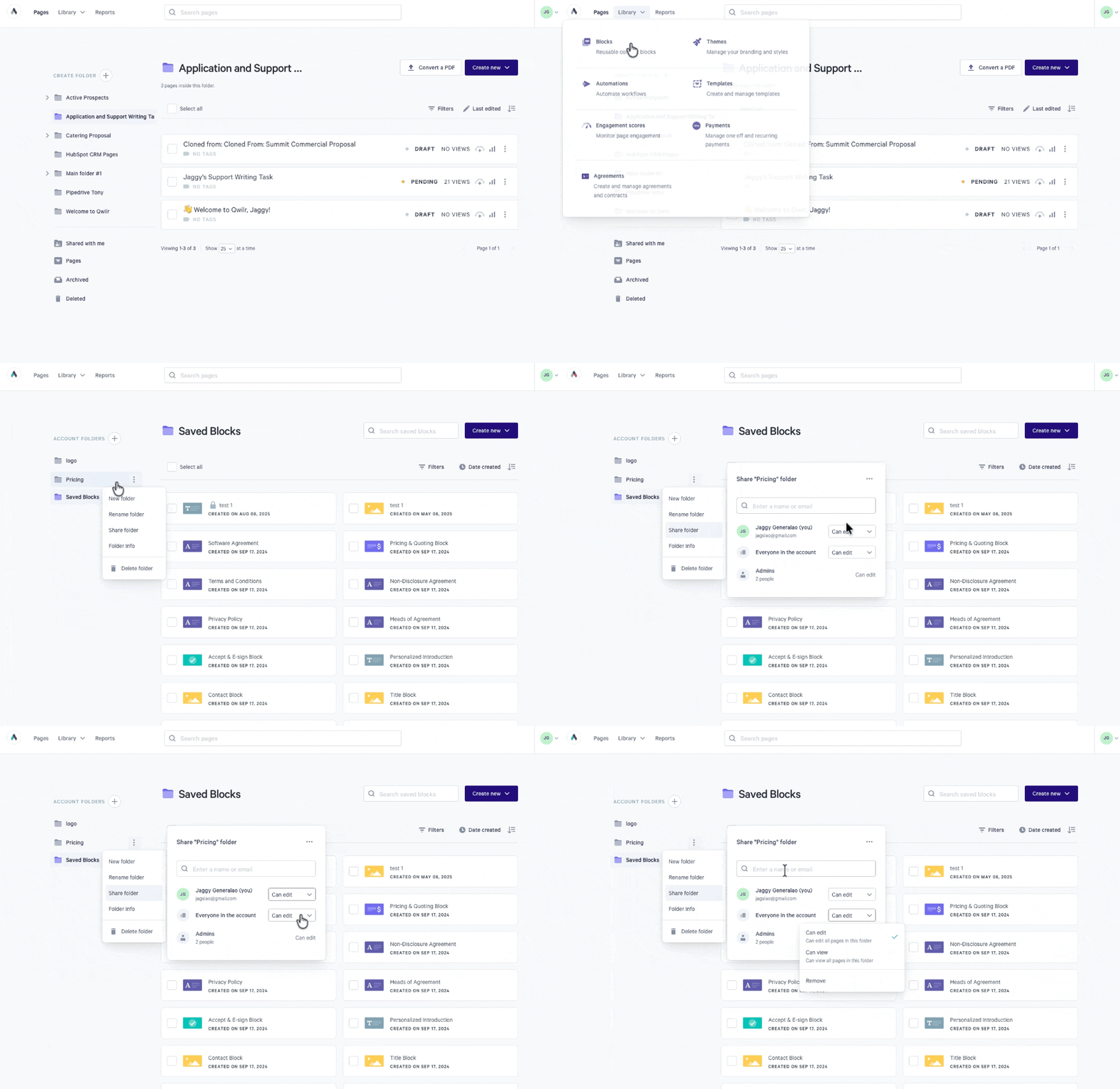
To share an Image folder:
- Open any Qwilr Page for editing and click the Library sidebar (middle of the left-hand side of your screen).
- Click the Images tab, then click the Full Library icon to open the full library view.
- In the left menu, find the folder you want to share.
- Click the three-dot menu (⋮) next to the folder name.
- Select Share folder.
- Type the name or email of the person or team you want to share it with.
- Use the dropdown to choose their access level (Can edit or Can view).
- Save your changes.

A few things to keep in mind:
- Blocks and images that aren't in a folder remain visible to everyone who has access to the Saved Block library or Image library.
- Locked blocks always stay locked. If a block has been locked by an admin, folder-level edit access won't override it - the block can still only be edited by admins, regardless of the folder's permission settings.
- Search respects your access. When you search your Saved Block library or Image library (from the library or the editor side panel), results include everything across the account that you have view access to - not just the folder you're currently in.
Applying access settings across subfolders
When you create a subfolder, it copies the parent folder’s permissions but after that, it can behave independently. So if you update access on the parent folder, those changes won’t automatically apply to subfolders unless you choose to apply them.
To apply permission changes to all subfolders:
- Open the pages tab and go to the folder share panel
- Click the three dots on the right side to open share settings
- Turn on Apply access to all subfolders


Note: anyone who has been directly added to a folder or page keeps their access separately to any permissions inherited.
Renaming, moving and deleting folders
Renaming folders
If you have edit access to a folder, you can rename it anytime by clicking the .

Moving folders
Moving a folder is very easy and there are a few things to keep in mind.
When you move a folder:
- Inherited permissions from the old parent are cleared
- People directly added to the folder retain access
- New permissions depend on whether the destination folder has Apply access to all subfolders enabled

To move a folder, press and hold the specific folder and move it to the destination folder. You’ll then see a confirmation message explaining permission changes before the move completes.


Deleting folders
You can delete folders with accepted pages, but you’ll be prompted to move accepted pages to a new folder first as accepted pages cannot be deleted from Qwilr.
To delete a folder:
- In the left sidebar, find the folder you want to delete.
- Click the three-dot menu (⋮) next to the folder name.
- Select Delete folder.
If the folder contains Accepted or Partially Accepted pages:
- In the confirmation window, select a new folder from the dropdown under "Accepted and Partially Accepted pages will be transferred to"
- Click Continue.
- Click Confirm to complete the deletion.
All draft pages inside the folder will be deleted. Any Accepted or Partially Accepted pages will be moved to the folder you selected.


The “Shared with Me” folder
The Shared with Me folder is where Qwilr shows you pages and folders you have access to, but don’t have access to the full parent structure.
Pages and folders shared with you appear in Shared with Me if:
- You’ll see the whole folder tree in the Shared with me folder if users don’t have access to the top (root) folder.
- An individual page is shared with you but you don’t have access to its folder

Note: Admins have access to all pages and folders, so the Shared with Me folder is empty for admins.
Frequently Asked Questions
Q: How do I move Pages between folders?
A: Here are the recommended steps:
1. Find the page you want to move.
- Click and hold the page with your left mouse button.
- Without releasing the mouse button, move the page over the folder you want to place it in. The folder should highlight when you're hovering over it.
- Release the mouse button to drop the page into that folder.
Q: I’m an existing Qwilr user with folders, what are the default folder access settings after the change?
A: All existing folders will automatically have these default permissions:
- All admins: can edit
- Everyone in the account: can edit
- The person who created the folder: can edit
We recommend checking your folder permissions to ensure they match your business needs. (Teams can really help here if you have access to them.)
Q: Do block and image folders have the same access levels as page folders?
A: Block and image folders support Can view and Can edit access for users and teams, just like page folders. The one difference is that the Limited access level is not available for block and image folders since it only applies to page folders.
Q: I gave someone edit access to a block folder, but they still can't edit a block inside it. Why?
A: The block is most likely locked. Locked blocks can only be edited by admins, and this always overrides folder permissions, even if someone has edit access to the folder the block lives in.
Q: Who can see blocks and images that aren't in any folder?
A: Any blocks or images not stored in a folder are visible to everyone who can access the Saved Block library or Image library.
Q: What’s the maximum subfolder depth?
A: You can have up to 7 levels of folders.
Q: Can I view more than 25 pages at once on the dashboard?
A: Yes! You can now view more than 25 pages at a time. To change this, scroll to the bottom of any folder (or your Pages dashboard) and select a higher number of pages to display such as 25, 50, 100.

Q: Can I create folders via the API?
A: Not yet, the public API does not currently support creating pages in folders.
Q: What’s the difference between admin and creator permissions?
A: Admins retain full control and can:
- Edit all folders and pages within an account
- Share folders with any teams or individuals
- Choose whether subfolders inherit permission changes
Creators can:
- Create folders
- Rename folders if they have edit access
- Move and delete folders if they have edit access to all pages within
- Share the folder with any teams or individuals, if they have edit access
Creators who create a folder automatically get edit access, however admins can revoke this.
Creators may only see certain pages in a folder depending on their access level (edit, view, or limited).
Q: How do CRM integrations handle default output folders?
A: This depends on the CRM you're using.
HubSpot and Salesforce:
- Set a default output folder for templates
- If no folder is set, pages go to the pages dashboard
When you create a page from a template using HubSpot or Salesforce, Qwilr can automatically save that page into a specific folder.
To set this up, open your template, then use the default output folder setting to choose where new pages should be saved. If you haven’t made a destination folder for this yet, create one first in the Pages dashboard, then return to the template and select it as the default output folder.
Note: If no folder is selected, pages created from the template will be saved in your Pages dashboard by default.
Zoho and Pipedrive
- Choose a folder on page creation
- You can only select folders you have access to
When you create a page from Zoho or Pipedrive, you’ll choose which folder it should be saved to during the page creation process.
You’ll only be able to select folders that you have access to. If you don’t see a folder listed, it means you don’t currently have permission to use it.
Q: What changed with Blueprints?
A: With the introduction of folder permissions, Blueprints have now been updated.
Previously, a Blueprint appeared in your Pages dashboard as a grouped set of pages. Now:
- The main Blueprint template now lives in Library > Templates
- Former “child” pages appear as individual entries in your pages folder (or the folder the Blueprint was in)
- Any bulk CSV blueprints created from pages rather than templates will remain as is today
This means that Blueprints no longer appear as a single “container” in your dashboard. Instead, you’ll see the template in your Templates area, and all created pages will appear as individual pages, just like Zoho and Pipedrive.
With this change comes more control and the ability to organize your account in the way that works best for you and your team.
Note: You can open the template and click "See created pages" to view every page created from that template, and then move them into a folder in bulk.
Q: Can I set a default folder for outputting pages?
A: You can now set a default output folder for templates:
- Click the three dots on a template
- Select Default Page Output Folder
- Choose a destination folder
Note: that Creators need at least limited access to the output folder, or their pages will be created in the pages dashboard instead.
Q: Can I move all the pages that were previously inside a Blueprint into a folder at once?
A: Yes, you can move them in bulk.
- Go to the template they were originally created from (in Library > Templates).
- Click the three-dot menu (⋮) on the template.
- Select See created pages.
- Use the checkbox in the top-left corner to select all pages shown.
- Move them to your chosen folder.


Note: If you want to move more pages at once, scroll to the bottom of the page and increase the number of pages displayed (25, 50, or 100), then select them again.
Q: Which template created this page?
A: To find out which template a page came from:
- Click the three dots (⋮) on the page
- Choose Page info
Q: I can’t see the three-dot menu next to my folder. Where is it?
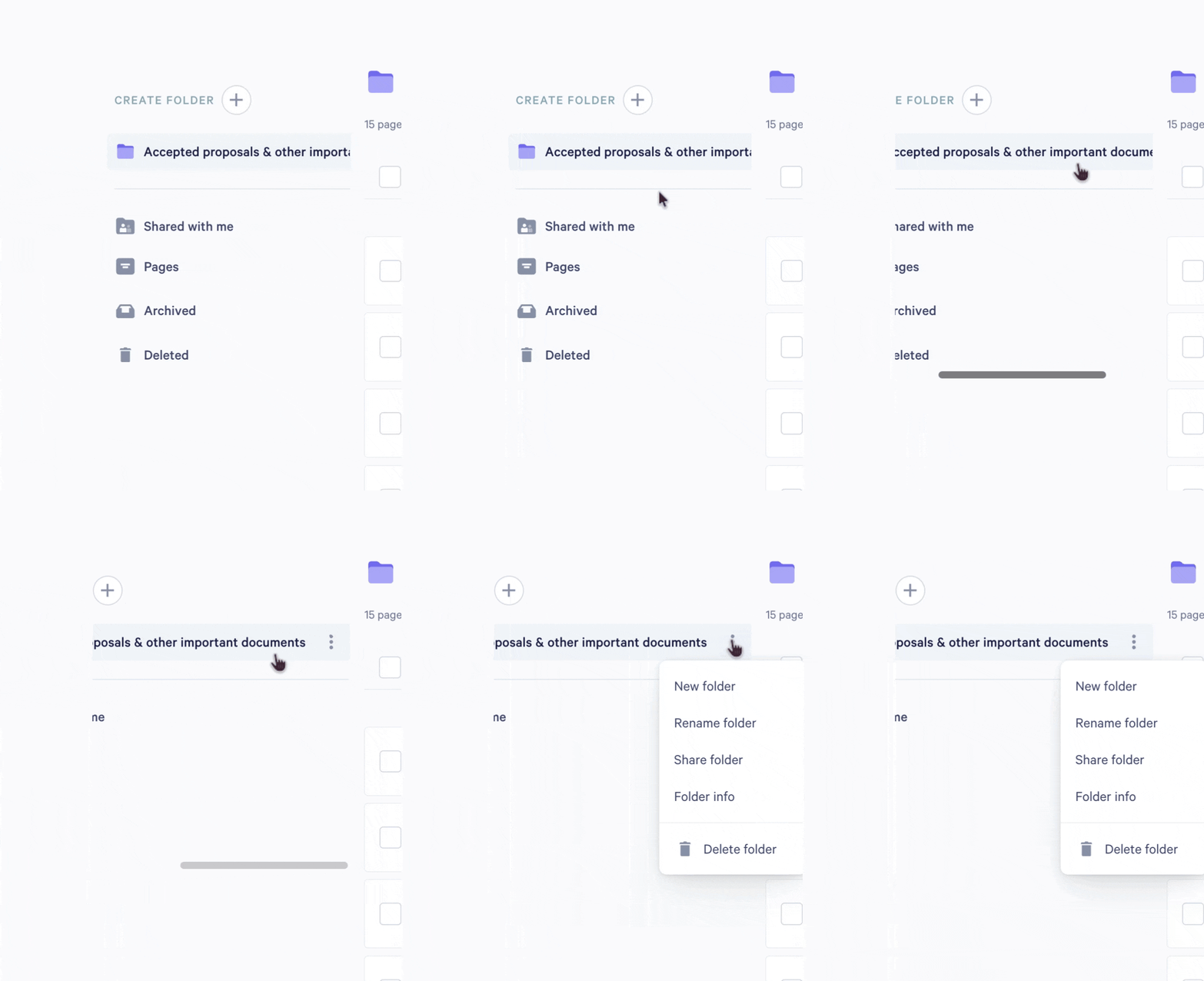
A: If your folder has a long name, the three-dot menu (⋯) may be pushed out of view past the edge of the folder sidebar. The menu is still there; you just need to scroll sideways to reach it.
To find it:
- Hover over the folder name in the left sidebar.
- Scroll horizontally to the right. On a trackpad, swipe left with two fingers. With a mouse, hold Shift and scroll your mouse wheel.
- When the end of the folder name comes into view, the three-dot menu appears next to it.
Tip: To avoid this in the future, consider giving the folder a shorter name.
If you have questions, reach out to us at help@qwilr.com, we’re always happy to help