
Microsoft Dynamics 365: Adding Custom Field Variables
This integration is available on our Growth and Scale plans, and on legacy Enterprise plans. These settings are only available to Qwilr account admins.
Qwilr already knows the standard fields on your Dynamics records, things like Topic, Estimated revenue and Estimated close date. They are available as variables the moment you connect, and are marked Default Field in the variables list.
Custom columns are different. Because every Dynamics environment has its own, Qwilr reads them from your environment and lets you choose which ones you want available in templates. This article covers choosing them.
Important: Before adding custom field variables, you'll need to enable the Microsoft Dynamics 365 integration and connect your own account. See Microsoft Dynamics 365: Installation and Setup.
In this article:
- Importing custom fields
- Pulling data from a related record
- Removing custom fields
- Which fields can you read as variables?
- Which fields can automations update?
- Fields you won't see
Importing custom fields
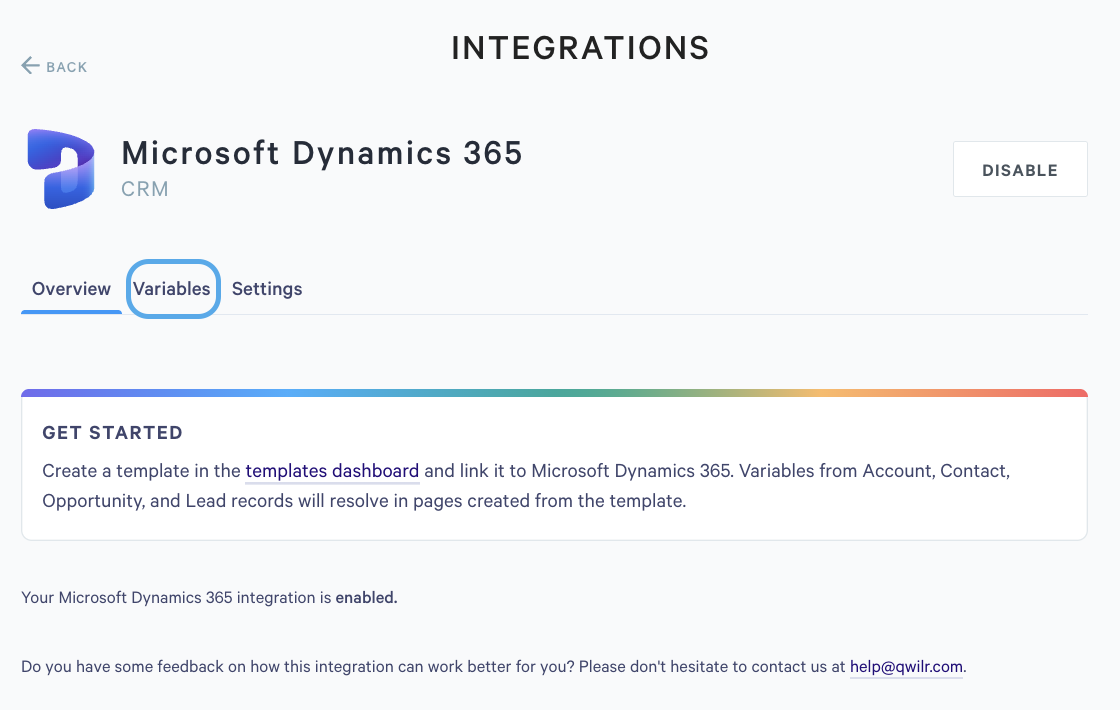
Step 1. In Qwilr, go to Settings > Integrations, open Microsoft Dynamics 365, and select the Variables tab.
Step 2. Choose the record type from the CRM object dropdown. Qwilr supports Account, Contact, Lead, and Opportunity, plus any custom Dataverse tables in your environment.
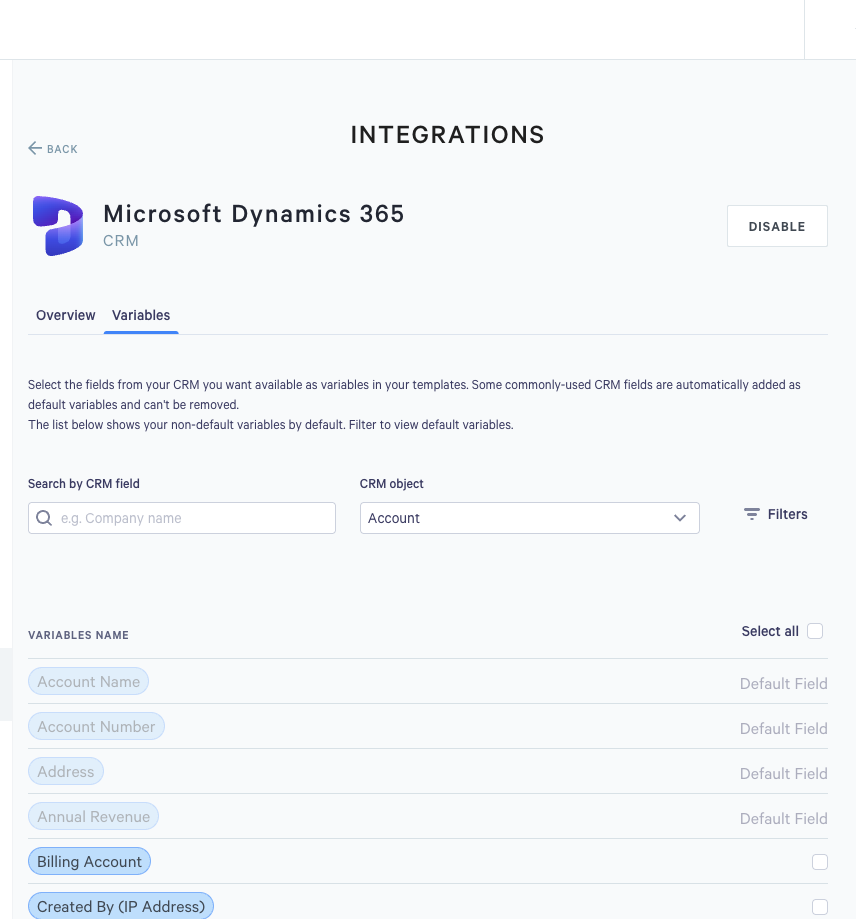
The list shows your non-default variables first. Use Filters to show the default ones as well.
Those variables are now available in any template that has this record type as a data source.
Tip: You don't have to add everything. The list is long on standard Dynamics tables, and a shorter list is easier for your team to work with when they're building templates. Add what your proposals actually use.
Pulling data from a related record
You can also pull values from a record linked to the one your page is created from: the Account attached to an Opportunity, the contact in a Customer lookup, or the user who owns the record.
In the CRM object dropdown, related objects appear beneath the record type with an arrow. Expand one to see its fields, and expand again to go one level further. You can go two levels deep from the starting record.
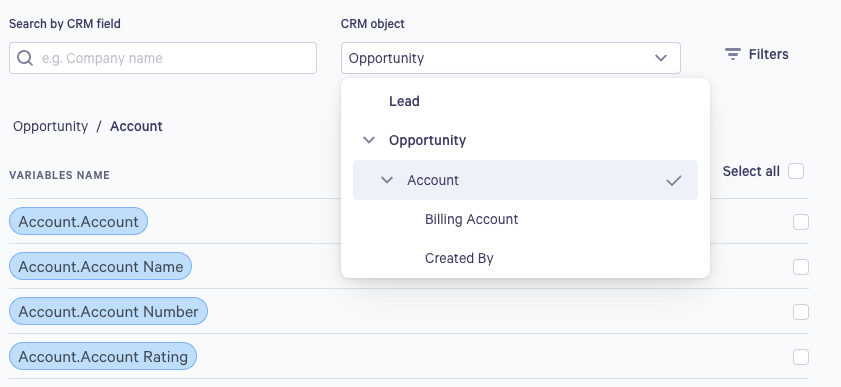
Related variables are named for the path they came from, so a contact's email reached through an Opportunity's Contact lookup appears as Contact.Email. That way, it stays clear where a value comes from once the variable is sitting in your template.
A few things worth knowing:
- Related variables are read-only. Automations that write back to Dynamics always write to the record the page is linked to, so a field on a related record can't be a write-back target.
- Where a lookup can point to more than one kind of record, you'll see both named, for example, Customer (Account) and Customer (Contact). Pick the one your team actually fills in.
- If a lookup is empty on a particular record, variables underneath it simply resolve to nothing on that page.
Removing custom fields
Untick a variable in the same list to remove it.
Note: Removing a variable doesn't change anything in Dynamics, and it doesn't alter pages you've already created. It only stops that column from being available in templates from then on.
Which fields can you read as variables?
Only specific Dynamics column types can be pulled into a page. Reading a column and writing back to it are separate questions with different answers, so they are two sections here.
🟢 Supported
- Single line of text, including the Email, Phone, URL, Ticker symbol, and Autonumber formats: the text.
- Multiple lines of text: the text.
- Whole number, Decimal number, Floating point number: a number.
- Date and time, Date only: the date, formatted for your locale.
- Yes/No: your two option labels, for example, Yes or No.
- Choice: the option label.
- Status, Status Reason: the label, for example, Open, Won, or In Progress.
- Lookup, Customer, Owner: the name of the record it points to.
- Unique identifier: the ID.
- Calculated, Rollup, Formula: whatever they calculate behaves as the type they produce. A calculated currency column behaves like a currency column.
🟡 Supported, with caveats
- Currency: you get a number, not a formatted string like "$1,000.00". That's deliberate, so quote calculations and automations can do maths with the value. Format it on your page instead.
- Rich text: the text arrives as HTML, so it appears as raw markup rather than formatted.
- Choices (multi-select): every selected option label, joined with semicolons, like Alpha; Beta. An automation can't update this column yet.
🔴 Not supported
- File and Image columns, because they hold binary content rather than text. If you need an image from Dynamics on a page, add it to the page in Qwilr directly.
Note: Choice, Status, Status Reason, and Yes/No show the label your team sees on the form, not the value stored underneath. Lookup, Customer, and Owner show the name of the record they point at; to reach other fields on that record, expand it in the CRM object dropdown instead.
Which fields can automations update?
Automations don't write a value you type in. You map a Qwilr value onto a Dynamics column, and the Qwilr value has its own type. So what matters is the pairing, not the column alone.
The Qwilr values available to map are: Page Value, Page Currency (a code like USD), Page Status, Page Expiry Date, four page and template URLs, Template ID, QwilrPay Collected Amount, QwilrPay Status, Number of Page Views, and each accepter's name, email, organisation, and acceptance-form answers.
🟢 Offered as a target
- Single line of text, Multiple lines of text, Rich text: any Qwilr value.
- Currency, Decimal number, Floating point number: the three number values, which are Page Value, QwilrPay Collected Amount, and Number of Page Views.
- Date and time, Date only: Page Expiry Date.
- Choice and Yes/No: any value matching one of the column's own option labels, matched ignoring case. Qwilr writes the value Dynamics stores underneath, so an acceptance-form dropdown can show your customer real labels like Accounting or Retail rather than numbers.
🟡 Offered, but choose carefully
- Whole number: Number of Page Views always works. An amount only works when it has no cents, so send amounts to a Currency, Decimal, or Floating point column instead. A page totalling 5000 updates; one totalling 5000.50 is skipped, so it can look like an automation that works most of the time.
🔴 Not offered as a target
- Status and Status Reason. Dynamics stores stage as a Status Reason inside a state (Open, Won or Lost), and a plain field update can't move a record between states. Use the dedicated stage automation instead.
- Autonumber, excluded on purpose. Dynamics generates the number, and overwriting it would replace a value your team relies on being sequential.
- Lookup, Customer, and Owner, which a mapped value can't express at all. Dynamics needs the relationship and target table named too, and a Customer lookup can point to an Account or a Contact.
- Unique identifier, which Dynamics generates and doesn't let anyone set.
- Calculated, Rollup, and Formula columns, which Dynamics owns. It ignores anything written to them, so an automation would report success and change nothing.
- Choices (multi-select), which Dynamics stores as option values, so it rejects the labels an automation would map onto it.
Note: A mismatched field doesn't stop the others. Every offered column is available for every Qwilr value, so you can map something that doesn't fit, such as Page Status, onto a number column.
If that happens, the other fields still update, and the automation reports itself as partially complete, naming the field it skipped. Check its result if a value you expected hasn't appeared.
The Opportunity's own stage, estimated revenue, close date, and line items each have a dedicated automation, which sends the value in exactly the format Dynamics wants. Prefer those over a generic field mapping wherever one exists. See Automations: Microsoft Dynamics 365.
Fields you won't see
Some columns are deliberately left out of the list, so if you can't find one, this may be why:
- Columns Microsoft has deprecated. These stay readable in Dataverse and are usually labelled "(Deprecated)", but they aren't offered as variables.
- Internal bookkeeping columns, such as business process flow position and service-level agreement records.
- Unsupported column types, per the lists above.
Some column types are stored as more than one column, and the extras are real columns rather than part of the one you created, so they appear in the list too.
A Currency column also gives you ... (Base), the same amount in your environment's base currency.
A Rollup column also gives you ... (State) and ... (Last Updated On), which describe when the rollup last recalculated.
None of these are needed for a normal proposal, so leave them unticked.
Everything else on the lists above should appear. If a column you expect is missing, contact us at help@qwilr.com and tell us the table and column name.
What's Next?
- Microsoft Dynamics 365: Template Creation: put these variables to work.
- Automations: Microsoft Dynamics 365: write page events and data back to your Dynamics records.
If you have any questions, please reach out to us at help@qwilr.com, and we'd be happy to assist.