
Automations: Microsoft Dynamics 365
Once your Dynamics 365 integration is set up, page views and acceptances log to your Dynamics record automatically, so no manual updates are needed. You can also build your own automations to update fields like the Opportunity's stage, close date, or line items as things happen on a page.
This article covers what you get out of the box, how to build your own automations, and how to troubleshoot common issues.
CRM Automations are available on our Growth and Scale plans, and on legacy Enterprise plans. Automations are managed by Qwilr account admins.
Important: Before setting up Dynamics automations, you'll need to enable the Microsoft Dynamics 365 integration and connect your own account. See Microsoft Dynamics 365: Installation and Setup.
In this article:
Updating your Dynamics records
Getting Started with Automations
Adding Automations to your Templates
What you get automatically
When a Qwilr admin enables the integration, four automations are created for you. They all write to the timeline of the Dynamics record the page is linked to:
- When a page is created, Qwilr writes a completed Task on the record's timeline.
- When a page is viewed for the first time, Qwilr writes a completed Task.
- When a client accepts the page, Qwilr writes a completed Task.
- When a client accepts the page, Qwilr also attaches the audit-trail PDF as a Note.
Tasks are written as completed deliberately, so they read as a log of what happened rather than turning up in your team's to-do list.
Note: the first-view Task fires on the first view only, not every view. Ongoing view counts are shown in the Qwilr panel on the record instead.
The audit-trail PDF
The audit trail is a PDF record of the acceptance: who accepted, when, and what they agreed to. Qwilr attaches it to the record's timeline as a Note.
Note: The audit-trail PDF is only generated on a genuine recipient acceptance. Marking a page as accepted from inside Qwilr, as its owner, does not produce one. To see it, copy the Shareable link from the panel, open it in a private window so the page is viewed as a recipient would see it, and accept it there. The Task and the PDF Note appear on the timeline shortly afterwards.
Updating your Dynamics records
Beyond the timeline, automations can update the linked record itself. A Qwilr admin turns these on per template or per account.
Available for Dynamics:
- Update the Opportunity's stage
- Update the Opportunity's estimated revenue
- Update the estimated close date
- Update line items from the page's quote
- Sync accepter responses back to the record
- Update any other Opportunity field you choose, by mapping a Qwilr value onto it
- Create a timeline activity
- Upload the audit-trail PDF
Prefer the dedicated actions over a generic field mapping where one exists: they send the value in the exact format Dynamics wants, including the stage's option value, the close date's format and the revenue amount as a number.
Note: line-item write-back needs a template built after the integration was set up. Older templates store the product name rather than the underlying Dynamics row, so the write-back has nothing to match against. If line items are not updating, rebuild the quote in a fresh template and try again.
Note: amounts update as you would expect. Qwilr writes each row's quantity, price per unit and discount, and Dynamics recalculates the row's Amount and the Opportunity's Total Amount from them. One exception: Dynamics never re-prices a closed Opportunity, so if the record was already marked Won or Lost, the amounts keep their earlier figures. Reopen the Opportunity if you need them refreshed. The Opportunity's Estimated revenue has its own automation and is always updated.
Every write to Dynamics comes from an automation. The Qwilr panel on the record is read-only with respect to your business data: it reads the record and your own connection, and never writes.
Getting Started with Automations
Head to the left sidebar of your Qwilr account and select Automations.
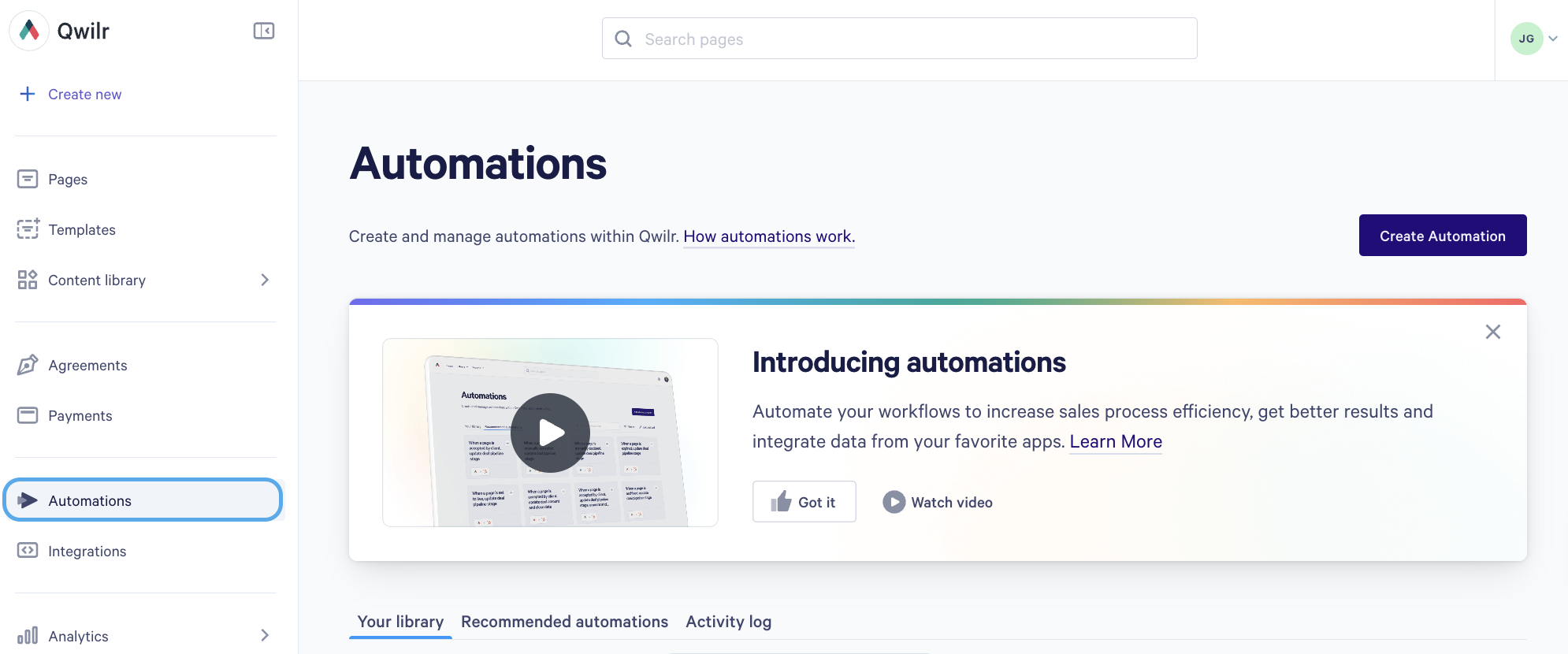
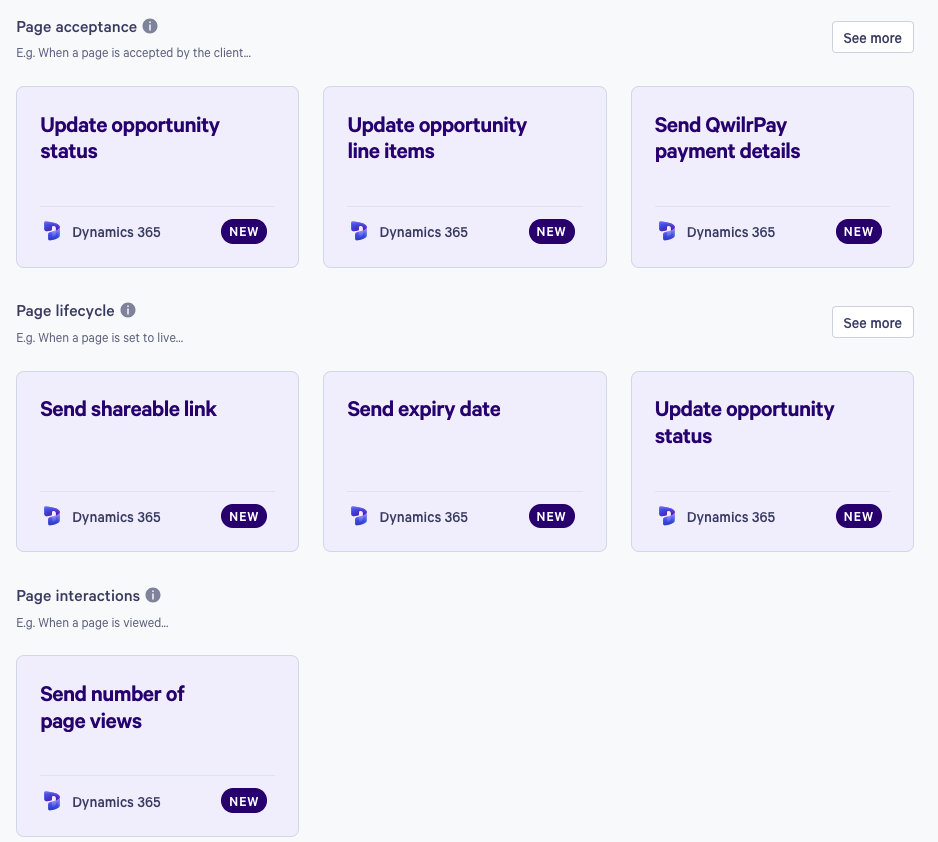
You'll land on a page where you can build your own automation or start from one of our ready-made Recommended Automations. To use a recommended one, click the + in the top-right corner of its card to add it to your library.
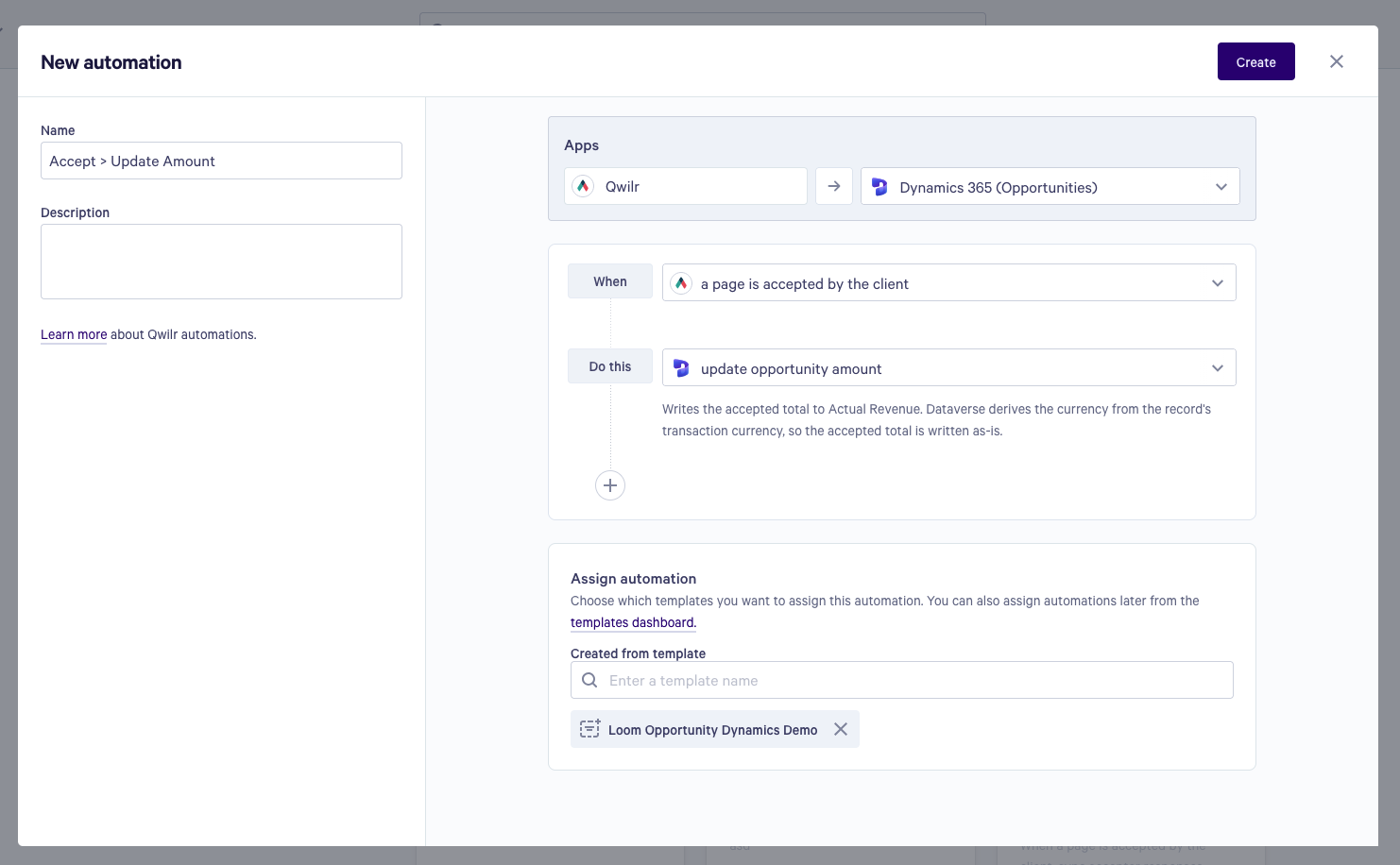
To build one from scratch, each automation has two halves: When, the trigger on your Qwilr page (such as a page being accepted), and Do this, the action in Dynamics (such as updating the Opportunity's stage).
You can add more than one action to a single trigger by clicking the + beneath the first action.
Give the automation a name and a short description in the top left, then click Create. It will appear on your automations dashboard.
Adding Automations to your Templates
An automation only runs on the templates you assign it to. Choose them when you create the automation, or edit it later and update the template list.
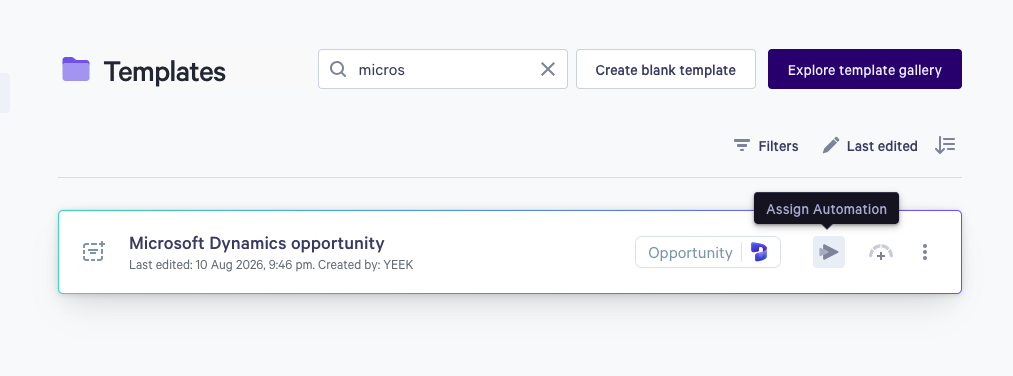
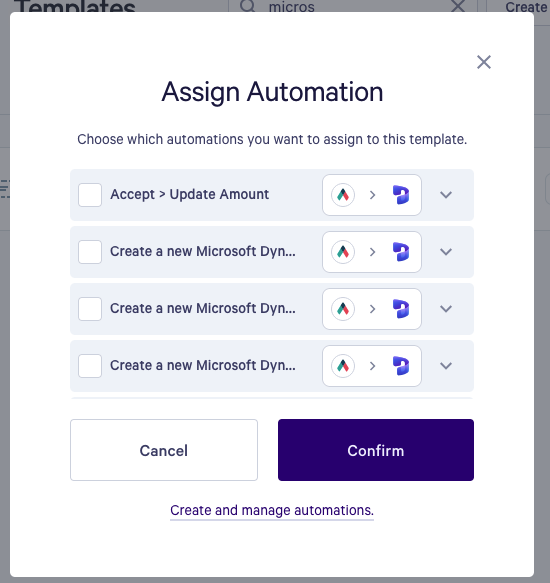
Automations must be toggled on in the automations library before they can be assigned.
Activity log
Every automation run is recorded, so you can check whether it fired and what it changed. Open an automation from the dashboard and view its activity to see each run, the page that triggered it, and the result.
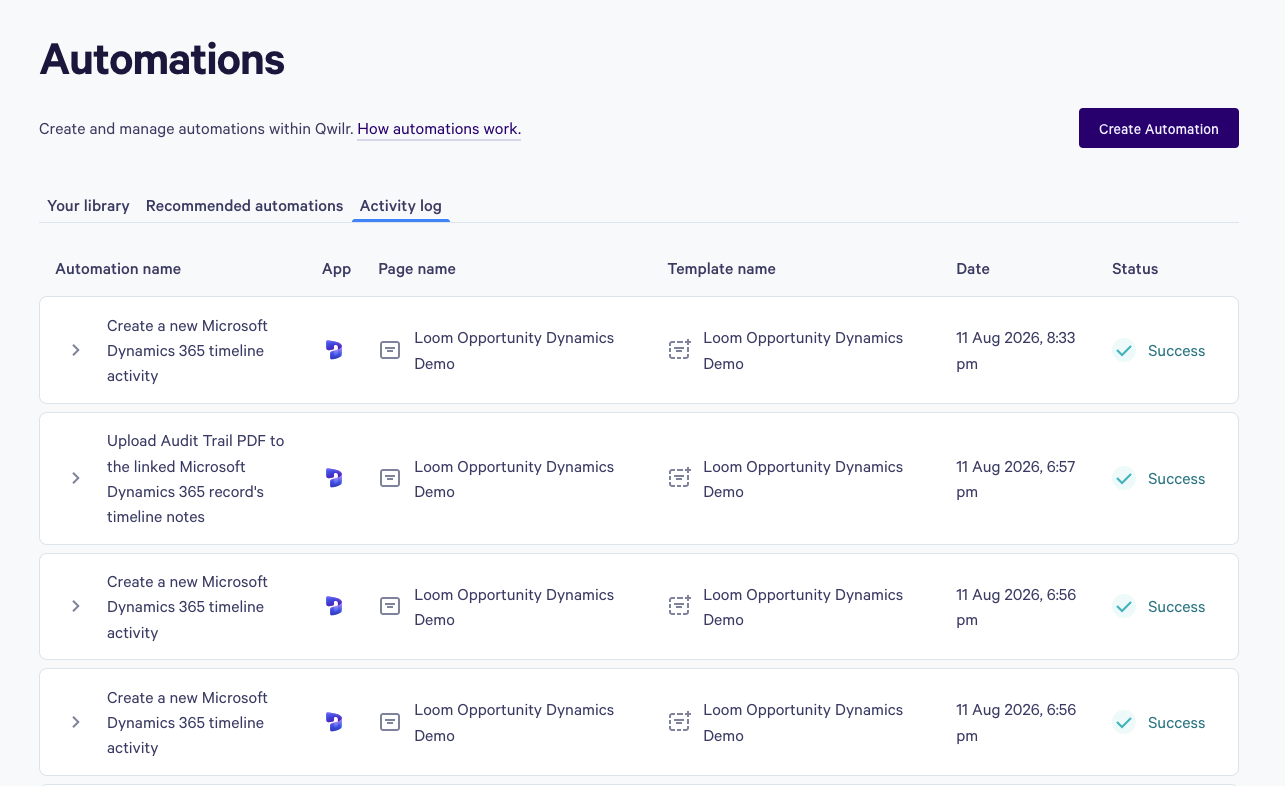
This is the first place to look when a field doesn't update. A run that reports itself as partially complete names the field it skipped.
Troubleshooting
Nothing appears on the timeline
Check that the page is actually linked to a Dynamics record. Pages created from the Qwilr panel on a record are linked automatically. Pages created directly in Qwilr are not, unless you linked one by pasting the Dynamics record URL.
The audit-trail PDF is missing, but the acceptance Task is there
The page was almost certainly accepted from inside Qwilr rather than through the shareable link. See The audit-trail PDF above.
A field is not updating
Automations do not write a value you type in: you map a Qwilr value onto a Dynamics column, and the two have to be the same kind of thing. The mapping is not type-checked when you set it up, so it is possible to build a pairing that fails only when the automation runs.
Most often it is one of these:
- The kinds do not match. Mapping Page Status or a URL onto a number or date column will not work. The other fields still update, and the automation names the one it skipped.
- An amount has cents and the column is a Whole number column. Send amounts to a Currency, Decimal or Floating point column instead.
- The value does not match one of the column's options. These accept only a value matching one of the column's own options, ignoring case. "Yes" will not fill a column whose options are Won and Lost.
- The column cannot be updated by an automation, so it never appears when you pick a target. Status, Status Reason, Autonumber, Lookup, Customer, Owner, Unique identifier, and calculated, rollup or formula columns are readable but never writable.
The Opportunity's stage, estimated revenue, close date and line items each have a dedicated automation that handles the right format for you. Prefer those over a generic field mapping where one exists.
What's Next?
- Microsoft Dynamics 365: Adding Custom Field Variables: choose which columns are available in templates, and see which ones automations can update.
- Microsoft Dynamics 365: Template Creation: build a template that pulls Dynamics data into a page.
If you have any questions, please reach out to us at help@qwilr.com, and we'd be happy to assist.