
Upgrading to HubSpot V2 Guide
We've rebuilt Qwilr's HubSpot integration. This guide walks you through moving across from the legacy integration to the new one.
You can go at your own pace. Your current setup keeps working the whole time, and you upgrade your templates one at a time. There is no cut-over moment where everything has to switch at once.
Note: You must be an Admin user in both Qwilr and HubSpot in order for this process to work.
The guide will walk you through the process:
- Add the new Qwilr card to your HubSpot record layout
- Update the permissions for Qwilr in your HubSpot account
- Enable the new HubSpot integration in your Qwilr account
- Upgrade your templates
- Check if everything works
- Things to look out for
- FAQ
Step 1: Add the new Qwilr card to your HubSpot layout
When the new integration becomes available to your account, two things change in HubSpot.
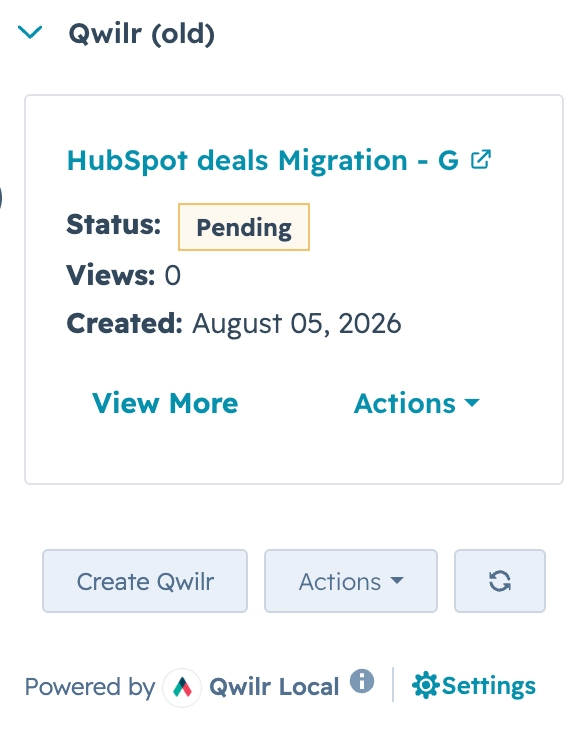
Your existing Qwilr card is renamed Qwilr (old). It keeps working exactly as it did before.
A new card, Qwilr (new), becomes available to add to your record layouts.
To add it, open the record layout editor in HubSpot for the object you use with Qwilr — Deals, for example.
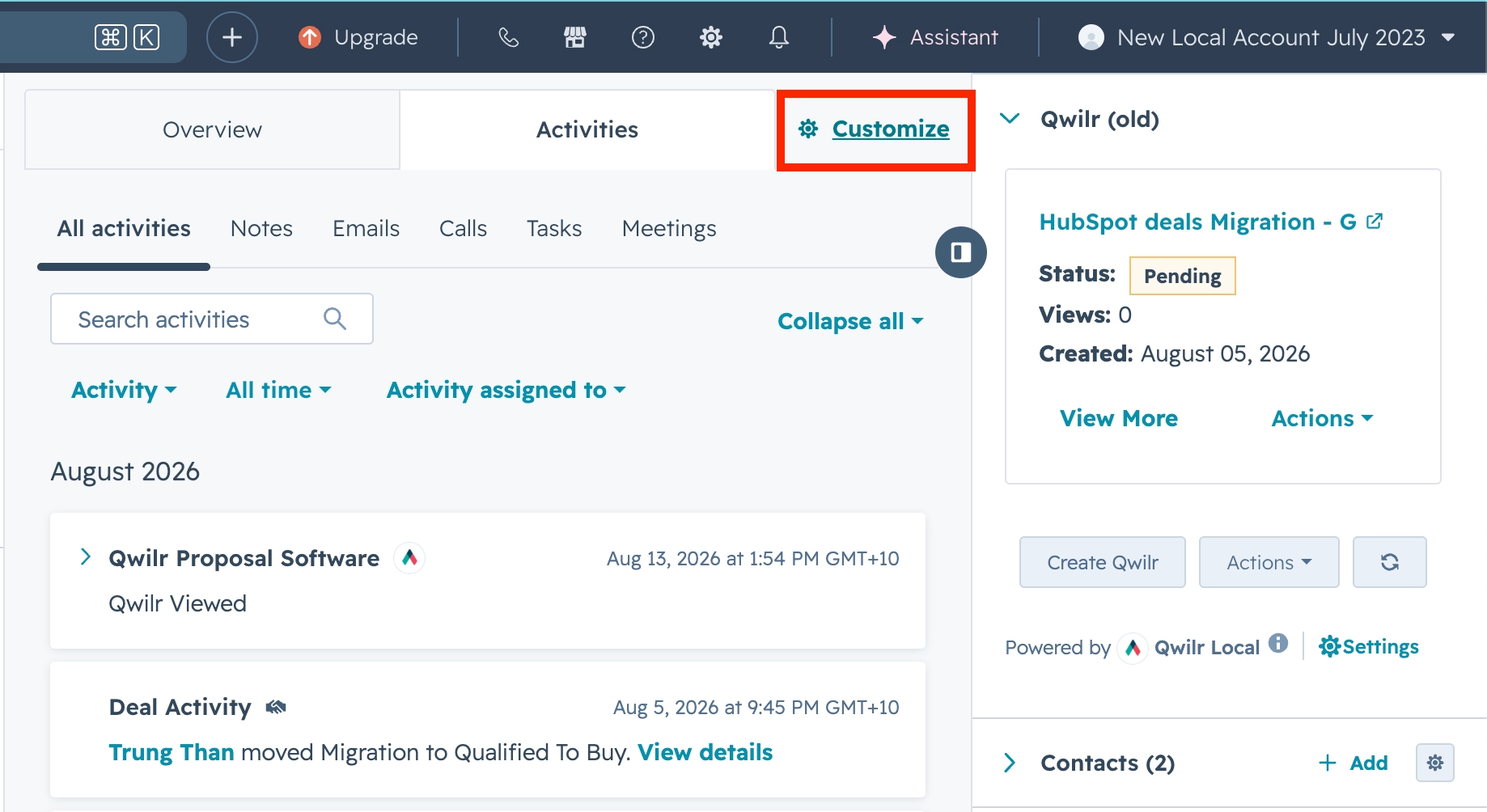
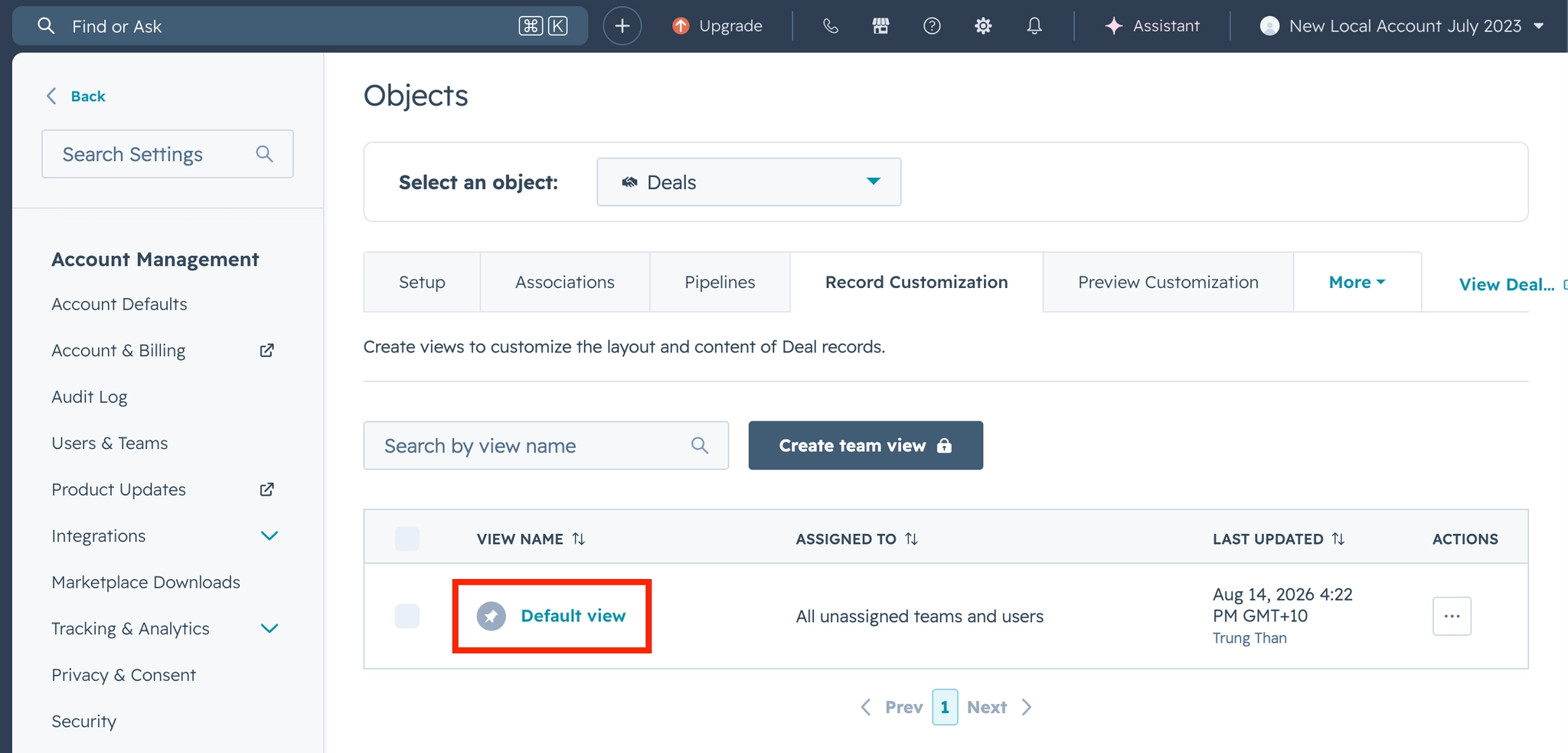
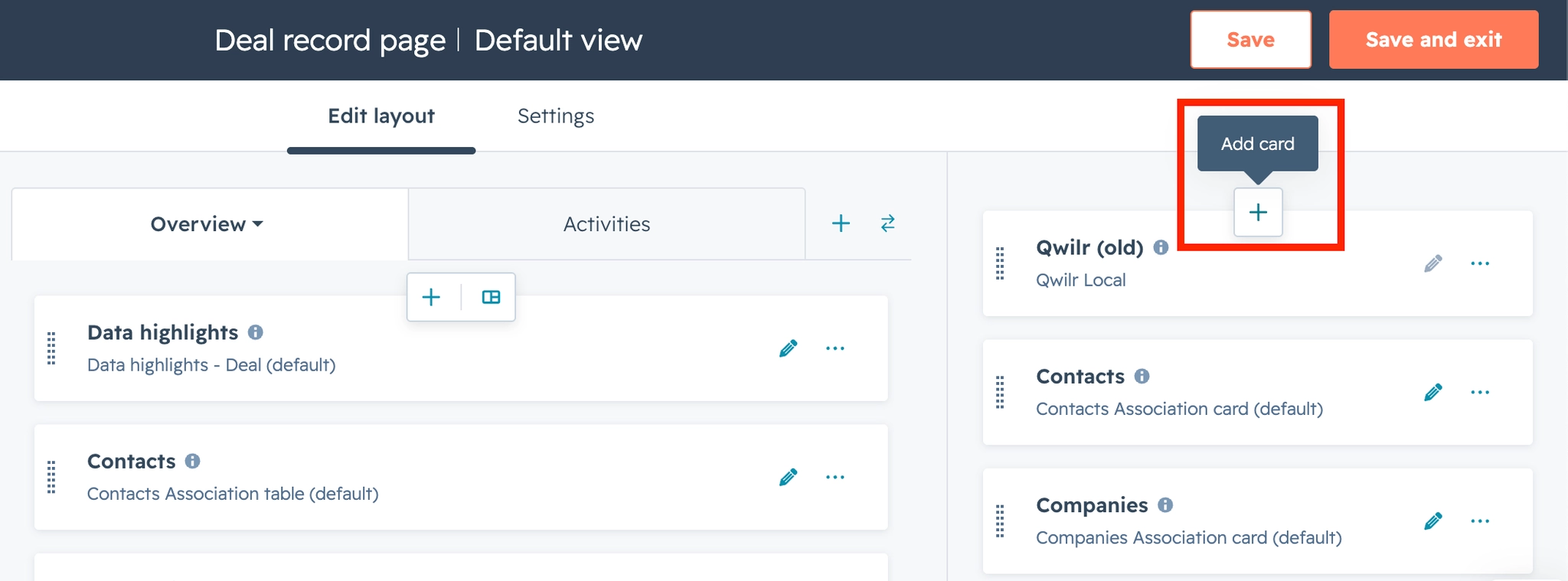
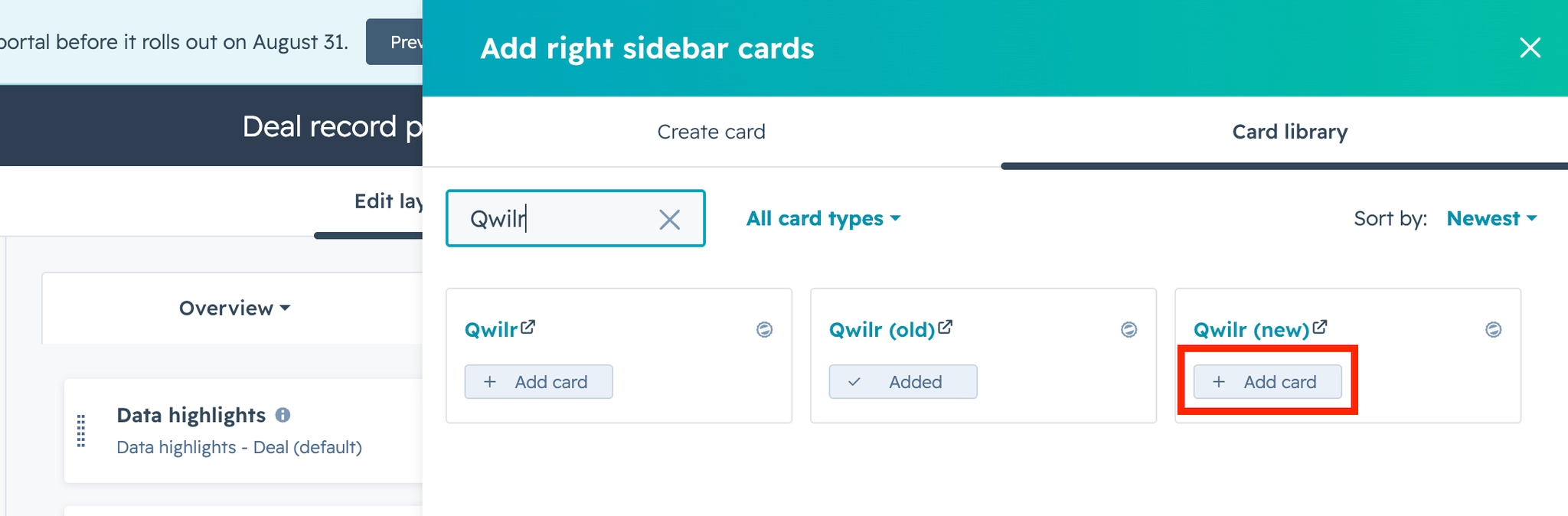
Select the Card library tab and search for qwilr. Find Qwilr (new) and click Add card to add it to the layout.
Click Save and exit to return to the record.
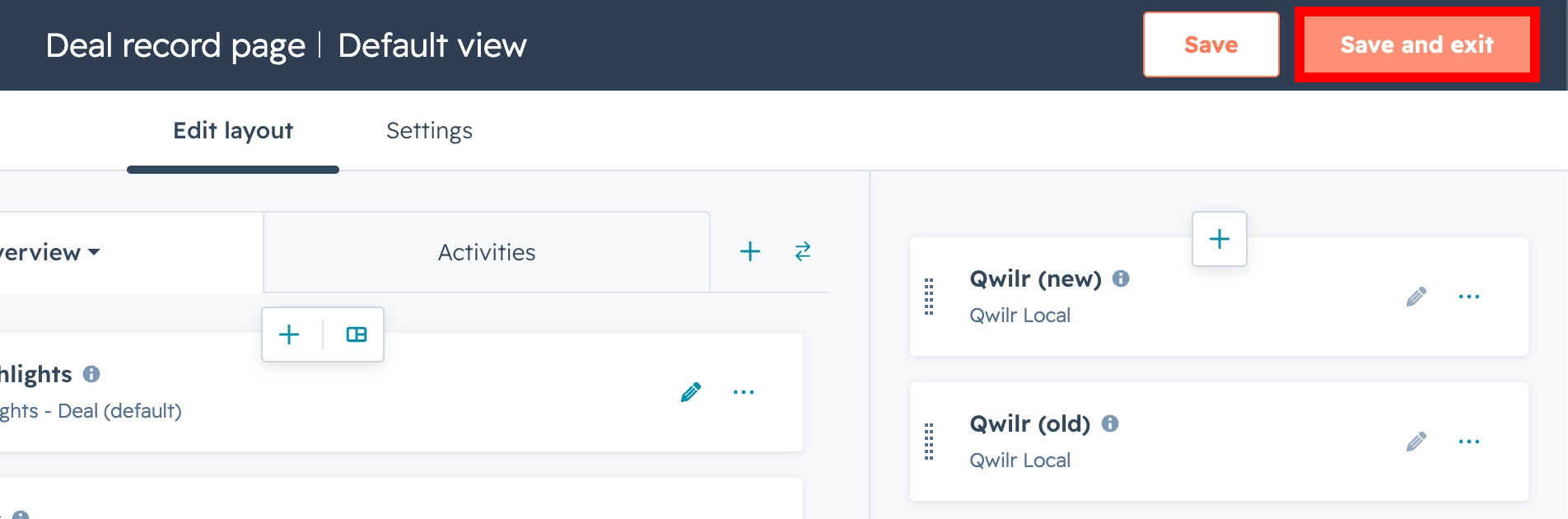
The new card now appears on the record.
Step 2: Update the permissions of the Qwilr application in your HubSpot account
In your HubSpot account it is important to make sure all permissions are available for the Qwilr Integration. There has been an update to the permissions needed for the Qwilr App to access your HubSpot account. Review the following steps, otherwise, you may get the following Couldn't complete the connection error when attempting to connect the new integration.

From HubSpot, go to the settings at the top right of your page.

Next, under Integrations, select Connected Apps.

On the Connected Apps screen, if available click on the Approved apps top on the top, and then select the Manage access button (if it is available).
On the Connected Apps screen, click the Approved apps tab at the top, then select the Manage access button.

Note: If you do not see an option for Approved apps you can skip this step and move to the below Connect the new integration step.
A side panel will open up on the right for the Admin Settings for your Qwilr Proposal Software app in HubSpot. Select the Data Permissions tab.

Under this tab, you will see a list of all permissions tied to the Qwilr Proposal Software app. Please make sure all are toggled on.

If you had to toggle any on, click Save changes at the bottom.
Next, while you're still in this side panel, select the Install Permissions tab. Select Everyone, then click Save changes at the bottom.

This lets every user in your HubSpot account authorise the Qwilr (new) card themselves. Without it, users without admin rights may see a You don't have install access for this app error when they try to connect. This setting only applies to the Qwilr app and won't affect any other apps in your HubSpot account.
Next, you will connect the new integration.
Step 3: Connect the new integration
You can connect from either side, HubSpot or Qwilr. Both do the same thing, so use whichever you have open.
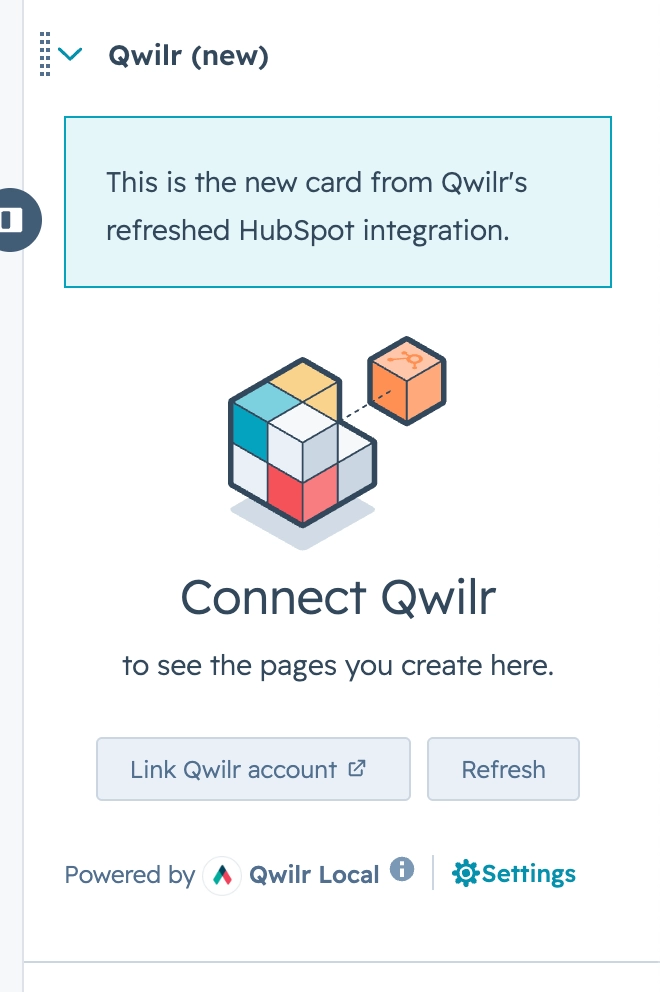
From HubSpot. In the Qwilr (new) card, click Link Qwilr account. A new tab opens where you complete the connection.
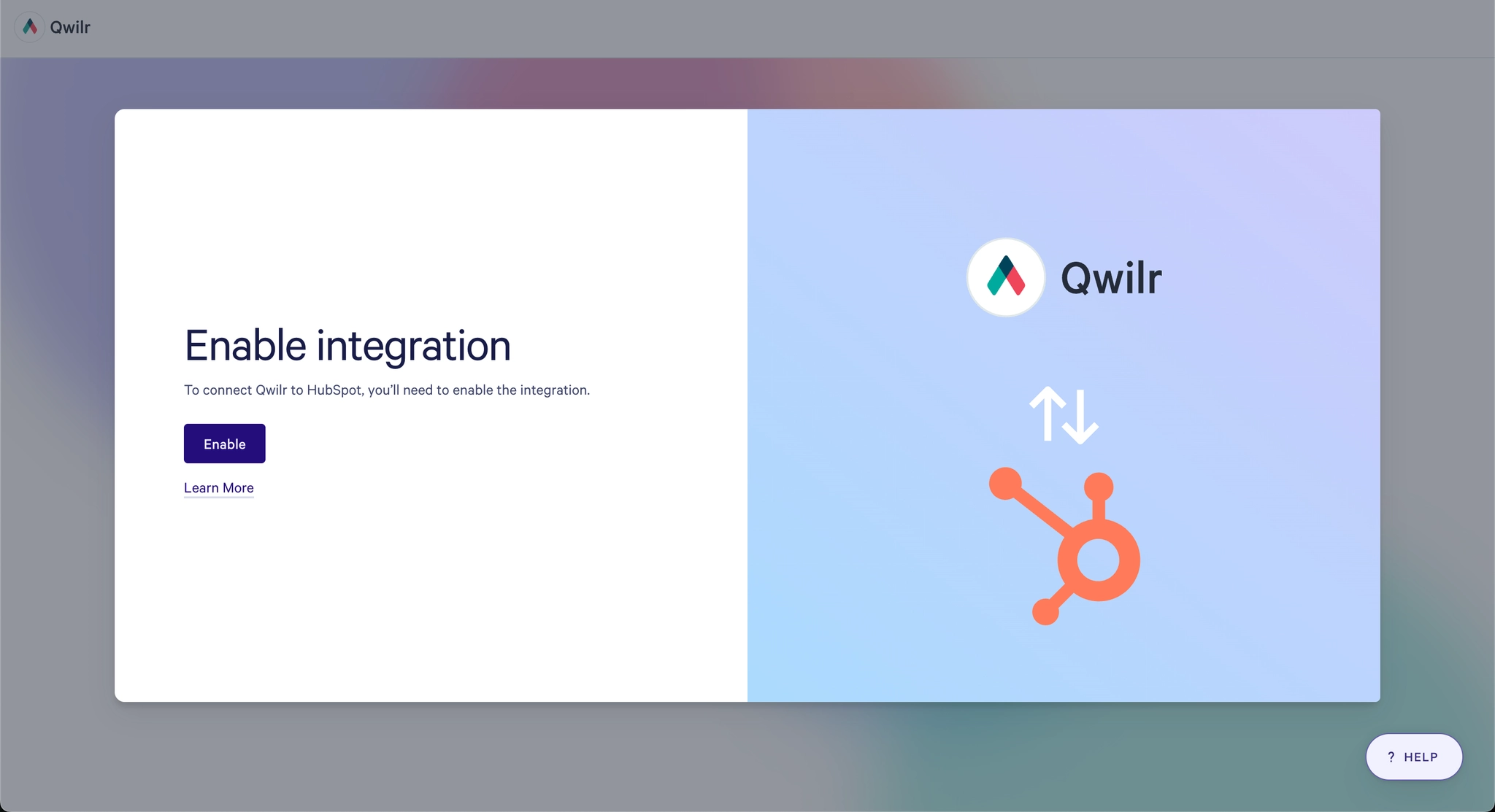
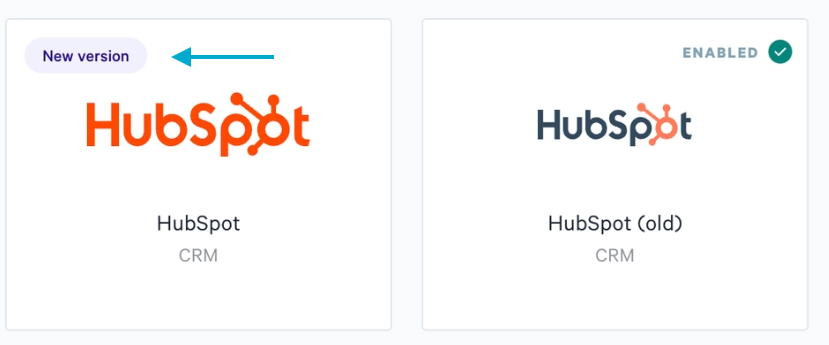
From Qwilr. Go to Integrations on the left sidebar of your Qwilr dashboard, search for HubSpot, and select the tile labelled New version.
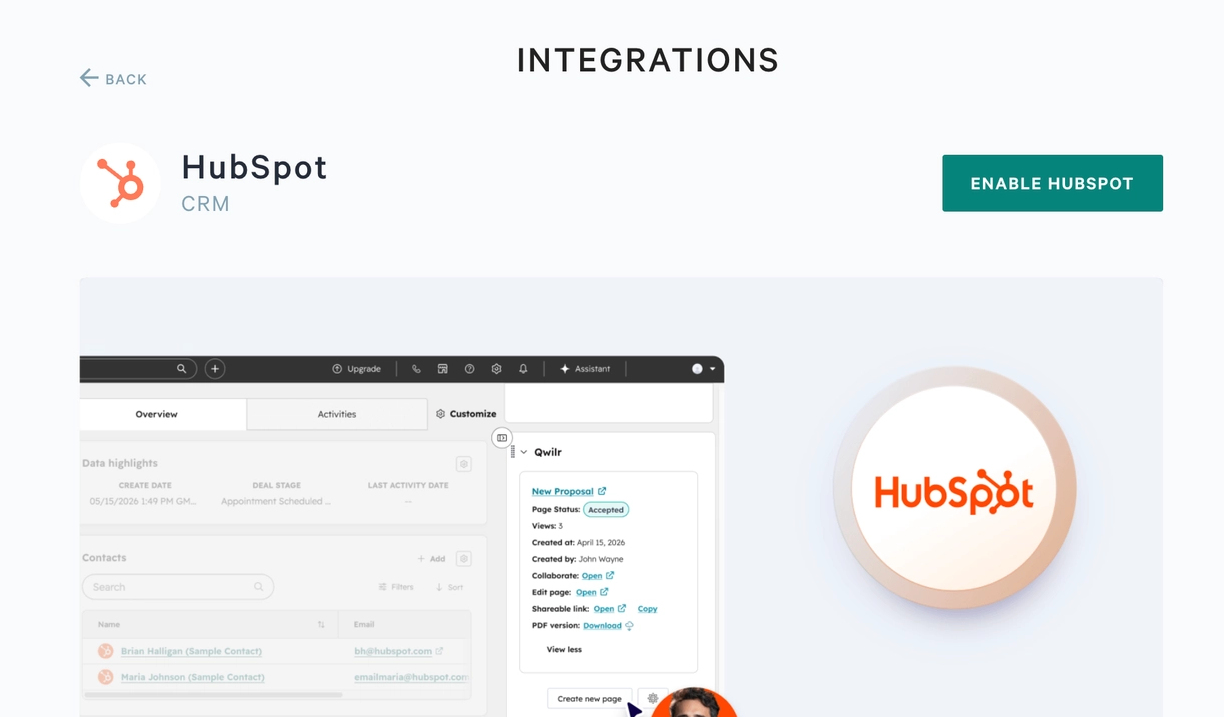
Then click Enable HubSpot.
Once you're connected, return to HubSpot and refresh the record. The Qwilr (new) card now looks like this.
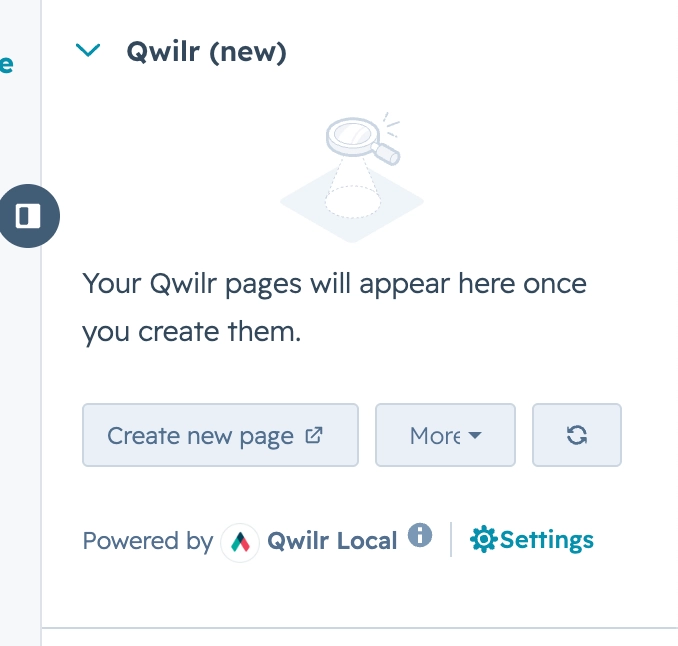
Note for your team: In the new integration, each user connects their own account by clicking Authorise Qwilr in the Qwilr (new) card the first time they use it. This replaces the old requirement that Qwilr and HubSpot email addresses match.
Step 4: Upgrade your templates
You upgrade templates one at a time. Templates you haven't upgraded yet keep working with the old integration, so there's no rush to do them all at once.
Open any of your existing HubSpot templates. You'll see an Upgrade button in a banner at the top of the editor. If you have the template settings sidebar open, the same action appears there instead.
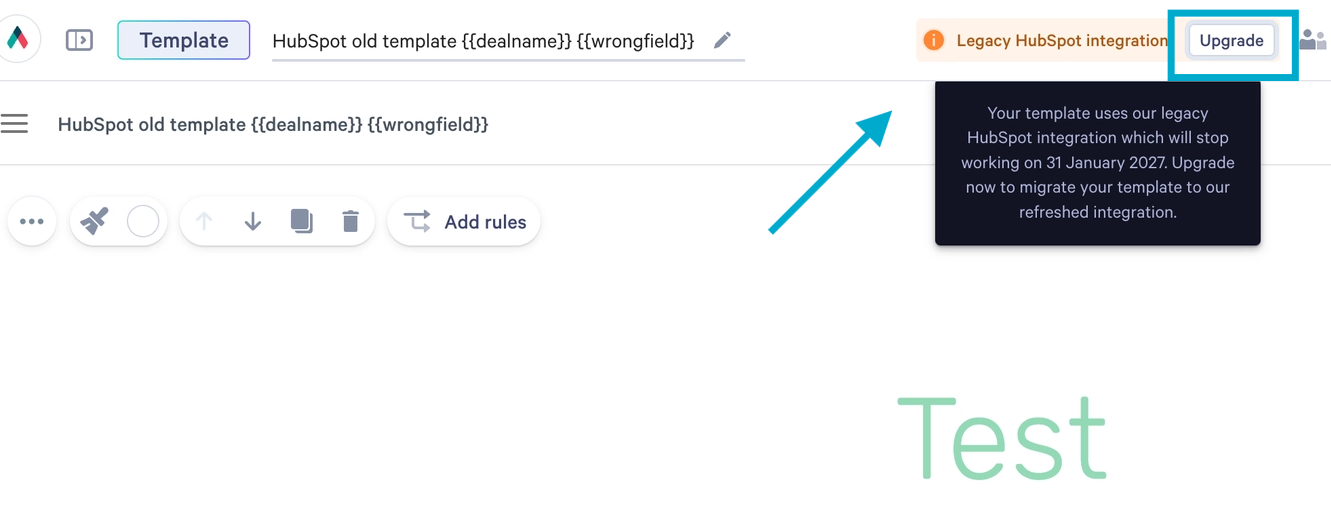
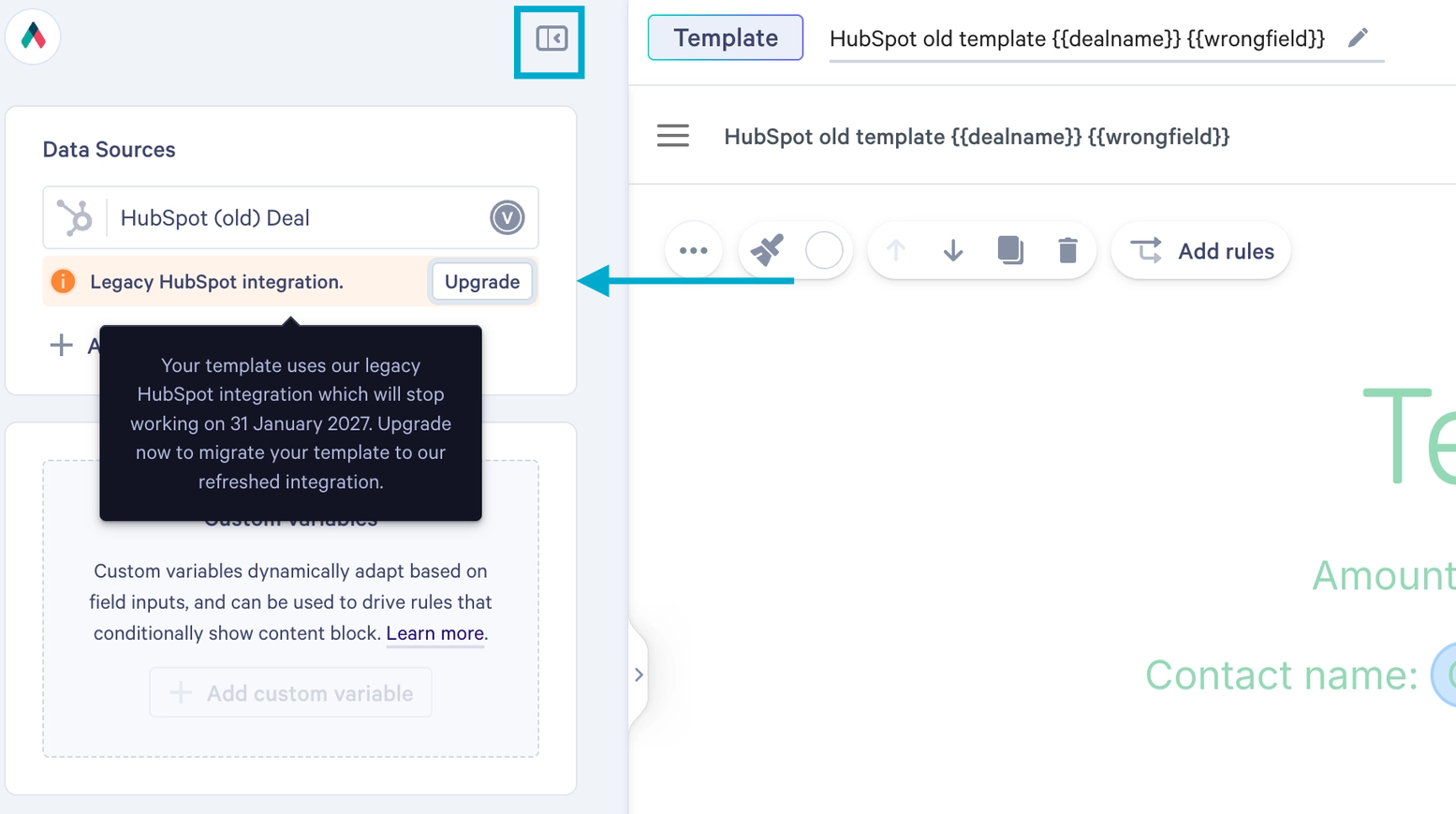
Recommended: duplicate (clone) the template first.
There's no one-click undo for an upgrade. You can move a template back to the old integration by changing its connected integration, but you'd then need to reassign its variables by hand. Keeping a duplicate (by cloning) is the quicker safety net.
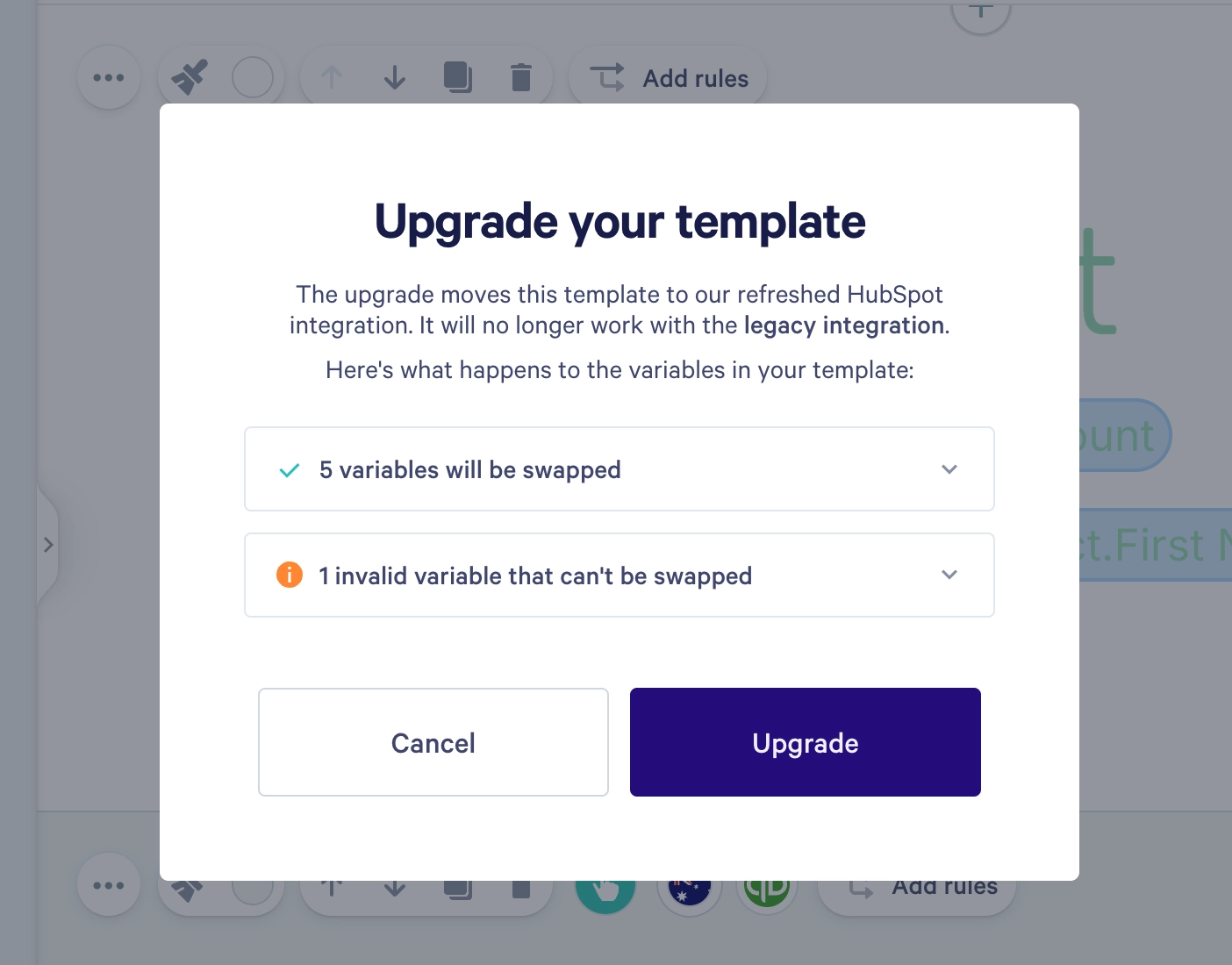
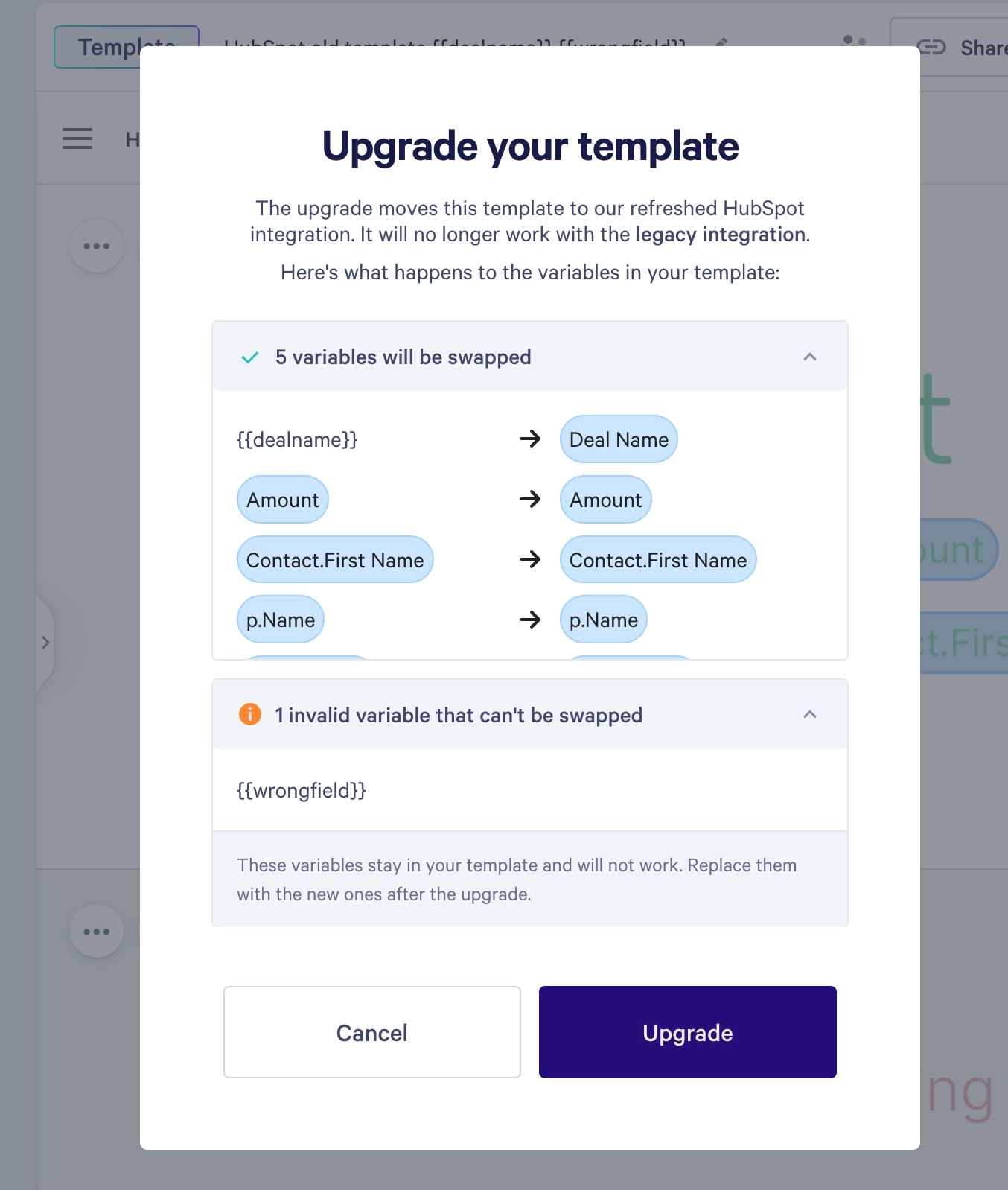
Click Upgrade. Qwilr checks the template and shows you exactly what will change before anything happens:
- Variables that will be upgraded. These are swapped for their new equivalents automatically.
- Variables that can't be upgraded. These stay in your template unchanged. You'll need to replace or remove them yourself after the upgrade. The section What needs your attention below explains why this happens.
Review both lists, then click Upgrade to confirm.
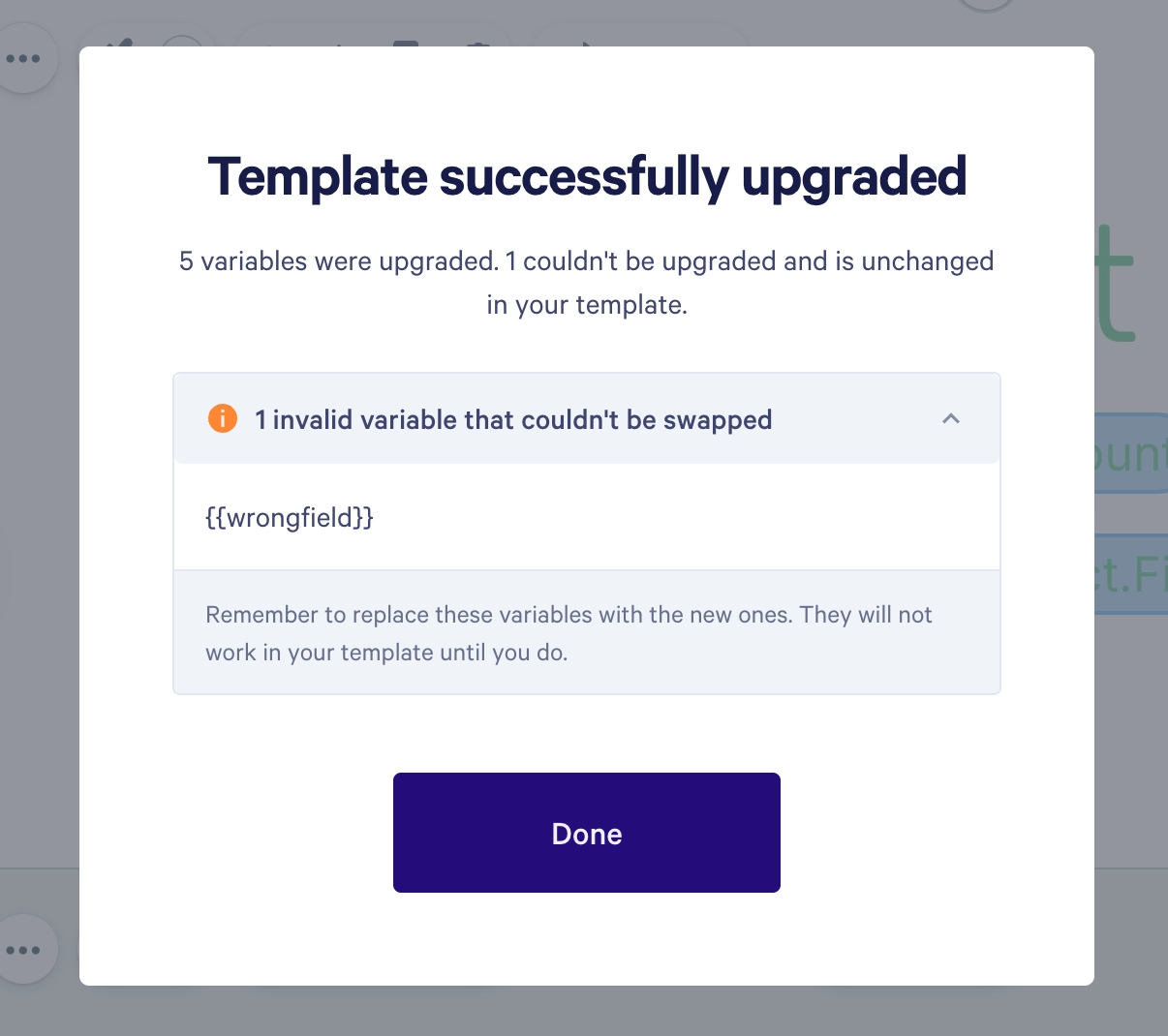
Your template now uses the new integration, and its variables work in the Qwilr (new) card.
Step 5: Check everything works
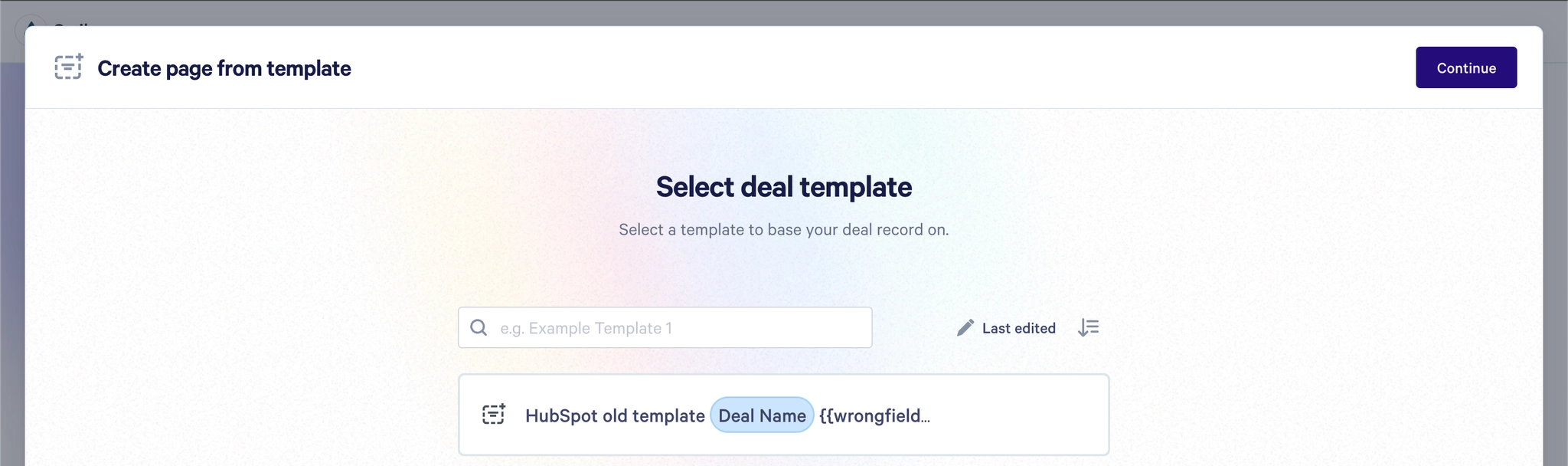
In HubSpot, open the Qwilr (new) card on a record and click Create new page. Your upgraded template appears in the list, ready to use.
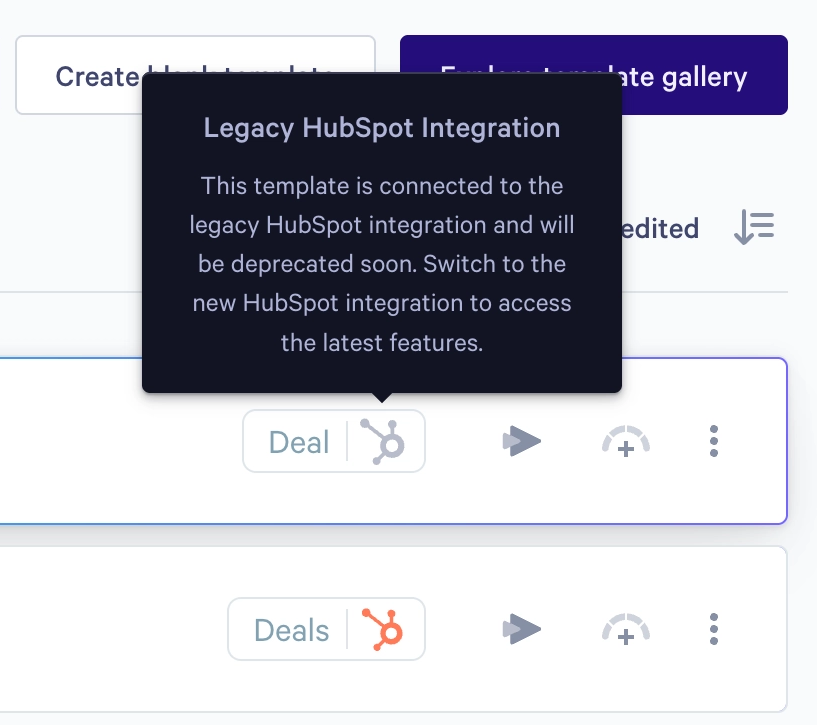
You can also tell them apart in your Qwilr template dashboard. Upgraded templates show a full-color HubSpot icon, and templates still on the old integration show a greyed-out one.
What needs your attention
Most variables move across on their own. A few things are worth checking after you upgrade.
Variables that couldn't be upgraded
The upgrade lists these before you confirm, with a reason for each. The usual causes are:
- The field no longer exists in your HubSpot portal. This is most common with variables typed by hand inside curly braces, such as
{{dealname}}. Because anything can be typed between the braces, a small typo means the variable never matched a real HubSpot field. These often sit in template titles, where they're easy to overlook. - The field belongs to a different object type (for example, Company variable in a Deals template)
These variables stay in your template exactly as they were. Replace each one with its new equivalent, or remove it.
Quote products
If your template has a quote widget using HubSpot line items, the upgrade moves those across too.
Show and hide block logics (for Scale accounts only)
Block logics are upgraded along with everything else. If a logic uses a variable that couldn't be upgraded, that logic is left untouched. It's worth checking these, because logics aren't visible in the body of the template. Though this should almost never happen because the block logics don’t allow curly braces variables
Pages you've already created
Only templates are upgraded. Pages you created earlier from an old template keep working as they are and need no action from you.
FAQ
- When I try to enable the new V2 Integration, I get an error saying 'Couldn't complete the connection'. What should I do?
It's very likely that you have missed Step 2 above. Please follow the instructions in Step 2 and try again.
- Some of my users see "You don't have install access for this app" when they click Authorise Qwilr. How do I fix this?
A HubSpot admin needs to allow everyone to install the Qwilr app. In HubSpot, go to Settings > Integrations > Connected Apps, open the Approved apps tab, and click Manage access next to Qwilr Proposal Software. Select the Install Permissions tab, choose Everyone, and click Save changes. You only need to do this once, and it only affects the Qwilr app.
- I can't see the Upgrade button.
The button only appears for Admin users in Qwilr. Also check that you've opened a template rather than a page.
- Do I have to upgrade everything at once?
No. Upgrade templates one at a time, whenever suits you. Both integrations run side by side, so nothing breaks while some templates are still on the old one.
- Can I undo an upgrade?
There's no one-click undo. You can move a template back to the old integration by changing its connected integration, but you'd then need to reassign its variables manually. Duplicating by cloning a template before you upgrade it is the easier way to keep a fallback.
- Do my existing pages stop working?
No. Pages already created from your templates are unaffected.
- What happen to the automations that are assigned to the template?
Automations will continue to run for old pages created from the template as well as future pages
- Do I need to add my variables again in settings?
No. Qwilr creates the matching new variables for you, so your variable list should already be populated when you upgrade.
- Will I lose my pages previously created with the v1 integration in HubSpot?
No, all pages created with V1 will also be shown in the V2 app card (Qwilr New) so there is no loss of records of Qwilr pages.
- When should I disable the v1 integration in Qwilr?
Once you've successfully added the new card, enabled the v2 integration and migrated any templates you use, you can disable the HubSpot (old) integration in your account settings. Any unused v1 templates can be deleted.
If you have any questions, please reach out to Qwilr Support at help@qwilr.com