
Exporting your Qwilr data
Download your Pages and People data as a CSV and work with it wherever you like
Data export lets you take your Page and User data out of Qwilr as a CSV file. From there, dig into it in a spreadsheet, load it into a reporting tool, join it to your CRM data, or hand it to an AI assistant to analyze. There are two reports to choose from, and both are emailed to you as an attachment.
Note: Data export is available to Account Admins only. If you're a Creator, you won't see the export options, so ask an Admin on your Account to run the export for you.
How far back your analytics go depends on your plan - Starter Accounts see 1 year, Growth Accounts see 2 years, and Scale Accounts see 5 years. Pages older than that still appear in your export, but their analytics columns will be blank.
In this article:
- Running an export
- Getting your file
- What's in the Pages report
- What's in the People and teams report
- Good to know
- Frequently Asked Questions
Running an export
You can start an export from two places in Qwilr.
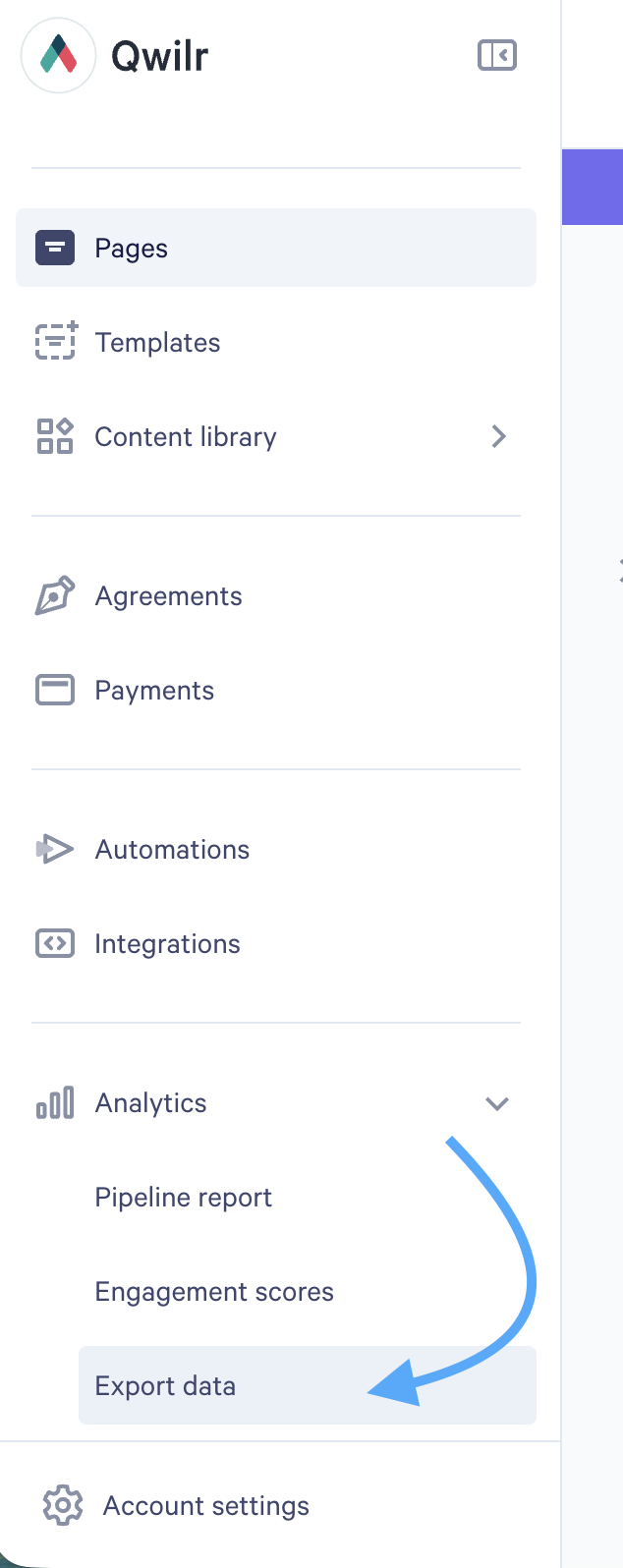
Step 1. Head to Analytics > Export data on the left-hand sidebar of your dashboard.
You can also click the Export data button in the toolbar of your Pages dashboard.
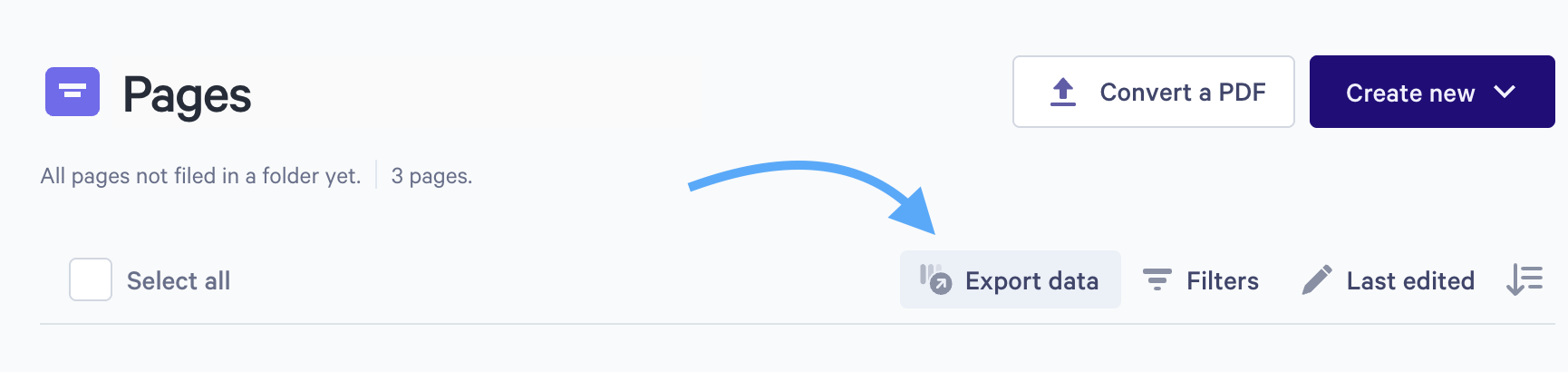
Note: If you open the export window from inside a folder, that folder is pre-selected as the boundary for your export.
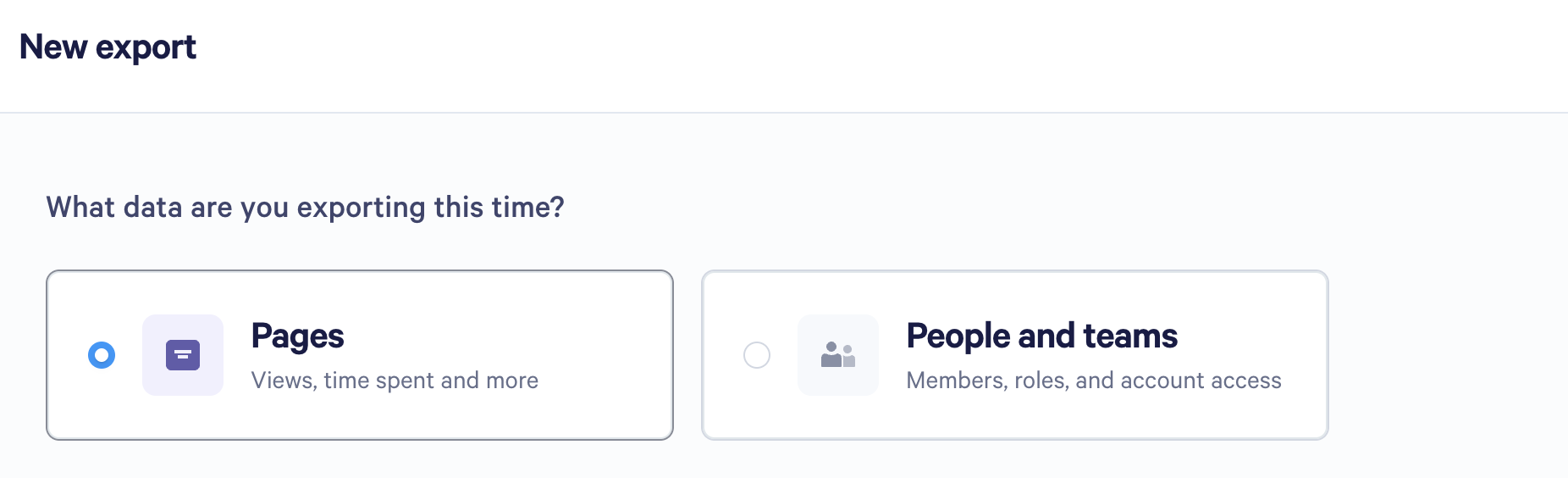
Step 2. Choose what you're exporting: Pages, or People and teams.
Step 3. For a Pages export, choose where to export from. Select Entire account, or pick A specific folder from the drop-down.
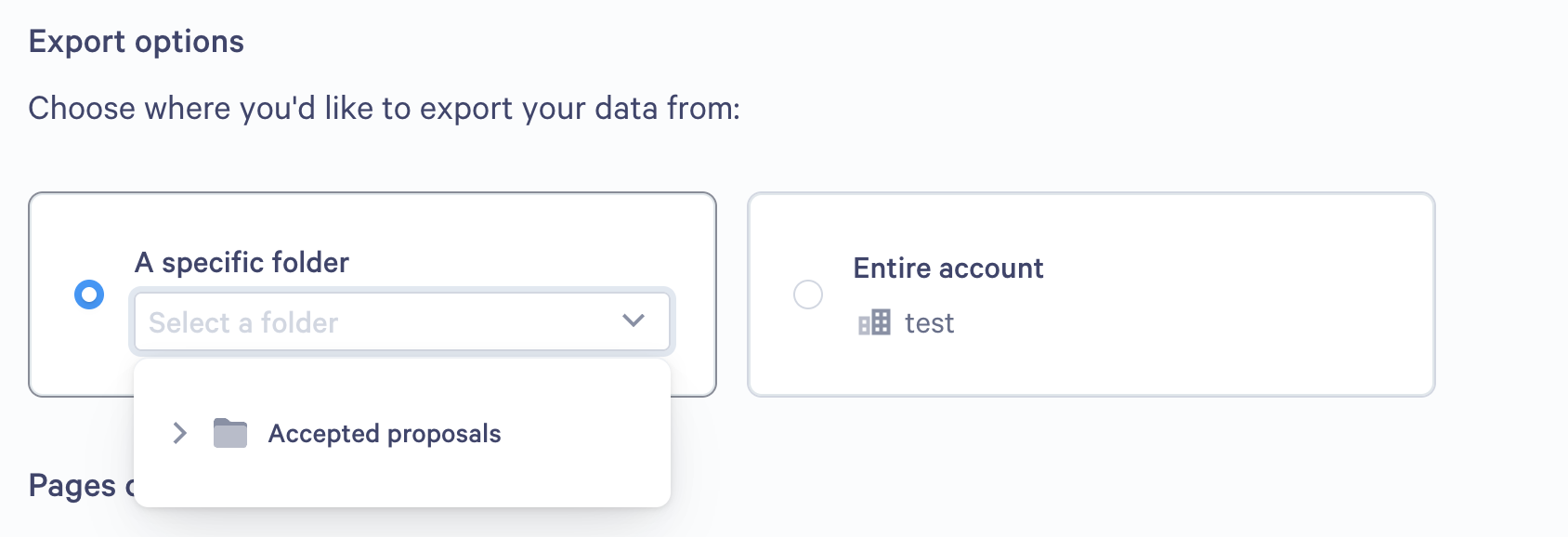
Note: A folder export covers the folder you select and every folder nested inside it, at every level.
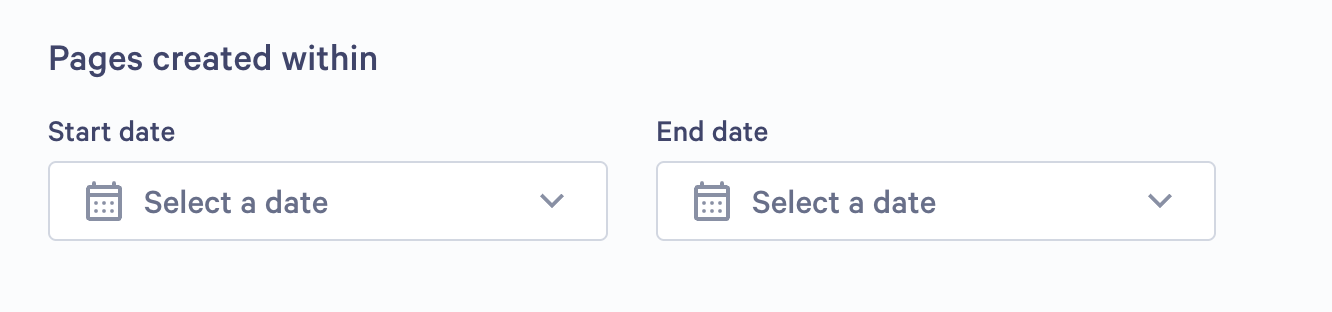
Step 4. Choose a date range under Pages created within. This filters your export by the date each Page was created. Pick both a start date and an end date to control the range of your data export.
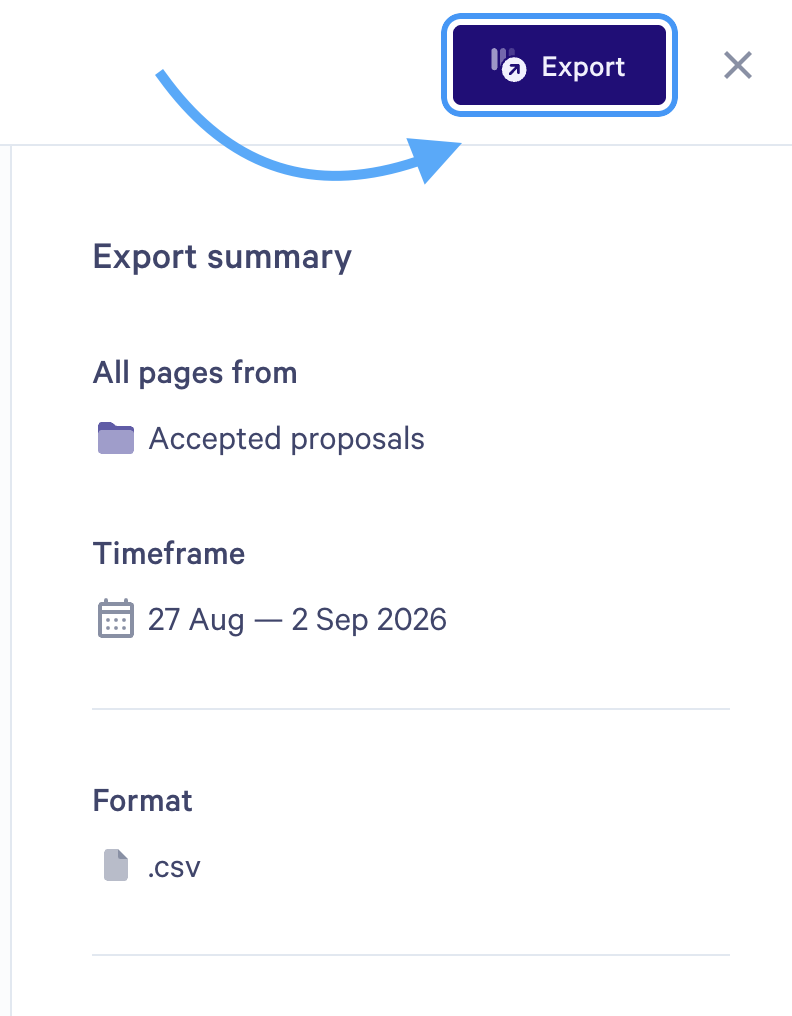
Step 5. Check the Export summary panel on the right. It shows what you're exporting, the timeframe, the file format, and the groups of data your file will include.
Step 6. Click Export.
Getting your file
Your export is put together in the background and emailed to you as a CSV attachment. Nothing downloads in the app, so keep an eye on your inbox instead. Larger accounts take a little longer, but most exports arrive within a few minutes.
A few things worth knowing:
- The email goes only to you, the person who requested the export. Other Admins on the Account won't receive a copy.
- You can request each report type once per hour. The two reports count separately, and Qwilr shows you when each one is next available.
- There's no export history yet, so if you lose the email, just run the export again.
What's in the Pages report
One row for every Page in your Account, covering Page details, sharing settings, value and acceptance, and Page analytics. Use it to answer questions like:
- Which templates get used the most, and which ones win?
- How long do buyers spend on our proposals before they accept?
- What's still sitting in Draft, and who owns it?
Every Pages export includes all of the columns below.
Page details
- Page name - the Page title
- Page ID - Qwilr's unique ID for the Page, handy for matching rows to other exports
- Status - Draft, Configure, Live, Disabled, Accepted or Declined
- Owner - the current owner, shown as First Last and their email
- Team - the Teams the Page owner belongs to
- Folder - the name of the folder the Page sits in
- Created date - when the Page was created
- Creation source - how the Page was created, for example in the editor or through the API
- Last edited date and Last edited by - the most recent edit, and who made it
- Published date - when the Page first went live
- Tags - any tags you've added to the Page
- Is template, Is archived and Is starred - true or false
- Template created from - the ID of the template the Page was built from
Content and CRM
- Has quote and Has accept - whether the Page includes a Quote Block or an Accept Block
- Payments enabled - whether the Page can take a payment
- CRM name and CRM record ID - the connected CRM, and the record the Page is linked to
Sharing and security
- Public/shareable URL - the link your buyer opens
- Collaborator URL - the collaborator link
- PDF download URL - the PDF version of the public Page
- Audit PDF URL - the audit trail PDF for an accepted Page
- Password protected - whether any share link has a password
- View limit enabled and Link expiry enabled - whether any share link has limits set
Value and acceptance
- Currency - the Page's currency
- Page value and Manual page value - the Page's value, and any value you've entered by hand
- Acceptance status - Accepted, or Manually accepted
- Accepted total - the accepted total, including taxes
- Accepter name/email - everyone who accepted, oldest first
Page analytics
- Total views - views within the analytics period
- Mobile views - total mobile views within the analytics period
- Desktop views - total desktop/laptop views within the analytics period
- Other views - total views from devices like wearables and other unidentifiable devices
- Most recent view date - the last time someone opened the Page
- Average time on page (seconds) - the average length of a view
- Total interactions - buyer interactions, such as opening an accordion, changing a quote, or clicking a button
- Outbound link clicks - clicks on links out of the Page. These are also counted in Total interactions
- Engagement level - highly engaged, engaged, neutral, disengaged or highly disengaged
- Engagement last calculated - when the engagement score was last worked out
Note: Every date in your export is in UTC, using the format 2026-09-01T04:30:00Z.
What's in the People and teams report
One row for every User in your Account, covering roles, Teams and activity. Use it to answer questions like:
- Who's actively using Qwilr, and how often?
- Are we making the most of our seats?
- Which Teams are creating the most Pages?
Every People and teams export includes all of the columns below.
- First Name, Last Name and Email - the User's details
- Role(s) - Admin or Creator
- Team(s) - the Teams the User belongs to
- Date Added - when the User was added to your Account
- Pages owned count - how many Pages the User owns right now
- Last page created at - when the User last created a Page
- Last block created at - when the User last created a block
- Last session - the last time the User opened Qwilr
- Last login - the last time the User logged in
- Session count - how many times the User has opened Qwilr
Good to know
This is the first release of data export, and we've kept it deliberately simple. Here's what to keep in mind as you read your data.
The Pages report includes up to 1,000 Pages. If your Account or folder holds more than that, you'll get the 1,000 most recently created Pages. To work around the 1,000-Page limit, export your Pages one folder at a time, or narrow your date range.
Page analytics data starts on 1 February 2024. Anything created before that date has no view or interaction data at all.
How far back your analytics go depends on your plan. Starter Accounts see 1 year, Growth Accounts see 2 years, and Scale Accounts see 5 years. Older Pages still appear in your export, but their analytics columns will be empty.
Your date range and your analytics window are two different things. The date range decides which Pages appear in the file, based on when each one was created. It doesn't change the period your analytics numbers cover.
An empty cell isn't the same as a zero. A blank analytics cell means we have no record for that Page. A genuine zero shows as 0.
Owner means owner, not author. If a Page has been transferred, your export shows whoever owns it now. The same applies to Pages owned count in the People and teams report.
Team shows the Page owner's Teams, rather than a Team the Page itself belongs to.
Folder shows the folder name only, not the full path, and it reflects where the Page sits today.
Creation source is empty for older Pages. We started recording it on 19 March 2026, and there's no backfill, so an empty cell doesn't mean the Page was made in the editor.
Last session and Last login start from late August 2026. Anyone who hasn't opened Qwilr since then will have empty cells. Session count is also less complete before that date.
Payments enabled is false for Pages created before 31 January 2025, which pre-date payment settings.
PDF download URL and Audit PDF URL aren't guaranteed to work. A PDF URL is included for every Page, but Draft and expired Pages can't produce one. Audit PDF URL is often empty, including for some manually accepted Pages.
Email attachments are capped at 15 MB.
Frequently Asked Questions
My export only has 1,000 rows. Where's the rest?
The Pages report is limited to 1,000 Pages in this release, taken from the most recently created. Try exporting one folder at a time, or splitting your export into shorter date ranges.
Can I choose which columns to include?
Not yet. Every export includes the full set of columns listed above.
Can I schedule an export, or send it to someone else?
Neither is supported today. Exports are sent to the person who requested them, at the time they request them.
Why can't I run the same export again?
Each report type can be requested once per hour, per person, and Qwilr shows you when your next export will be available. The Pages and People and teams reports count separately, so you can run one while you're waiting on the other.
I'm not an Admin and I can't see the export option.
That's expected, as data export is available to Account Admins only. Ask an Admin on your Account to run it for you.
Why don't the numbers match my Page Analytics view?
The two most common reasons are your analytics period, since the export uses your plan's full window, and the 1,000-Page limit. If something still looks off, get in touch and we'll take a look.
Got questions? Reach out to the team at help@qwilr.com