
Setting Tax Rates (Beta)
Customizing tax options for your quotes
In Qwilr, you can store a library of country, state, and local taxes. Then you can choose which taxes to apply to each quote you create.
In this article:
- Adding and editing taxes
- Deleting taxes from your library
- Exempting an item from taxes
- Showing the quote total with/without taxes
Adding and editing taxes
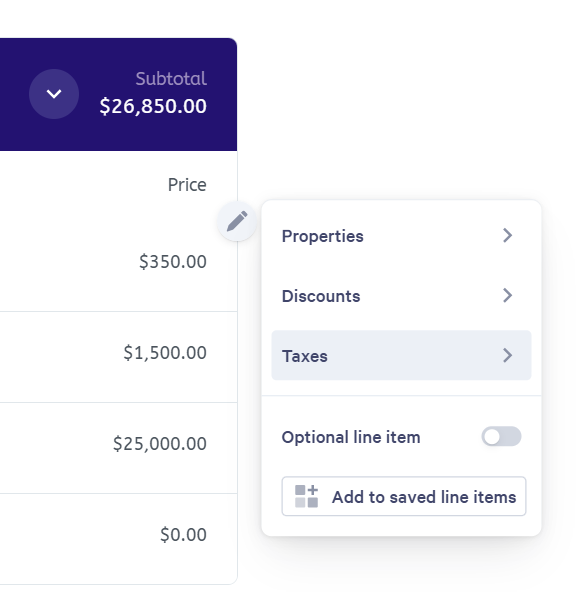
Step 1. You can access taxes for individual line items, plan cards, and total widgets across your Qwilr pages and templates. Click on the pencil icon to the right of one of these options and then select the taxes option.
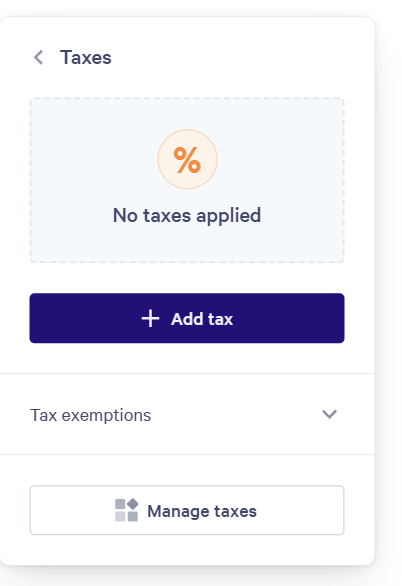
Step 2. Here you'll see if any existing taxes are applied, the ability to Add tax, the ability to mark a line to have Tax exemptions and the Manage taxes button.
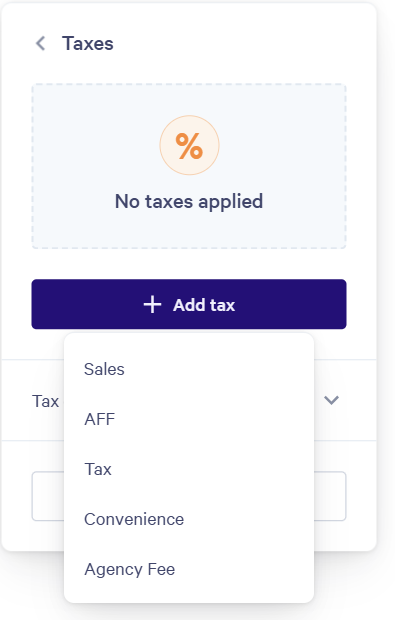
Step 3. Clicking Add tax will bring up a list of your existing tax options where you can add one or more to a line item, plan card, or total widget.
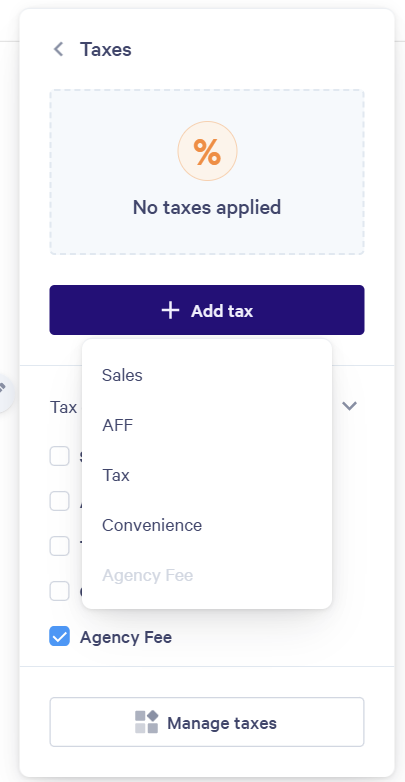
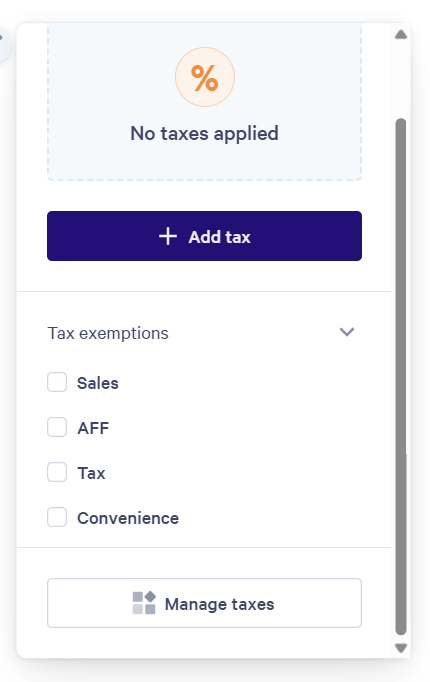
Step 4. Click on Tax exemptions allows you to check individual taxes to prevent a tax item from being an option to add. In the image below, you can see that we have checked the Agency Fee as a tax exemption, so when we return to Add tax it is grayed out. This is especially useful for templates with Quote widgets in them to prevent users from adding taxes or fees on individual pages created from the template that shouldn't be applied.
Step 5. Click on Manage taxes allows you to access the full tax library for the account. Here it will show each tax by name and what percentage is applied to it. You can Add tax here to add new taxes to your account.
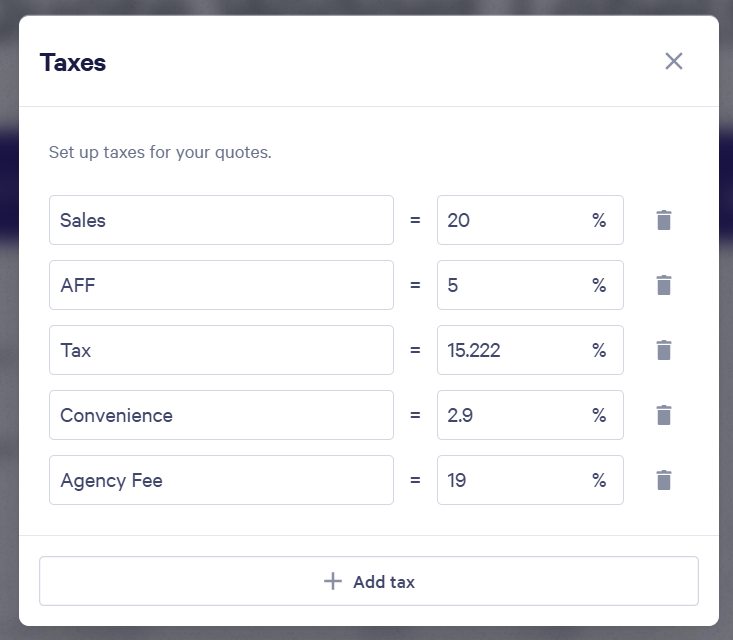
Note: Updating tax fees or deleted tax items here will affect ALL PAGES across the WHOLE ACCOUNT. Be cautious when updating or removing tax options here.
Deleting taxes from your library
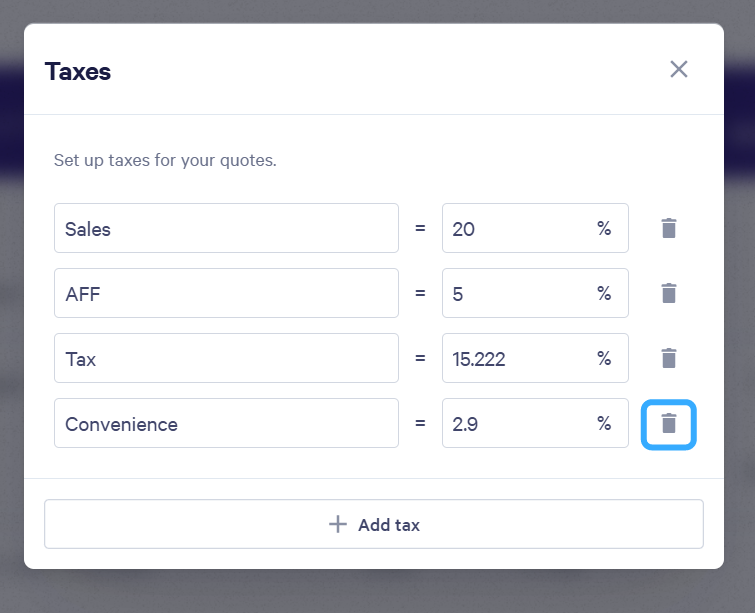
Within your tax library, click on the trash can icon to delete a tax item. Note: This will delete the tax line item for the WHOLE account and cannot be undone.
Exempting an item from taxes
Tax exemptions allow you to set a line item, plan card, or total widget cannot have that tax line item added to it. Under the Tax exemptions section in Taxes check the items that you want to make sure are not able to be added to a line item. This is particularly useful at the template level to set certain guidelines by default in case an item may or may not have certain taxes added to it.
Showing the quote total with/without taxes
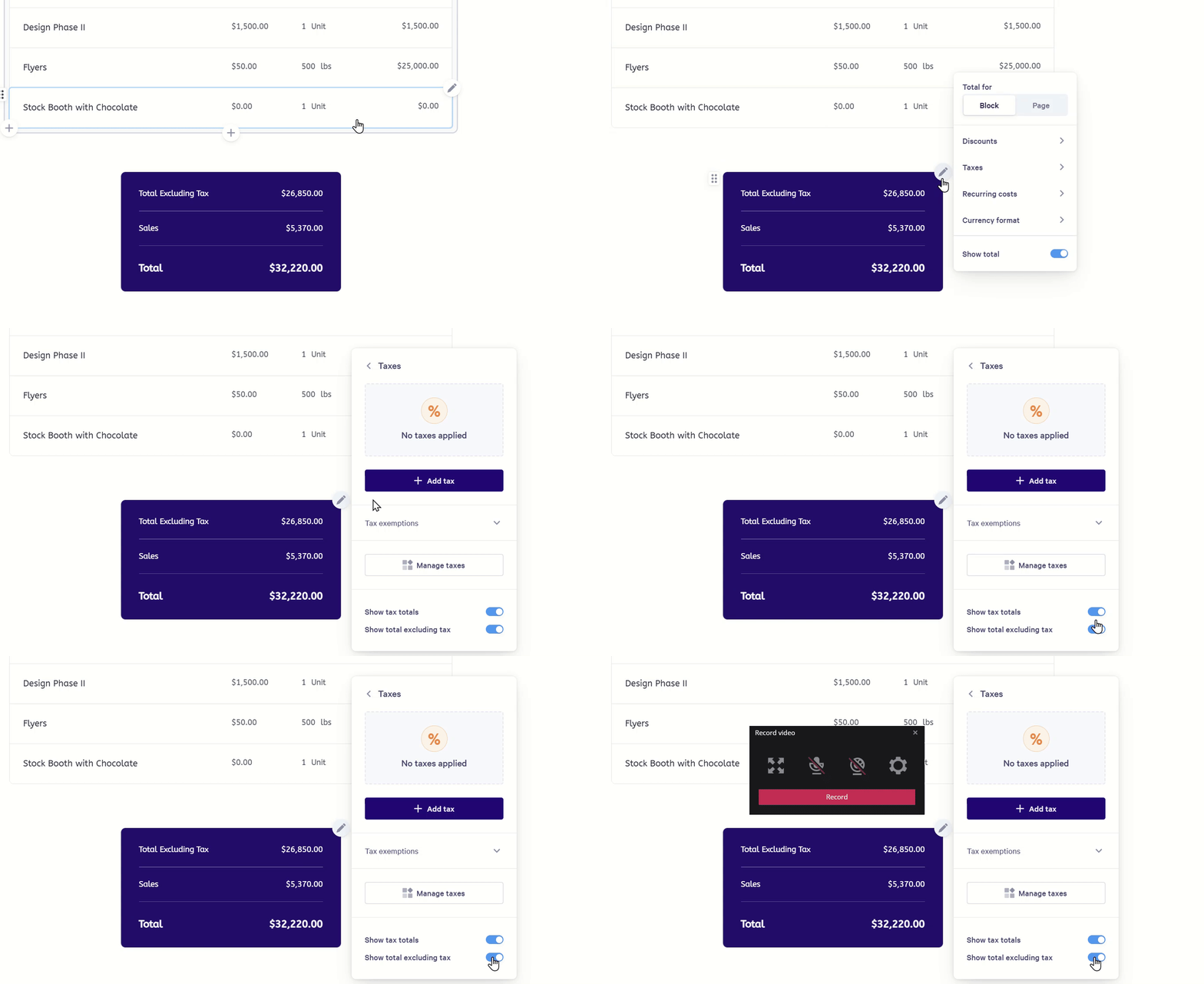
Once you've applied taxes to a quote, you can change how the quote total widget displays these taxes. Click on the pencil icon to the top right corner of the Quote total widget and select Taxes.
You will still have the option to Add tax, mark Tax exemptions, and Manage taxes at this layer, but you will also have:
- Show tax totals: which will include the dollar value of the individual tax line items you've added to the quote.
- Show total excluding tax: which will show the pre-tax total of quote items included in that total widget.
Got questions? Our Support Team is here for you at help@qwilr.com.