
Smart Proposal Engine - personalized proposals in minutes
Smart Proposal Engine
Build personalized proposals in minutes without editing the document yourself.
The Smart Proposal Engine lets your team create tailored proposals at scale, using a guided workflow that builds the right proposal around each deal automatically. It combines the Configuration Panel, Variables, Conditional Content, and AI Prefill into one seamless creation flow.
Note: This feature is available on the Scale plan only.
Pages created using the Smart Proposal Engine count toward your Credits if Conditional Content or AI Prefill is used. Using Custom Variables alone does not use any Credits.
In this article:
- How the Smart Proposal Engine works
- The two roles: Optimizer and Seller
- Setting up the Configuration Panel (Optimizer)
- Adding Data Sources
- Creating Variables
- Setting up Conditional Content*
- Using Rules Widgets*
- Enabling AI Prefill
- Creating a Page as a Seller
- FAQs
*links to a separate article
How the Smart Proposal Engine works
When a seller creates a page from a Smart Proposal template, they don't open a blank document and start editing. Instead, they go through a short guided form (the Configuration Panel) and the proposal builds itself around their answers.

Here's the flow at a glance:
- An Optimizer (RevOps, Sales Ops, or a sales leader) builds the Configuration Panel inside a template, defining the fields, data sources, variables, and rules.
- A Seller creates a page from that template, fills out the form, and the proposal automatically configures itself, showing the right content, pricing, and personalization for that deal.
- The seller makes any final tweaks in the Qwilr editor, then sets the page live.
The two roles: Optimizer and Seller
The Smart Proposal Engine is designed around two distinct roles:
- Optimizer: An Admin who builds and manages the template and Configuration Panel. This is typically someone in RevOps, SalesOps, or a sales leadership role. Only Admins can access the template editor and set up Configuration Panels.

- Seller: A Creator who uses the template to generate proposals. They complete the Configuration Panel when creating a new page but cannot change how it's set up.
Please note that each created Page counts toward your Credits if Conditional Content or AI Prefill is used.
Note: Only account Admins can create and edit templates and Configuration Panels. Creators can create pages from existing templates.
Setting up the Configuration Panel (Optimizer)
The Configuration Panel is the form your sellers complete each time they create a proposal from your template. You build it once; every seller gets the same guided experience.
To add a Configuration Panel to a template:
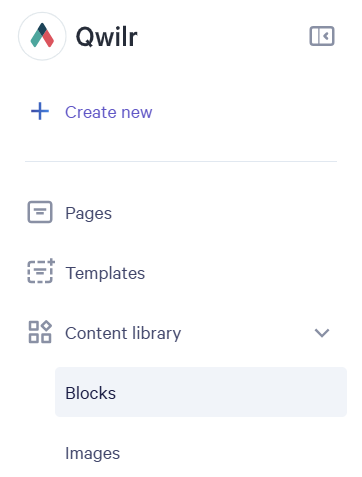
Step 1. Open Templates from your sidebar on your Qwilr Dashboard. Then click to Create blank template.
Step 2. Click Add data source to connect CRM data or enable free-text input

Step 3. Click Add custom variable in the top right to create the fields your sellers will fill in

Note: Once a template is ready, sellers will see your Configuration Panel every time they create a page from it.
Adding Data Sources
Data Sources are the inputs sellers use to fill in their Configuration Panel. There are two types:
CRM Data Sources
You can connect a CRM deal so that deal details (like company name, contract value, contact name) automatically populate your CRM Variables throughout the proposal. The supported CRMs at the moment are Zoho, Pipedrive, and Salesforce integration.
Text Data Sources
Allow sellers to paste in free-form text, like meeting notes, call transcripts, or emails, as context. Text Data Sources are used to power AI Prefill on custom variable fields. They cannot directly instruct CRM or Account Variables.
Note: Text data sources and AI Prefill will not work if you have AI features toggled off in your account settings. To adjust this, go to 'Account settings' in the bottom left of your Qwilr Dashboard. Make sure you're on Account on the left panel of your settings and then scroll down to find Feature Permissions. There, you will want to make sure the Ai features is turned on (toggled to the right).

To add a Data Source to your Configuration Panel:
- Open your Template.
- Click Add data source.
- Choose CRM to connect a CRM integration, or enable a free-text field for pasting unstructured notes.

Note: CRM data sources can populate CRM Variables but cannot currently be used as AI context. Only text data sources can be used for AI Prefill.
Creating Variables
Variables are placeholders in your template that fill in with deal-specific information when a seller creates a page. There are three types:
- CRM Variables: Pull data automatically from a connected CRM deal (e.g. Company Name, Contract Value). These work the same way as CRM Tokens did previously.
- Account Variables: Sellers fill these in manually when creating a page (e.g. a buyer's name when no CRM is connected).
- Custom Variables: You define these in the Configuration Panel and they can appear as text on the page or drive Conditional Content rules.
Note: Six field types are available: Text, Number, Dropdown (which supports single- or multi-select), Email, Website, and Slider.
To add a Custom Variable:
- Open your Template.
- Click Add custom variable.

- Choose from Text, Number, Dropdown, Email, Website, or Slider.
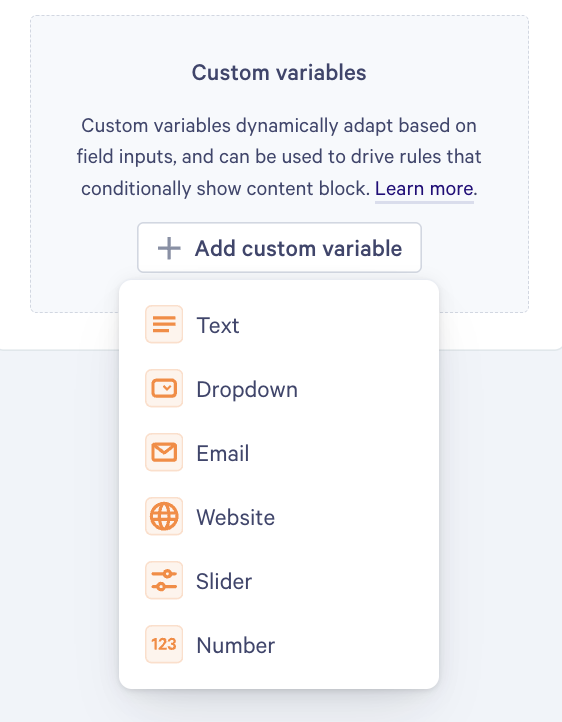
- Name the variable. Dropdown, Email, and Website variables require you to add your options; Slider and Number variables let you set a range or default value. If using Dropdown, you can also toggle Allow multiple selections to let sellers choose more than one option.
Note: All six inputs can be set as required and can have AI Prefill enabled.

- Toggle Required on if the field must be completed before a page can be created.

- Optionally, enable AI Prefill on the field.

All variable types (CRM, Account, and Custom) can be used to power Conditional Content rules.
Enabling AI Prefill
AI Prefill automatically fills in a Configuration Panel field by reading a text Data Source (like a call transcript) and extracting the relevant information. You can write a plain-language prompt that tells the AI what to look for.
Note: Text data sources and AI Prefill will not work if you have AI features toggled off in your account settings. To adjust this, go to 'Account settings' in the bottom left of your Qwilr Dashboard. Make sure you're on Account on the left panel of your settings and then scroll down to find Feature Permissions. There, you will want to make sure the Ai features is turned on (toggled to the right).

Note: AI Prefill is powered by Google Gemini. It can only read text data sources that have been explicitly added to the Configuration Panel. It cannot browse external websites or pull from CRM fields.
To enable AI Prefill on a Custom Variable:
- Open the field in your Configuration Panel.
- Toggle on Prefill using AI.

- Enter a natural-language prompt, e.g.: "From the call transcript, determine the prospect's region."
That's it! The prompt runs automatically whenever a seller creates a page and attaches a text data source.
Tips for writing AI prompts:
- Reference the data source by name if you have multiple sources: "From the call transcript, determine..."
- Include context about priorities if sources might conflict: "If there is conflicting data, prefer the call transcript."
- You can include brand voice, sales methodology, or other business context directly in the prompt and it will be applied to every AI Prefill run.
Note: AI-prefilled fields show an AI pre-filled marker. Sellers can review and manually override any AI-filled value if needed.
If the AI fails, an error message appears on the relevant field. Sellers can still proceed by filling the value in manually.
Creating a page as a Seller
When you create a page from a Smart Proposal template, you'll be guided through the Configuration Panel before the proposal generates.
Please note that each created Page counts toward your Credits if Conditional Content or AI Prefill is used.
- From your Qwilr dashboard, click Create New → From Template and select your Smart Proposal template.

- Connect your Data Sources:
- Select your CRM deal (if a CRM is connected).
- Paste in any unstructured text, like a call transcript or meeting notes, if the Optimizer has enabled this.
- Complete any remaining fields (text inputs and dropdowns) in the Configuration Panel. Click the Update button if you introduced any changes.

- Click Finish when you're done.

Note: Once a page is set to Live, it cannot be moved back to Configure. If you need to change the configuration, create a new page from the template.
Please note that each created Page counts toward your Credits if Conditional Content or AI Prefill is used. Instead of creating a new Page, you can go back to the existing one and edit it manually.
- You can make any final edits in the Qwilr editor, or click Share if you're ready to send the proposal.


FAQs
Q: Do I need a CRM to use the Smart Proposal Engine?
No. Custom Variables can power Conditional Content and personalization without any CRM connection. If your team doesn't use a CRM (or uses one not yet supported), sellers can fill in fields manually or use AI Prefill with pasted text sources like meeting notes.
Q: Which CRMs are supported?
At the moment, we support Zoho, Pipedrive, and Salesforce integration. HubSpot support is expected soon.
Q: Can sellers override AI-filled values?
Yes. Any field the AI fills shows an AI pre-filled marker and can be manually edited by the seller. It's not currently possible to lock AI-filled values from being overridden in the Configuration Panel. If you need a value to be non-editable, use a CRM Variable directly in your Conditional Content rule instead of exposing it as a Custom Variable.
Q: Can I reuse custom variables or AI prompts across templates?
Not directly. There's no library for custom variables. However, you can clone a template that already has custom variables set up and use it as a starting point for a new one.
Q: What happens if a CRM field is blank or wrong?
If a CRM field is blank, the Variable will resolve as empty in the proposal. There's no automatic fallback. If the value is wrong, the seller needs to fix it in the CRM and rerun the page creation flow.
Please note that each created Page counts toward your Credits if Conditional Content or AI Prefill is used. Instead of creating a new Page, you can go back to the existing one and edit it manually.
Q: Can I use multiple variable types in one template?
Yes. You can mix CRM Variables, Account Variables, and Custom Variables in a single template. Note that if a template has both Account Variables and another variable type, sellers will see two separate forms during page creation.
Q: What's the difference between Conditional Content and separate templates?
Use Conditional Content when a few blocks change per deal, especially when multiple options might apply simultaneously (e.g. a deal covering both software and hardware products). Use separate templates when one decision changes everything, like a completely different theme, structure, or content set per region or product line.
Q: Is the Smart Proposal Engine available on all plans?
No, it's only available on the Scale plan. Additionally, when you're on a Scale Plan, Pages created using the Smart Proposal Engine count toward your Credits if Conditional Content or AI Prefill is used. Using Custom Variables alone does not use any Credits.
Q: Can multiple people collaborate in the Configure step at the same time?
Not yet. Simultaneous collaboration in the Configure step isn't supported in this release but is planned for a future iteration.
Q: Does AI Prefill work in languages other than English?
Yes. Text Data Sources such as call transcripts, meeting notes and emails can be in many common languages, and AI Prefill can write its output in the language you choose. For the most consistent results, say which language to respond in within your AI Prefill prompt.
Dropdown variables can only return one of the options you've set up, so if you need dropdown values in another language, enter the options in that language.
Q: Is there a limit on how much text I can paste into a Text Data Source?
Yes. Each Text Data Source can hold up to 200,000 characters, which is enough for most full-length call transcripts, email threads, or meeting notes. If your text is longer, trim it to the most relevant sections, like the discovery portion of a call, before pasting it in.
Let us know if you have any questions or feedback by emailing help@qwilr.com.