
Conditional Content with Qwilr Templates
Note: This feature is only available on the Scale plan, and it comes at an additional cost.
With Conditional Content, you can build rules using the Variables in your Qwilr templates to determine what content appears and disappears!
By leveraging either the existing account Variables in your Qwilr account or the Variables imported from your integrated CRM, you can set up rules on your templates to reveal or hide content based on information provided at page creation from those Variable fields.
The rules are defined by conditions where a Variable field is selected as the filter point, and the condition is set based on whether certain information appears or is entered in that field on page creation.
Below, we will be showing you screenshots using Qwilr's native account Variables for our templates. All of these can be applied to CRM integrated Variables as well.
Note: Want to go farther with your conditional content? You can now use our Rules widget to create conditional content rules inside of your blocks. Learn more about it in our Rules widget help doc.
The main idea here is that your template will have multiple blocks. Based on entries in your Variable fields, some blocks will show, but others will not. This allows you to have easier customization in page creation.
In this article:
- Set Up Your First Rule
- Types of Conditions
- Multiple Conditions - Adding/Removing
- Conditions in Action
- Using the Rules Widget for Conditions Inside a Block*
- FAQs About Conditional Content
*links to a separate article
Set Up Your First Rule
First, head over to Templates in the left-hand sidebar of your Qwilr dashboard. From there, you can choose to create a brand new template or edit an existing one. Feel free to test it out by cloning an existing template and editing the clone.
For accounts with conditional content enabled, you should see a brand new option in your template editor in the top-left menu of each block: Add rules.

Clicking on Add rules brings up the option to + Add condition.
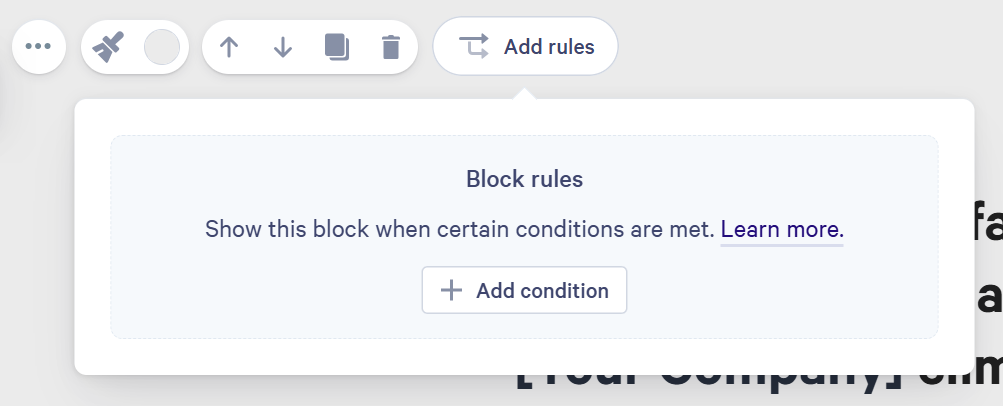
From + Add condition, you will see the Show block if screen. This is where you get into the details of what will and won't show depending on conditions you set in the template.

In the example below, we'll start with adding a Show block if rule where our Region Variable is "Australia".

This means that when creating a page from this template, when we set the Region to "Australia" this block will show. Next, let's talk about the types of conditions we can set up.
Types of Conditions
There are 3 main condition categories to select from: Text, Number, and Any. Each of these categories has different rule modifiers to set your content reveal rule.
| Text | Number | Any |
|---|---|---|
| is | equals | has no value |
| is not | does not equal | has any value |
| contains | is more than |
|
| does not contain | is less than |
|
| starts with |
|
|
| ends with |
|
|
| includes |
|
|
| does not include |
|
|
These conditions allow you to better set what will or won't trigger the block showing on the page.
Multiple Conditions - Adding/Removing
Qwilr allows multiple conditions to be applied in a block to define which blocks show up on the page. You can utilize either the And or Or modifier.

These can be applied to different Variables when using the And modifier, or the same Variable when using the Or modifier. In the example below, we have it set to show if Region is "Australia" And if the State is "NSW".

In this example, we have it set to be if the Region is "Australia" Or if the Region is "New Zealand".

You can utilize up to 10 OR conditions for a rule, combining them along with AND conditions as needed to decide what content shows and what remains hidden based on the information provided for those Variable fields.
To remove a condition, select the trash icon to delete condition.
Conditions in Action
Now that you've set up your template with rules for different conditions, you can see it in action! Below is an example of a page being created from our template with our Region condition on two blocks. One block will show up if the rule with the condition Region is "Australia" is met, while the other block will show up if the rule condition Region is "US" is met.
Note: The video does not have sound
FAQs About Conditional Content
How many conditions can I have per block?
Or conditions are limited to 10 per block, while AND conditions do not have a limit.
Will this work with the CRM Variables for Salesforce, HubSpot, Pipedrive, or Zoho?
Yes. You can use the Variables imported from your CRM integration with Qwilr. They will appear in the conditions list the same as the account Variable used in the examples above.
Can I have Variables inside the conditional block, and will they populate as normal?
Yes. All Variables in the template blocks will populate as normal. In the case of CRMs, they will import as expected from the CRM record. In the case of the native account Variables on Qwilr, those fields will still appear on the list to be filled in on page creation.
Can I set rules and conditions up in my Saved Block Library?
No. Saved Blocks cannot have rules set up, and if a block with conditions on a template is saved to the Saved Block Library, it will not maintain the rule.
Are there any block types that can't have rules applied to them?
All block types can have rules applied to them with the exception of the Accept Block.
Is "0" or an empty field still considered a valid condition?
Yes. If a condition is created and "0" or no value is input into the value box, then this will be considered a valid condition and will be resolved when a page is created from a template.
What happens if I have a condition where I did not set a Variable?
These conditions are considered incomplete and will be ignored when the page is created. This means the block of content will appear on the new page.
Does the conditional logic work at the widget and/or content level?
Not at this time, but we hope to implement this in the future.
Can I set up conditional logic for content inside of a block (and not just for the whole block)?
Yes! We have released the Rules widget for exactly this purpose!
If you have any questions about conditional content, please feel free to reach out to the Qwilr Support team either by emailing help@qwilr.com or clicking the help button to the right of your Qwilr account.