
Automations: Zoho CRM
CRM Automations are available on Growth and Scale, and for customers on legacy Business and legacy Enterprise plans. They’re not available on Starter. Automations are managed by Qwilr account admins.
Keep your Zoho deals up to date automatically. When a page is accepted, viewed, or changes state, Qwilr can update the deal stage, sync the amount, set the closing date, or push page details straight into the fields you choose - no manual updates required. Here's how to set it up, assign it to your templates, and troubleshoot along the way.
Important: Before setting up Zoho automations, enable the Zoho CRM integration, and build a Zoho-connected template. Automations for Zoho work on templates connected to the Deals module only - they do not apply to Contacts, Accounts, Leads or Quotes templates. If you enabled the Zoho integration before automations were released, disable and re-enable it: automations need write access that your original connection does not include.
In this article:
- Default automations
- Updating your Zoho deal
- Getting started with Automations
- Adding Automations to your Templates
- Activity log
-
Default automations
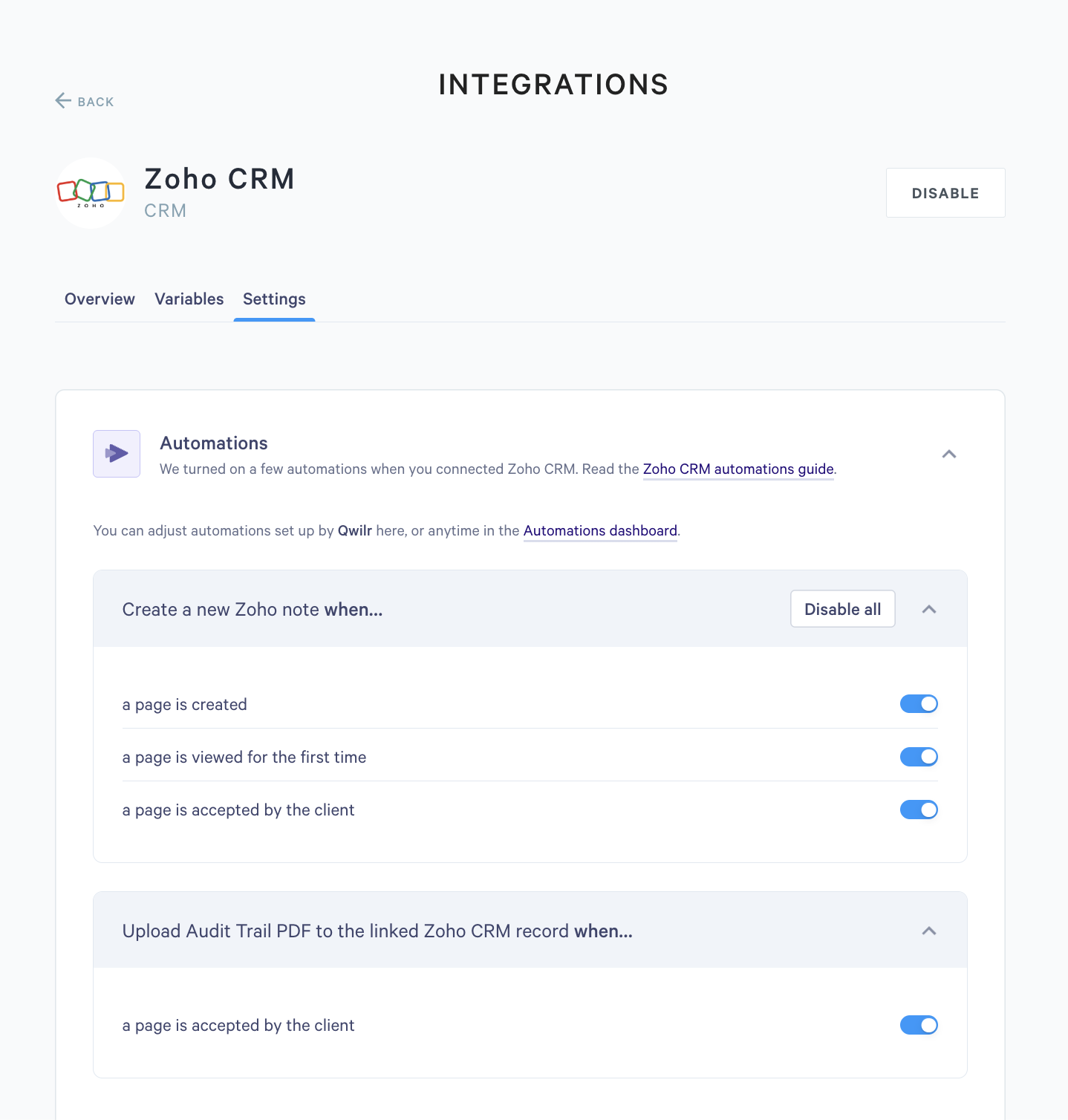
Two automations are set up for you when you enable Zoho CRM. They do not appear in the automations library; you will find them under Integrations → Zoho CRM → Settings, where each can be switched on or off.
- Create a new Zoho note: logs page events on the linked deal as Zoho notes when the page is created, first viewed, and accepted.
- Upload Audit Trail PDF to the linked Zoho CRM record: attaches the audit trail PDF to the deal under Attachments when a page is accepted.
Both are read-only: you can switch them on or off, but not change their triggers or actions. They only appear once your Zoho connection includes automation write access, so if they are missing, re-enable the integration.
Updating your Zoho deal
Every automation is a trigger plus what Qwilr does about it. Triggers cover page acceptance, the page lifecycle (live, draft, archived, expired), and page views. You can add up to three actions to a single trigger; the limit keeps Qwilr from hitting Zoho's API rate limits. The actions available are:
- Update deal stage: moves the deal to a stage you choose, such as Closed Won when a page is accepted.
- Update deal amount: writes the accepted page value to the deal's Amount field.
- Update deal close date: sets the Closing Date on the deal.
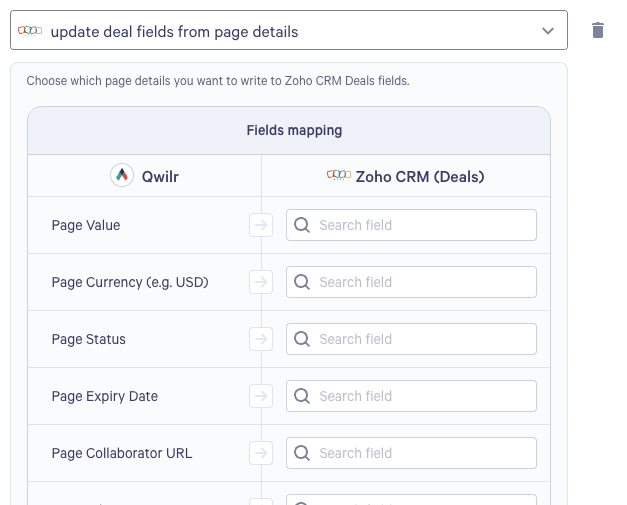
- Update deal fields from page details: writes page details into deal fields you choose, such as the page value, currency, status, expiry date, its links, the template it came from, and the view count.
- Update deal fields from accepter responses: writes what the client filled in on the page's accept form into deal fields you choose.
Note: where a dedicated action exists, prefer it over a generic field mapping. Update deal stage, amount, and close date each write the value in the exact format Zoho expects, which a generic mapping cannot guarantee. Automations write to deal fields only - there is no line-item write-back, and the Products module is not available on free Zoho orgs.
Getting started with Automations
Step 1. Head to the left sidebar of your Qwilr account and select Automations.
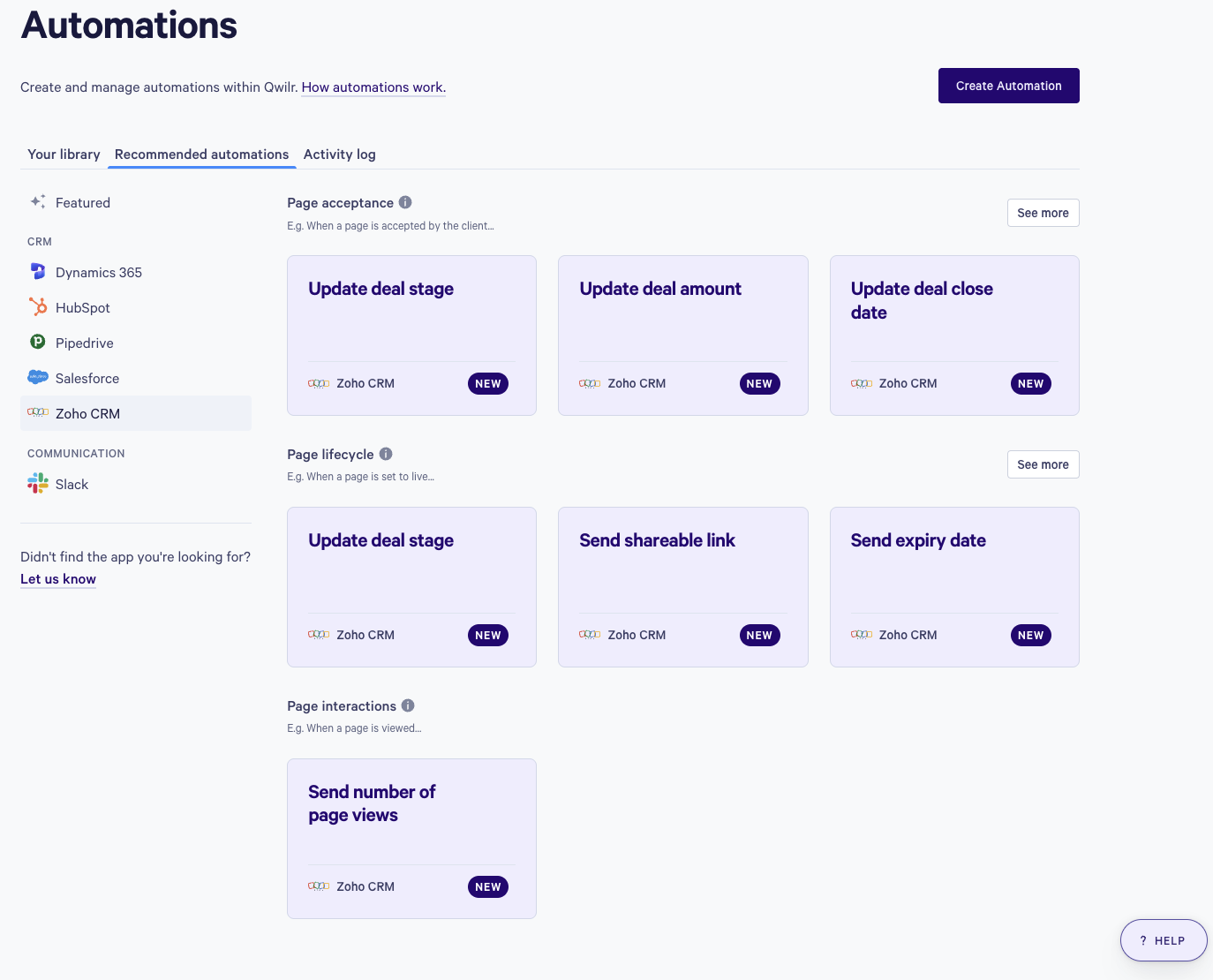
Step 2. You will land on a page where you can build your own automation or start from one of our ready-made Recommended Automations. To use a recommended one, open the Recommended Automations tab, filter to Zoho CRM, and click the automation to add it to Your Library.
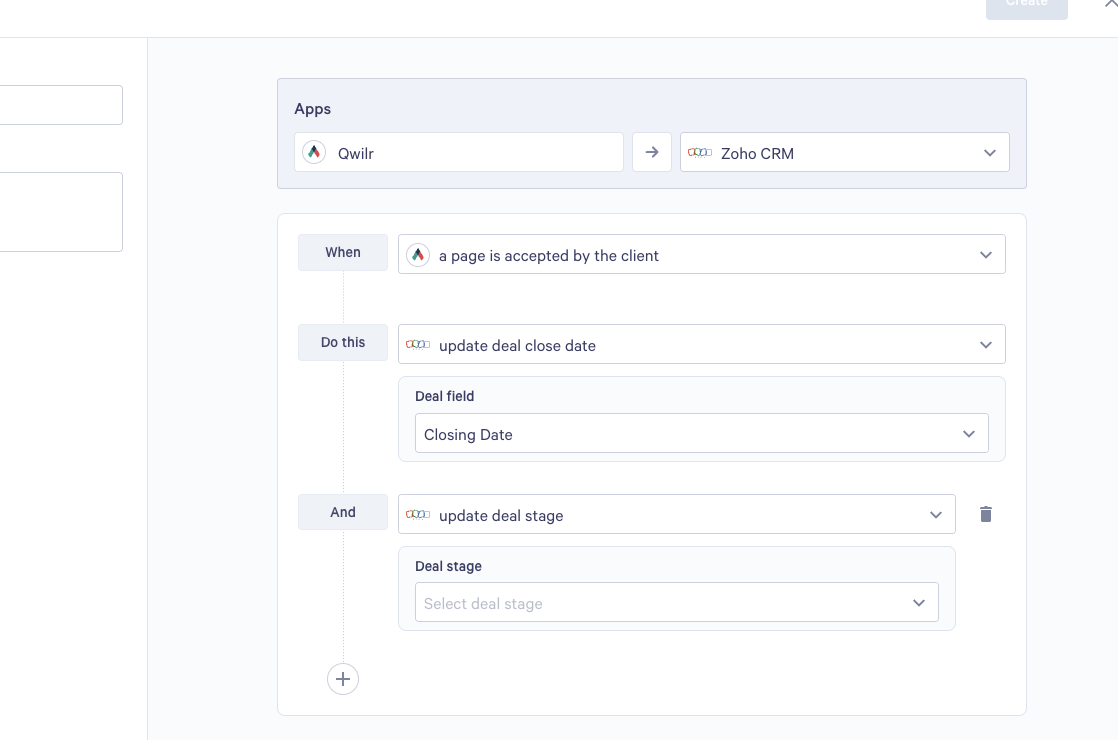
Step 3. To build one from scratch, click Create Automation, then choose Zoho CRM as the integration, a When trigger, and a Do this action. Click the + beneath the first action to add more actions to the same trigger.
Step 4. Where an action writes to a field of your choosing, you will be given a field mapping: pick the Qwilr value on the left and the Zoho deal field it should write to on the right. If the field you need is missing from the list, turn on custom fields under Settings → Integrations → Zoho CRM → Variables. Until you do, only Zoho's standard deal fields are offered.
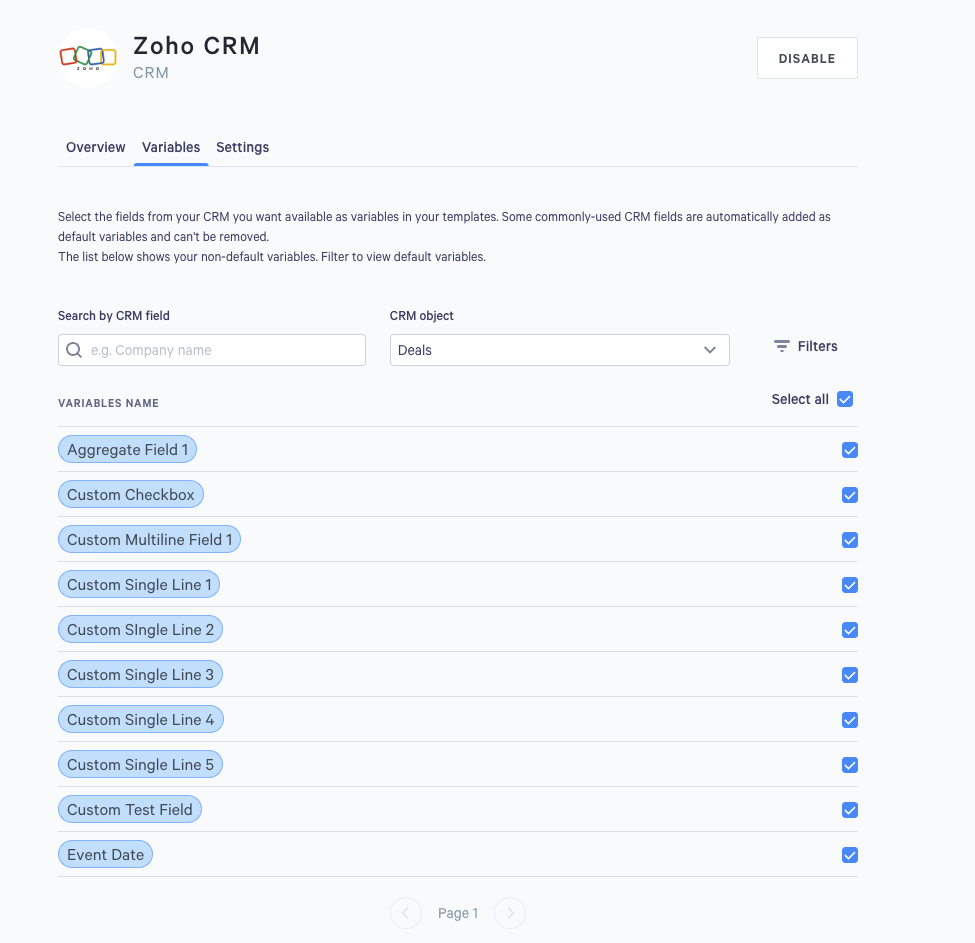
Step 5. Give the automation a name and a short description in the top left, then click Create. It will appear on your automations dashboard.
Adding Automations to your Templates
An automation only runs on the templates you assign it to. Choose them when you create the automation, or edit it later and update the template list. Every page created from that template inherits the automation.
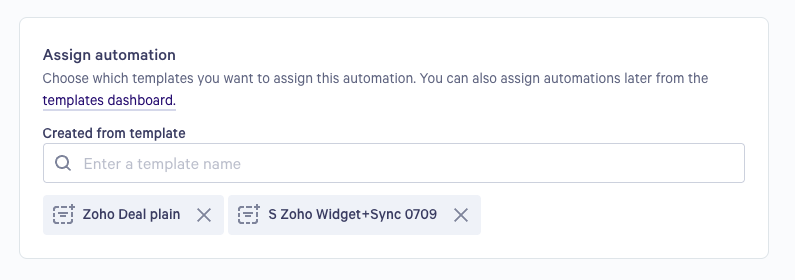
Note: Automations must be toggled on in the Automations library before they can be assigned to a template.
Activity log
Every automation run is recorded in the Activity log tab on the Automations page. Each entry shows the automation that ran, the page and template that triggered it, the time, and the result of each action.
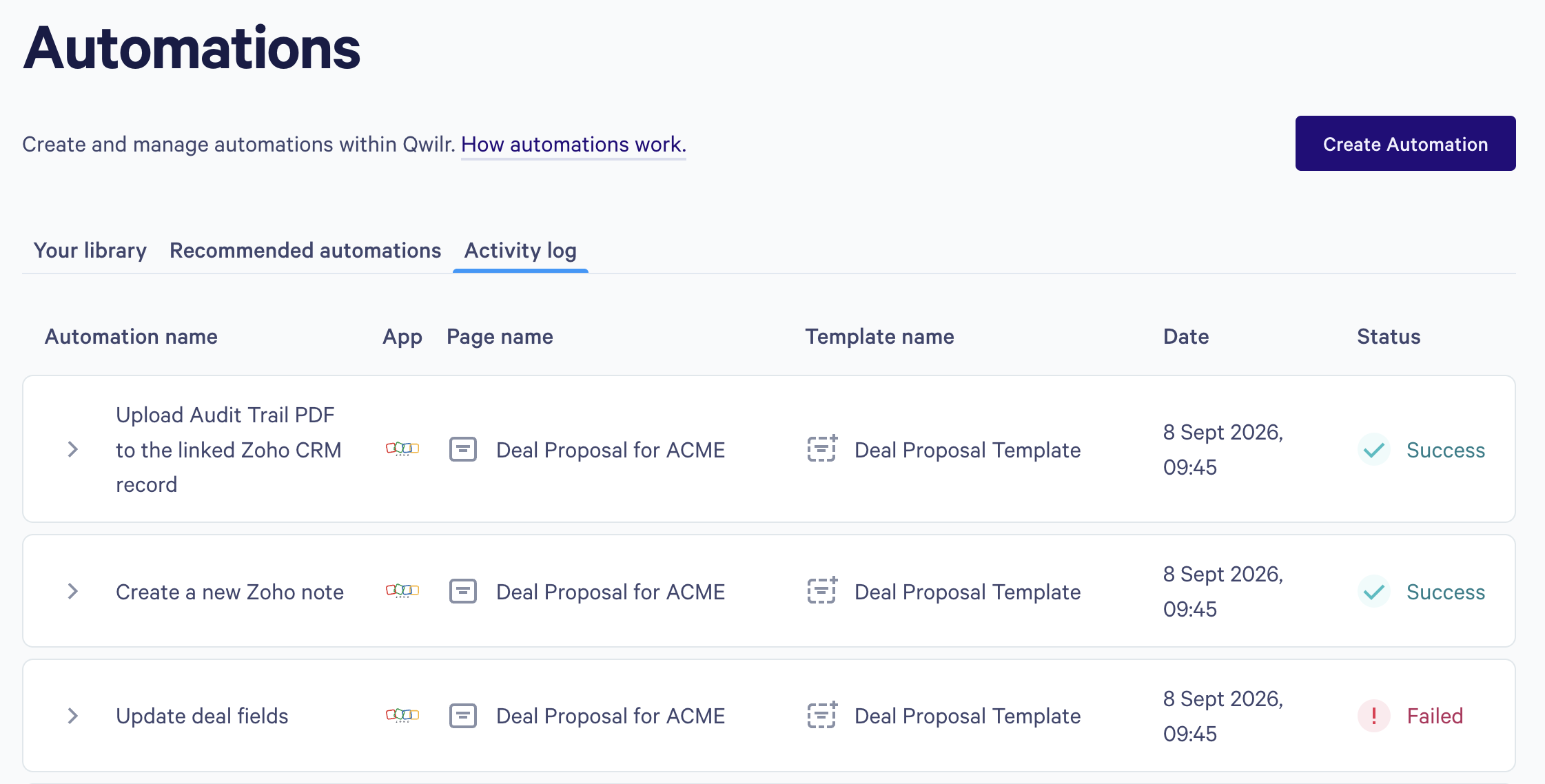
This is the first place to look when a field does not update, though treat it as a starting point rather than proof. An action that had nothing to send still reports success, and entries can take up to a minute to appear, so confirm the change on the Zoho record itself.
If you have any questions, please reach out to us at help@qwilr.com, and we'd be happy to assist.