
Adding Navigation to your Page (Beta)
Note: We're testing a new way to set up page navigation. If you see a Navigation button in the bar at the top of your page editor, this article is for you. If you see Configure nav under the Share button instead, follow Adding Navigation to your Page (Classic).
Give your buyers an easy way around your proposal. Page navigation adds a table of contents, a quote total, a quick Accept button, and your contact details to your Qwilr Page. All of its settings now live in their own Navigation mode, so your editor stays clear while you build.
In this article:
- Opening Navigation mode
- Menu: enabling Table of Contents
- Renaming or hiding blocks in the Table of Contents
- Appearance: layout, color and logo
- Options: what buyers see
- Leaving Navigation mode
- Account-wide navigation defaults
Opening Navigation mode
Step 1. Open your page or template in the editor.
Step 2. In the bar at the top of the editor, click Navigation (compass icon, next to the page status).

You're now in Navigation mode. You'll see three tabs at the top – Menu, Appearance and Options – and a Done button on the right.

Menu: enabling Table of Contents
Click Menu to control the blocks menu (your table of contents).
- Enable navigation menu shows a list of your page's blocks so buyers can jump between sections.
Once Enable navigation menu is on, a menu icon (three lines) appears in the top left of your page. That’s your table of contents: buyers click it to open the list of blocks, and you click it to rename or hide blocks.
- Open by default shows the menu expanded when a buyer first opens the page. This toggle is only available once Enable navigation menu is on.

Note: Block names also show up in your page analytics, so you can see which sections buyers spent the most time on. Want clear names in analytics without showing buyers a menu? Turn on Enable navigation menu, rename your blocks, then turn the menu off again. Buyers won’t see the menu, but your block names are kept for analytics.
Renaming or hiding blocks in the Table of Contents
Every block appears in the navigation menu by default, and a block's heading becomes its title. To change this, click the Menu icon (three lines) in the top left of the editor to open the blocks list.
-
Rename a block: click the pencil icon next to its name, type the new name, then click the check mark.
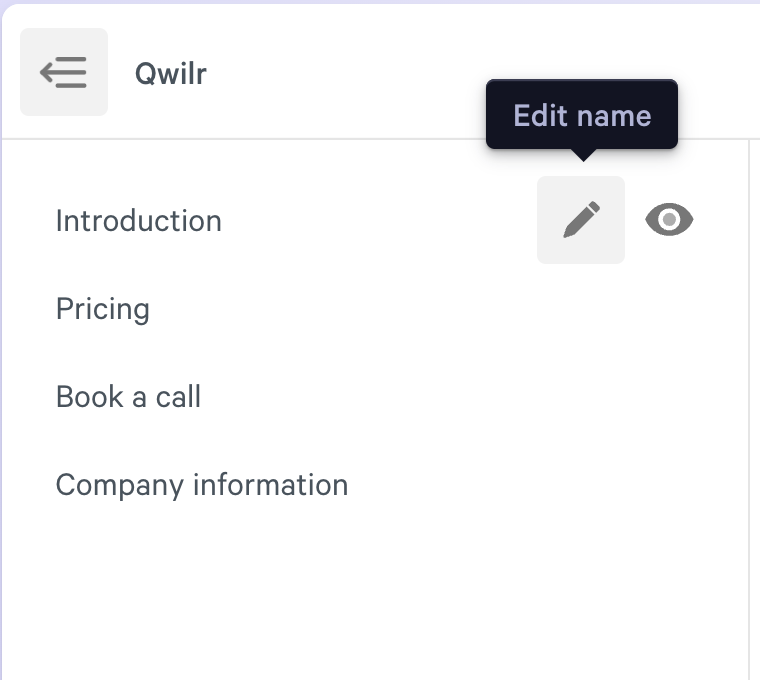
- Hide a block: click the eye icon to the right of its name. Hidden blocks show crossed out while you edit, and buyers won't see them on the live page.

You can also do this per block: click Block options (three dots) at the top left of the block, select Navigation, then edit the Block label or turn on Exclude this block from navigation.
Appearance: layout, color and logo
Click Appearance to style your navigation.
- Layout: choose Top (a bar across the top), Left (a sidebar), or Floating (an icon in the top left).
- Background color: pick a swatch or enter a hex code.
- Logo: drag an image into the box or click Add logo. Available only on Growth and Scale plans.

Note: The logo is set per page or template, so you'll need to add it to each one.
Options: what buyers see
- Show quote total allows you to show to full cumulative total of all selected and included quote items on your proposal in the top right corner of your page.
- Show accept button allows customers to click 'Accept' (or 'Agree' or whatever you have labeled the Accept button in the proposal) at the top-right of the proposal, jumping down to enter their acceptance information.
- Show contact details includes the name and email address of the page creator in the bottom left of the proposal within the navigation bar.
- Show download PDF button allows customers to click a download button in the top-right to download a PDF copy of the proposal you've sent them.
- Show Springboard actions allows for customers to save their Qwilr pages online to a portal they can login to and review.

Leaving Navigation mode
Click Done in the top right to go back to the editor. Your changes save automatically.

Account-wide navigation defaults
Admins can set the default navigation settings for new pages under Account settings > Brand & Appearance > Navigation. Settings on a page or template override these defaults. See Navigation settings for your account.

Stuck? Reach out to the Support Team at help@qwilr.com!