
Make Quote Line Items Optional (Beta)
Let's enhance flexibility!
Sometimes you want to give your buyers options. With Quote widgets, you can make individual line items, whole quote sections, or plan cards optional, so your buyer chooses what they want to purchase. The quote total updates automatically based on their selections.
Selection settings are set on each widget, so a single page can mix them. For example, one section where buyers pick any add-ons they like, next to another where they choose just one package.
In this article
- Making a line item optional
- Making a line item required again
- Pre-selecting an optional line item
- Letting your buyer choose only one option
- Making a section or plan card optional
- What your buyer sees
Making a line item optional
New to Quote widgets? Start with Quote Widgets and Quote Blocks for the basics.
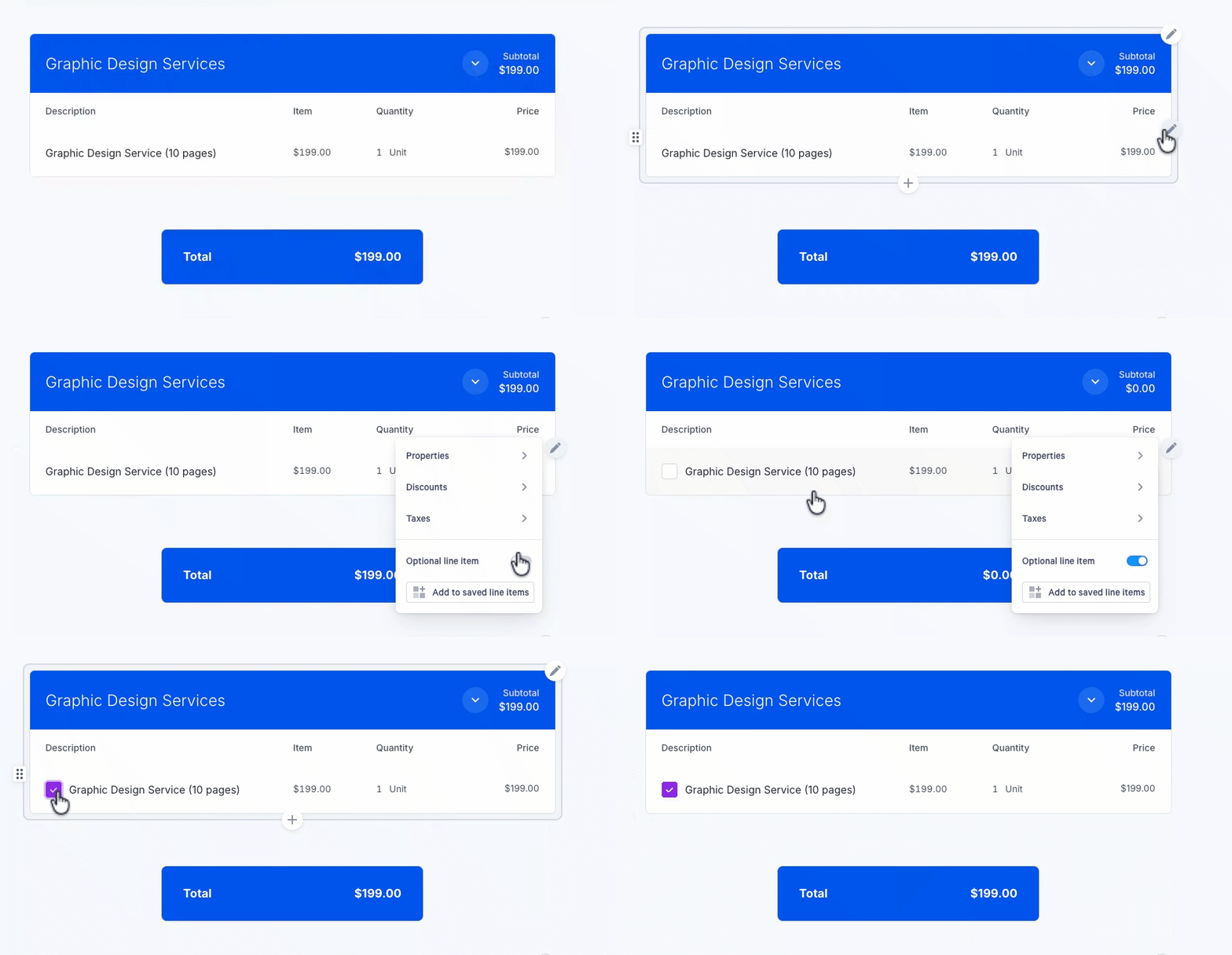
- In a quote section, hover over the line item you want to make optional.
- Click the pencil icon that appears on the right of the line item.
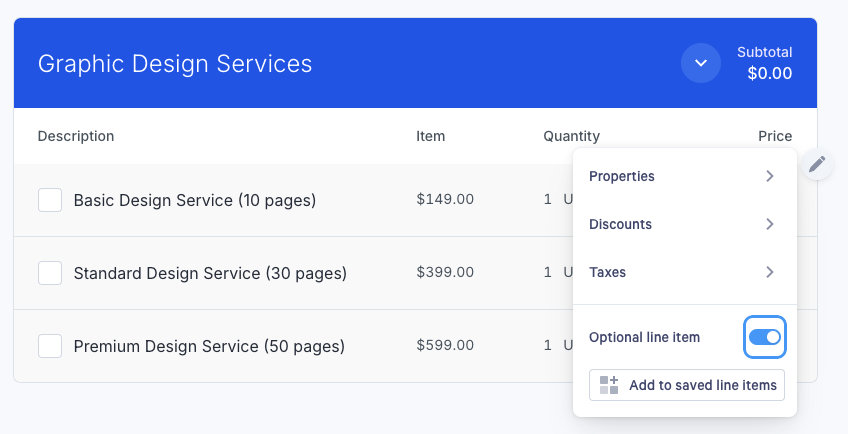
- Turn on the Optional line item switch at the bottom of the menu.
A checkbox appears next to the line item, showing it's now optional.
Note: You can take this a step further and let your buyer choose the quantity for this line item too. See Setting optional quantities.
Making a line item required again
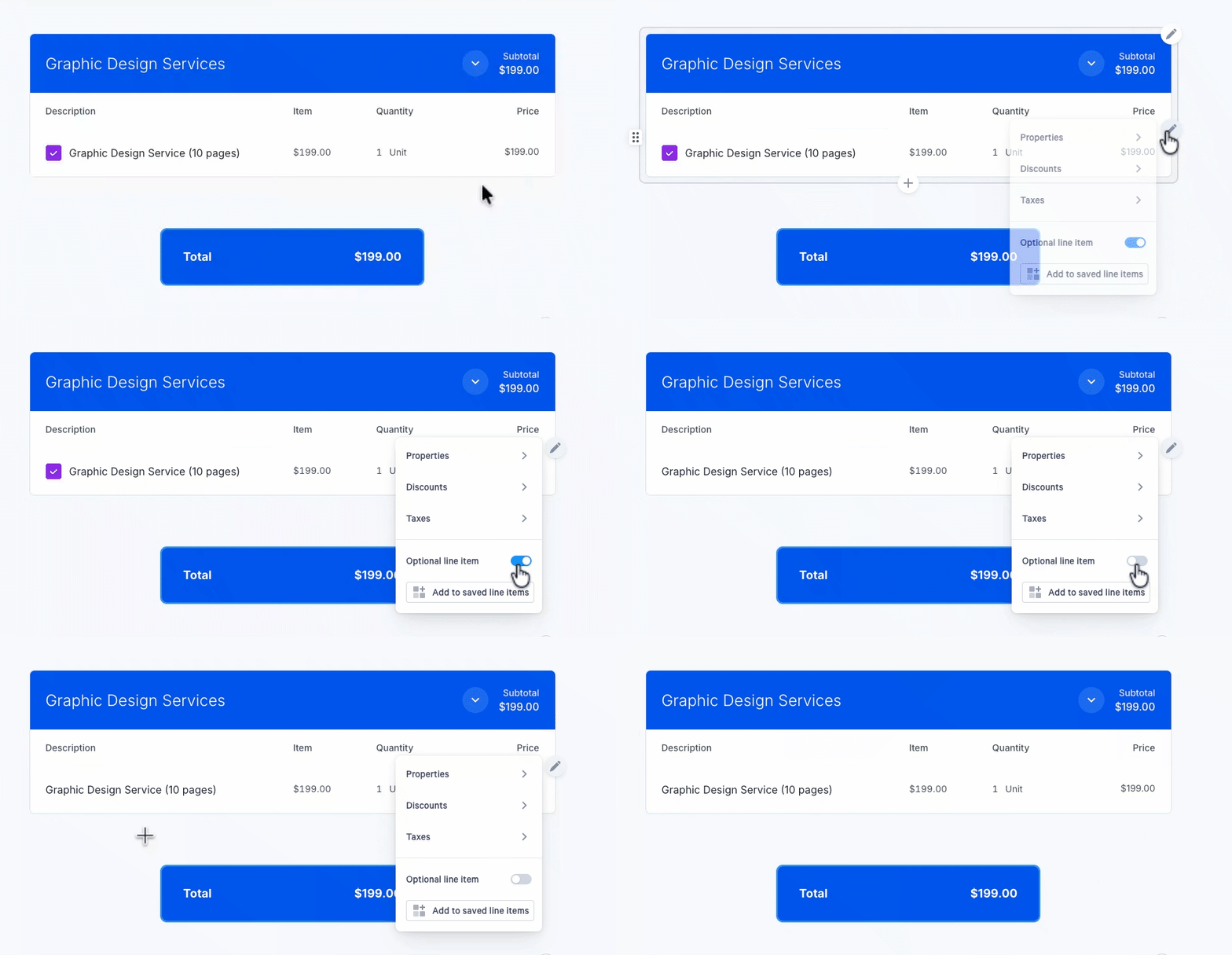
To make an optional line item required again, click the pencil icon on the line item, then turn off the Optional line item switch. The checkbox next to the line item disappears.
Pre-selecting an optional line Item
You might want an optional line item to be already selected when your buyer opens the quote. While editing, tick the checkbox next to any optional line item. Your buyer will see it pre-selected.
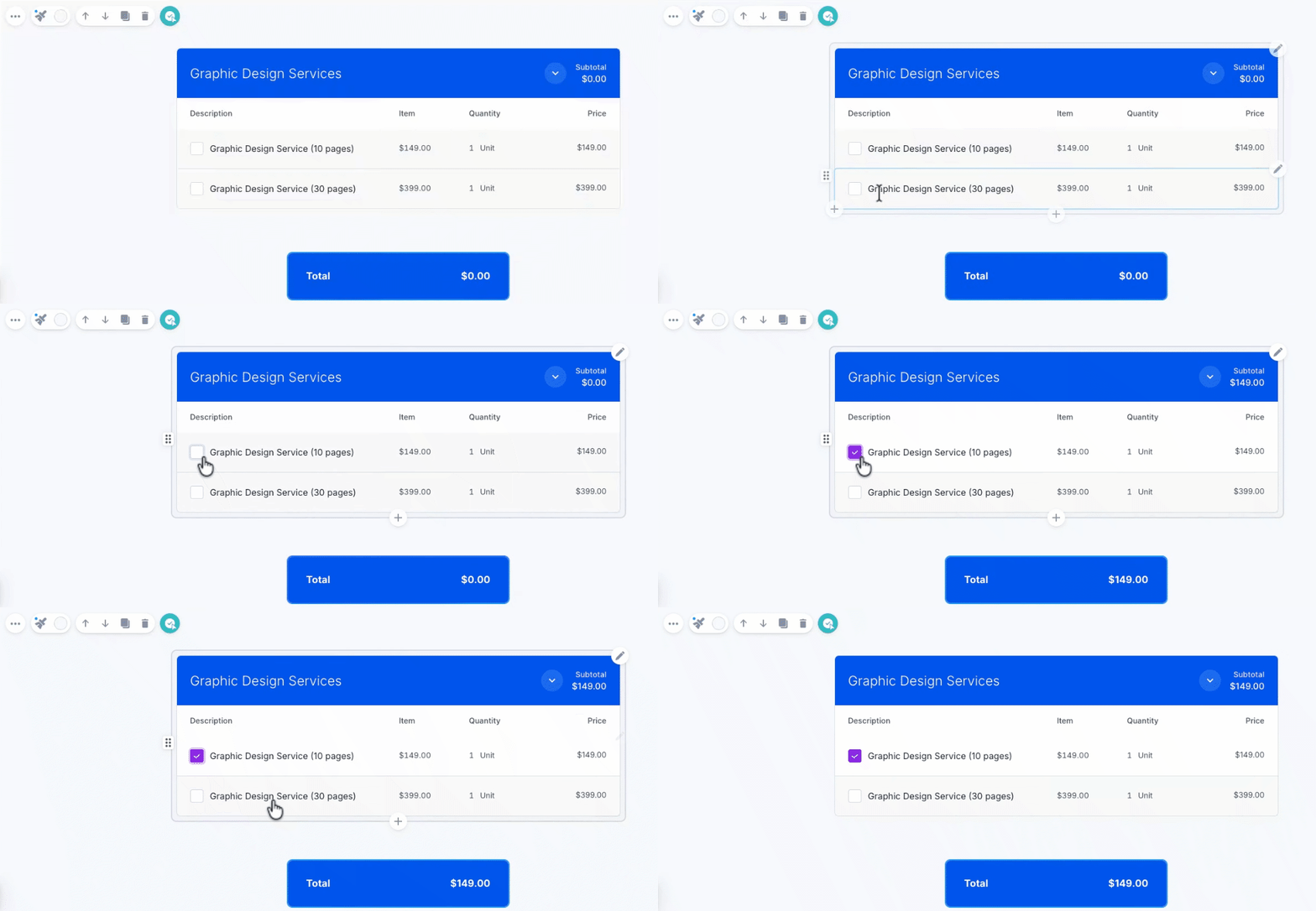
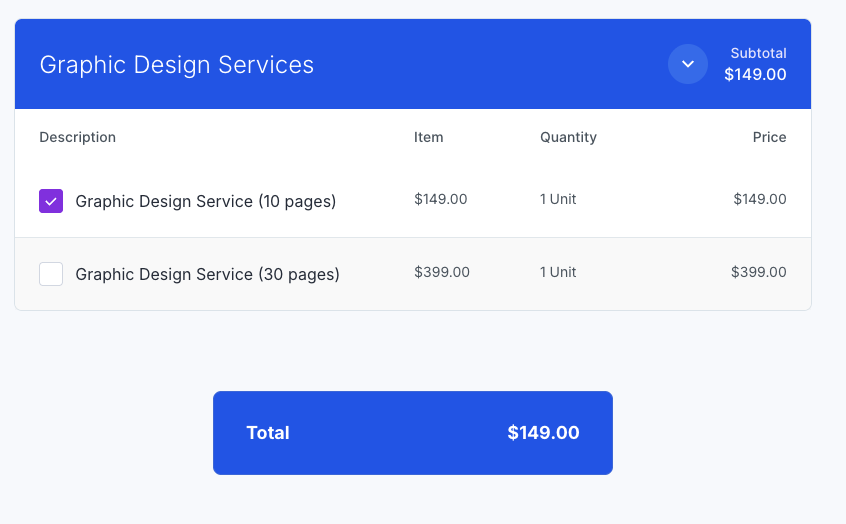
Note: Your buyer can still untick a pre-selected item. If they shouldn't be able to remove it, make the line item required instead.
Letting your buyer choose only one option
Sometimes you want to offer several options but have your buyer pick just one, like Basic, Standard, or Premium.
- Make each line item you want your buyer to choose between optional (see Making a line item optional above).
- Click the pencil icon at the top right of the quote section.
- Choose Selection.
- Turn on Single select.
The checkboxes next to your optional line items change to radio buttons, so your buyer can select only one.
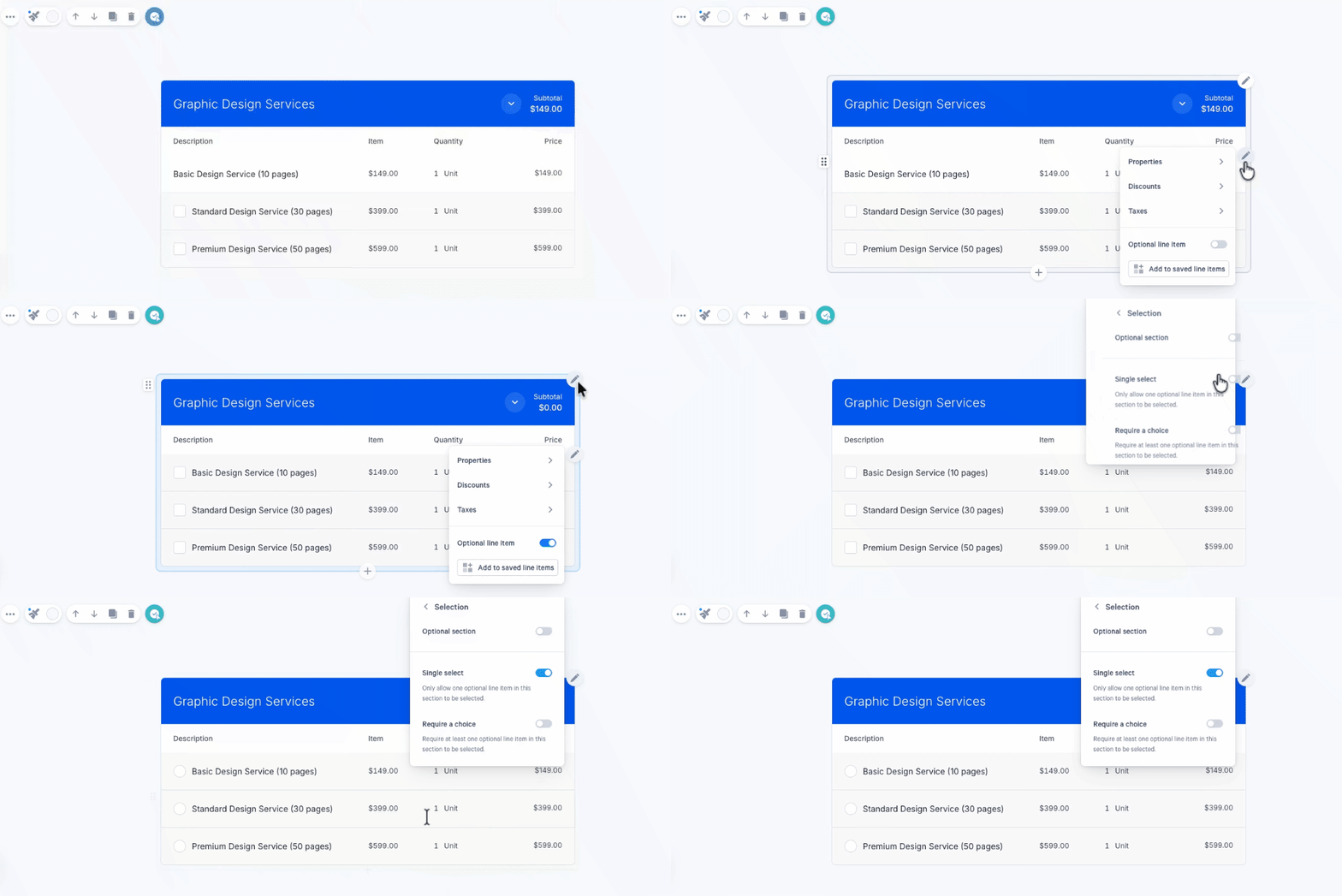
Note: To make sure your buyer picks one before accepting, also turn on Require a choice in the same menu. This requires at least one optional line item in the section to be selected.
Single select applies only to the widget you set it on. Other sections on the same page keep their own settings.
Making a section or plan card optional
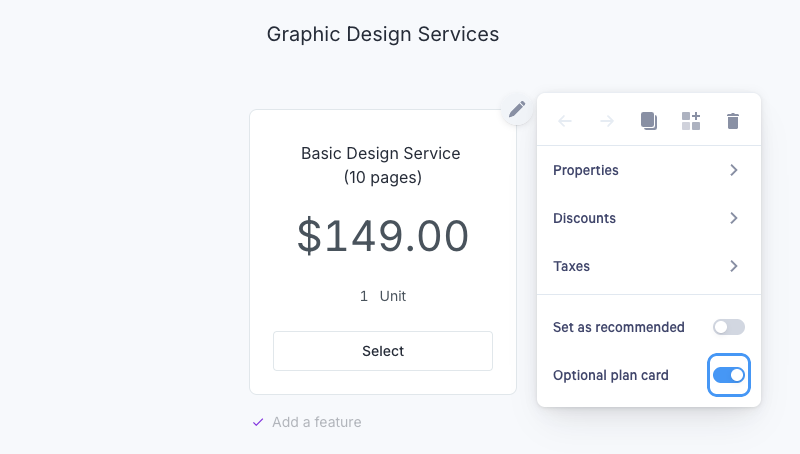
You can make a whole quote section, a plan card section, or an individual plan card optional, not just single line items. Open the pencil icon on the section or card, choose Properties, and turn on Optional line item for a quote section, and Optional plan card for a plan card section.
To set up the common selection styles:
| You want your buyer to… | Set it up like this |
|---|---|
| Buy everything in the section as one package | Leave the section required (Optional off) |
| Pick any combination of items | Make the section optional, Single select off |
| Pick exactly one item | Make the section optional, Single select on |
Because each widget has its own settings, you can combine these on one page. For example, a required core package, an optional add-ons section, and a single-select support tier.
Quote section
Plan card section
What your buyer sees
When your buyer views the quote, they'll see a checkbox next to each optional item, section, or plan card. As they select or deselect options, every Quote totals widget on the page updates automatically.
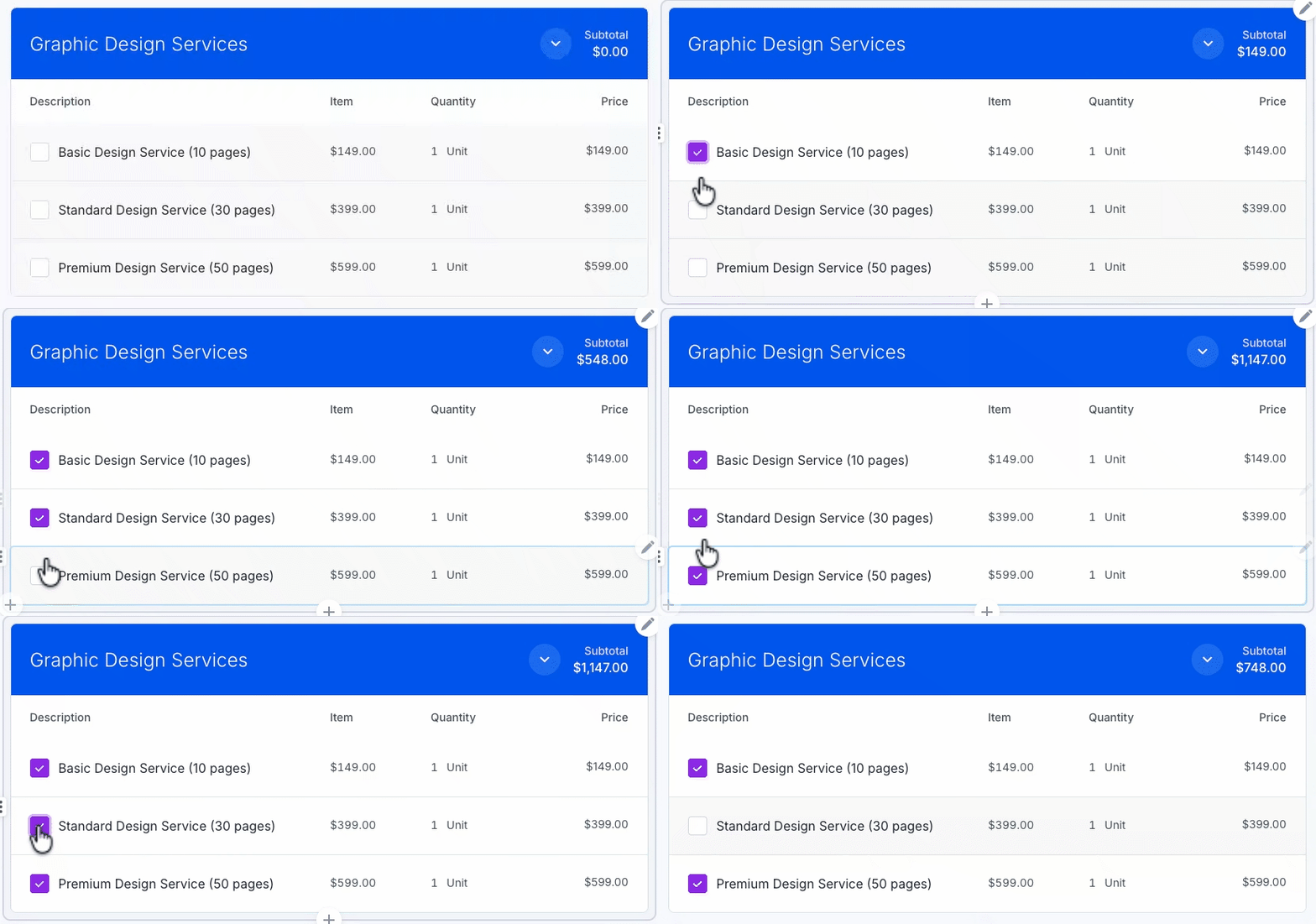
Note: Tax is only added to an item once it's selected. So when your buyer selects an optional item, the total may rise by slightly more than the item's listed price.
Have questions? Our Support Team is here to help! Contact us at help@qwilr.com.