
Change Quote Currency (Beta)
We know personalization is key for your Qwilr Pages, so naturally you'll want buyers to see pricing in the currency your company prefers. You can set the currency on your Qwilr Pages and Templates, which saves time and gives you flexibility if you send proposals to different countries.
Note: Currency is set once per page, not inside each quote. Every Quote Widget on the page, and the page total, uses the page currency. The default currency is AUD, so set it on each page or, better still, on your template.
Choosing your currency
To change your currency:
- Open your Qwilr Page or Template in the editor.
- Click the more actions ⋮ (three dots) menu at the top right, next to Share.
- Select Page currency.
- Choose the currency you need. It applies to every Quote Widget on the page.
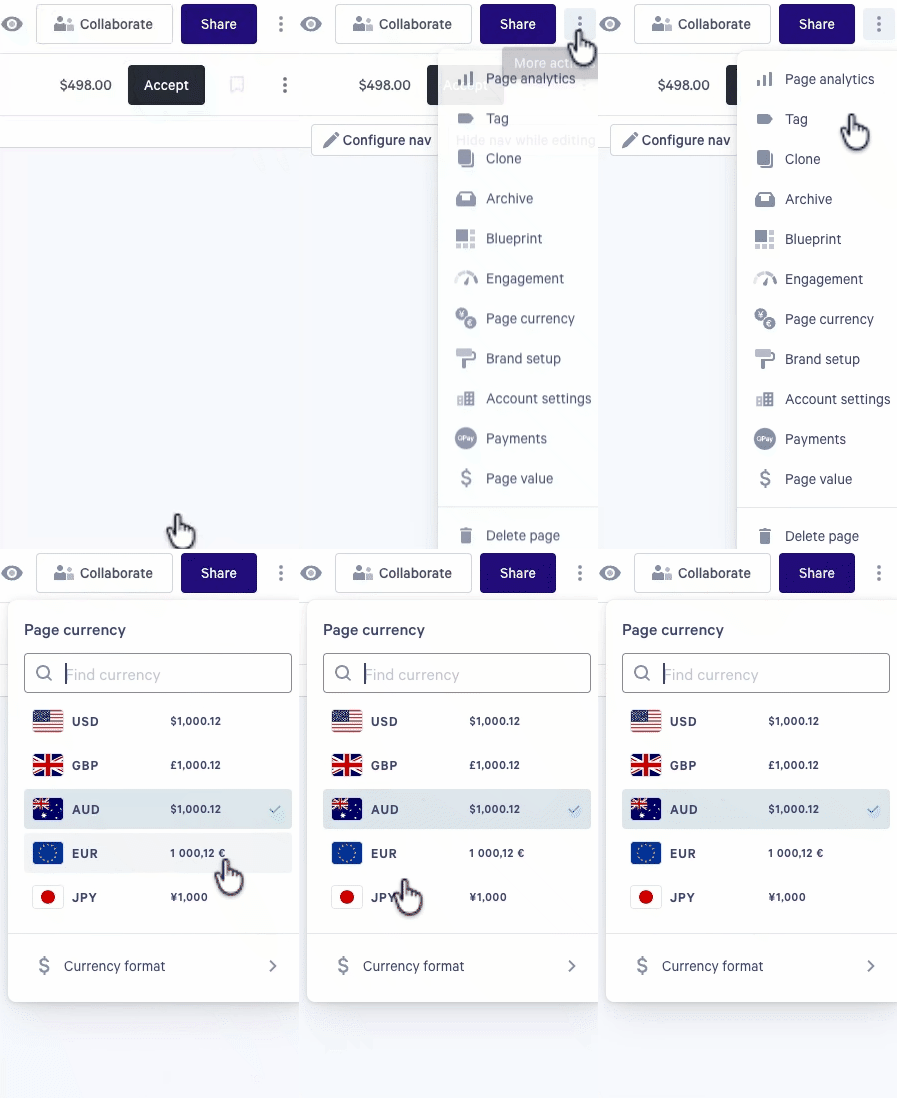
Looking for the flag icon? Previously, you changed the currency from the flag at the top left of the Quote Block. With Quote Widgets, currency is a page-level setting, so you'll find it under more actions ⋮ > Page currency instead.
Currency behaviors
- There can only be one currency per Qwilr Page or Template.
- A page created from a template keeps the template's currency. You can still change it on the page.
- When you add a saved block containing Quote Widgets from the Block Library, it automatically uses the currency of the page you add it to, whatever currency it was saved with.
- If you've set a manual page value, it uses the page currency too.
FAQ
Q: Can I show more than one currency on a page?
A: Not at the moment. Each page uses a single currency. If you quote in different currencies, we recommend a separate template for each one. Older pages that contained quotes in more than one currency have been updated to use the currency of the first quote on the page.
Learn more about building quotes in Quote Widgets and Quote Blocks.
Have questions? Reach out to help@qwilr.com