
Set Optional Quantities for Quote Line Items (Beta)
Empowering buyer decision-making: enabling quantity ranges
Sometimes you want to let your buyer choose their own quantities. You can set up a quantity range for any quote line item, and the total price recalculates automatically from their choice. This feature also works great with optional line items and pricing ranges.
In this article:
Setting an optional quantity
Visit this page for the basics of using the Quote widgets.
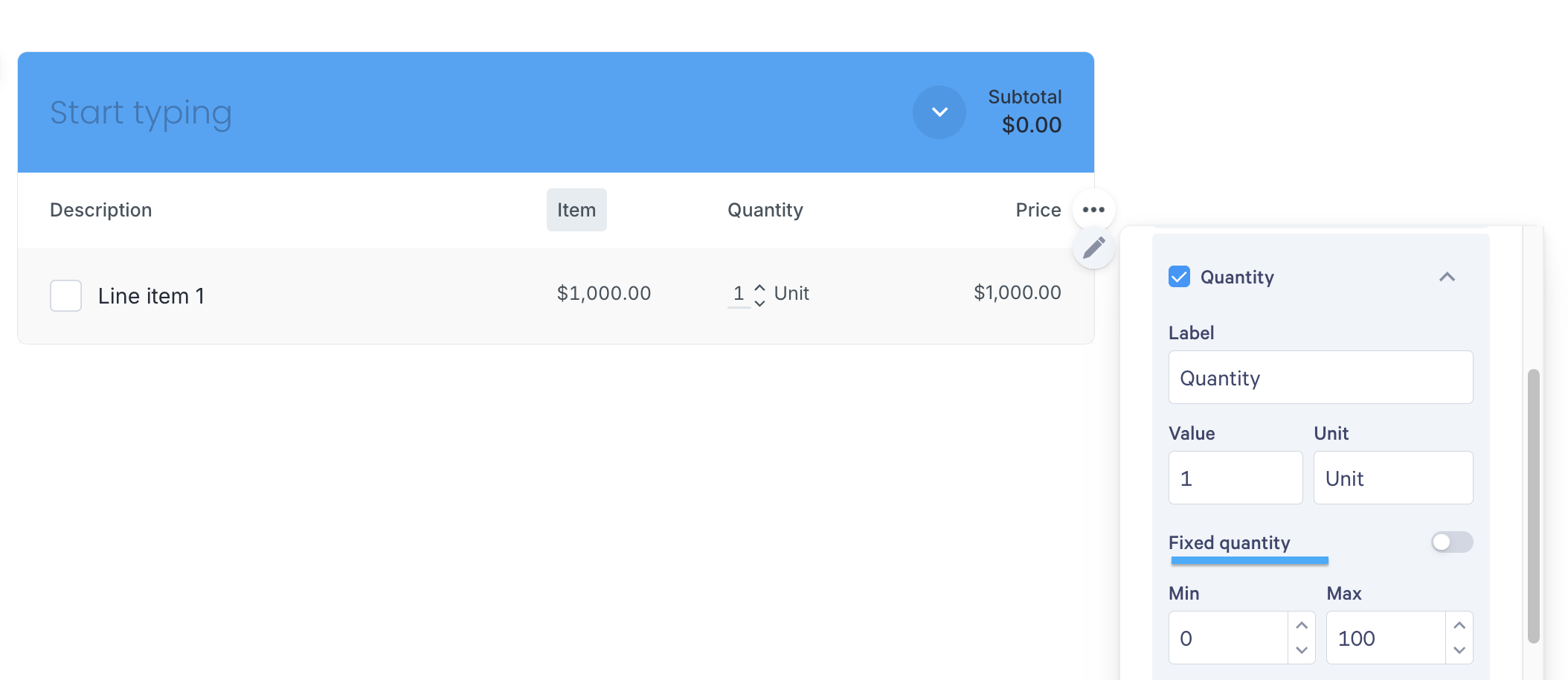
If you're using a Quote section, head to the line item where you want to add a quantity range. Click on the Pencil icon next to the line item, and choose Properties, then expand Quantity. Disable Fixed Quantity and type in your minimum and maximum quantities.
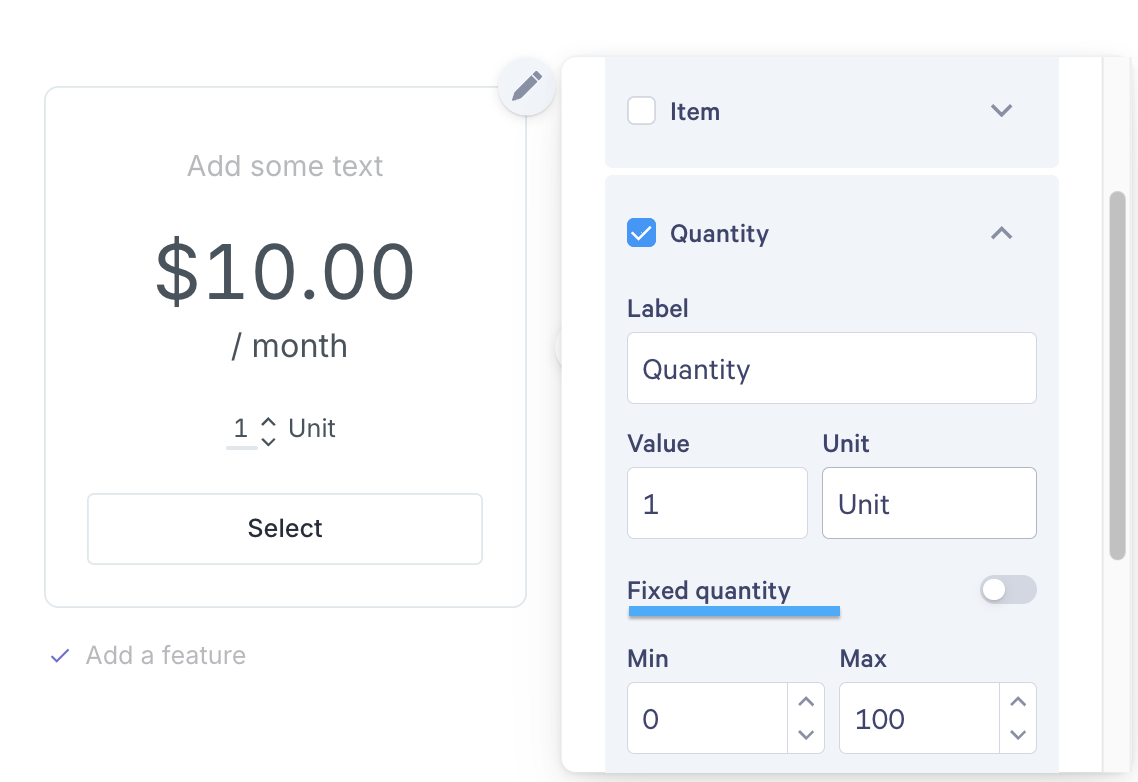
If you're using a Plan card section, head to the top right corner of any plan card. Click the pencil icon, and then choose Properties.
From there, disable Fixed Quantity and type in your minimum and maximum quantities.
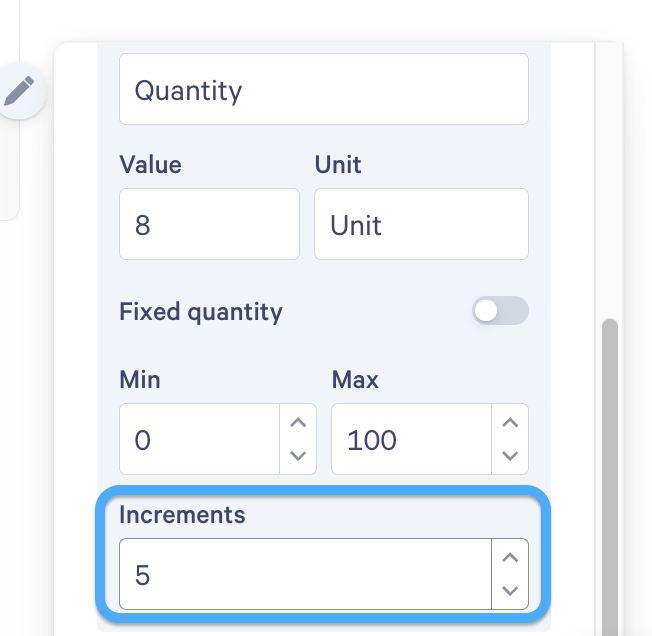
With increments, you can set how much the quantity goes up or down each time your buyer clicks the arrows. For example, with increments of 5, the quantity steps from 5 to 10 to 15.
Restoring a non-optional quantity
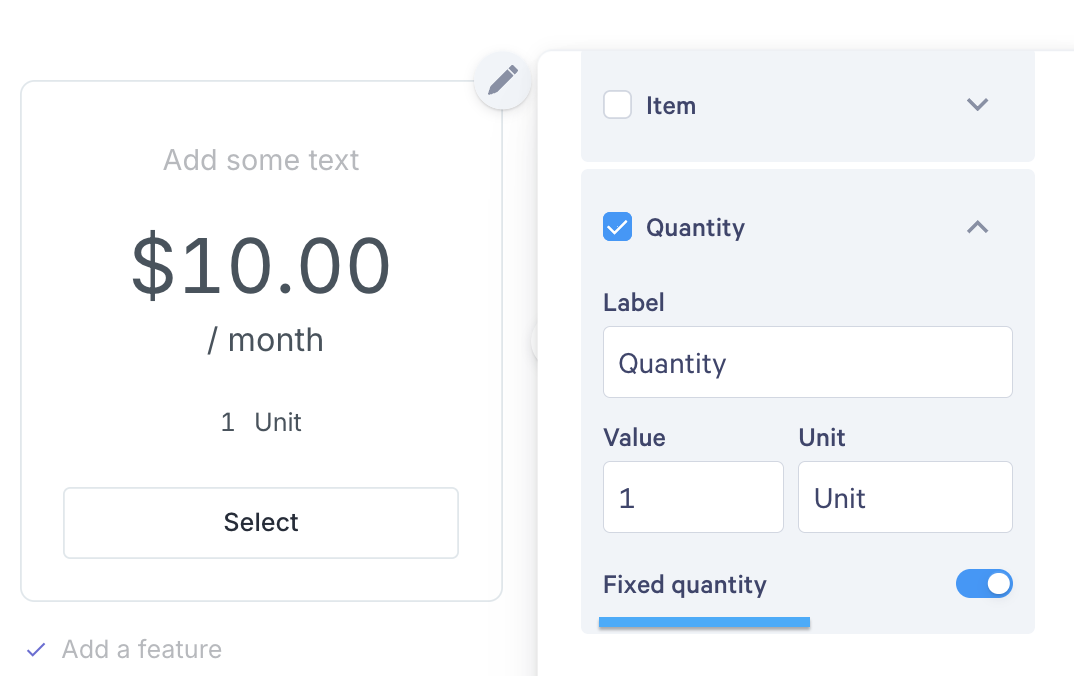
If you no longer want an optional quantity, you can use the same steps as above to access the Fixed Quantity switch, and enable it.
The quantity for this line will remain as it was when you disabled the setting, but you can change it manually.
What the buyer sees
With this setting, your buyer can either use the arrows to increase or decrease the quantity, or they can type in their desired quantity. The price recalculates from that selection.

Questions? We've got answers! Reach out to our Support Team at help@qwilr.com.