
Set Price Ranges with Volume Line Items (Beta)
Do you wish to implement price ranges in your quotes?
Sometimes you want to offer different prices depending on the quantity your buyer purchases. That's what the price range feature is for. You can also combine price ranges with optional quantities and optional line items.
In this article:
- Creating a price range: Quote section
- Creating a price range: Plan card section
- Setting up pricing tiers
- Using price ranges in a quote
Visit this page for the basics of using the Quote widgets. You can set up a new price range from either a Table-style quote, or a Plan card quote.
Creating a price range: Quote section
Step 1. If you're using a Quote section, click the + icon below the last line item, then choose Volume cost.
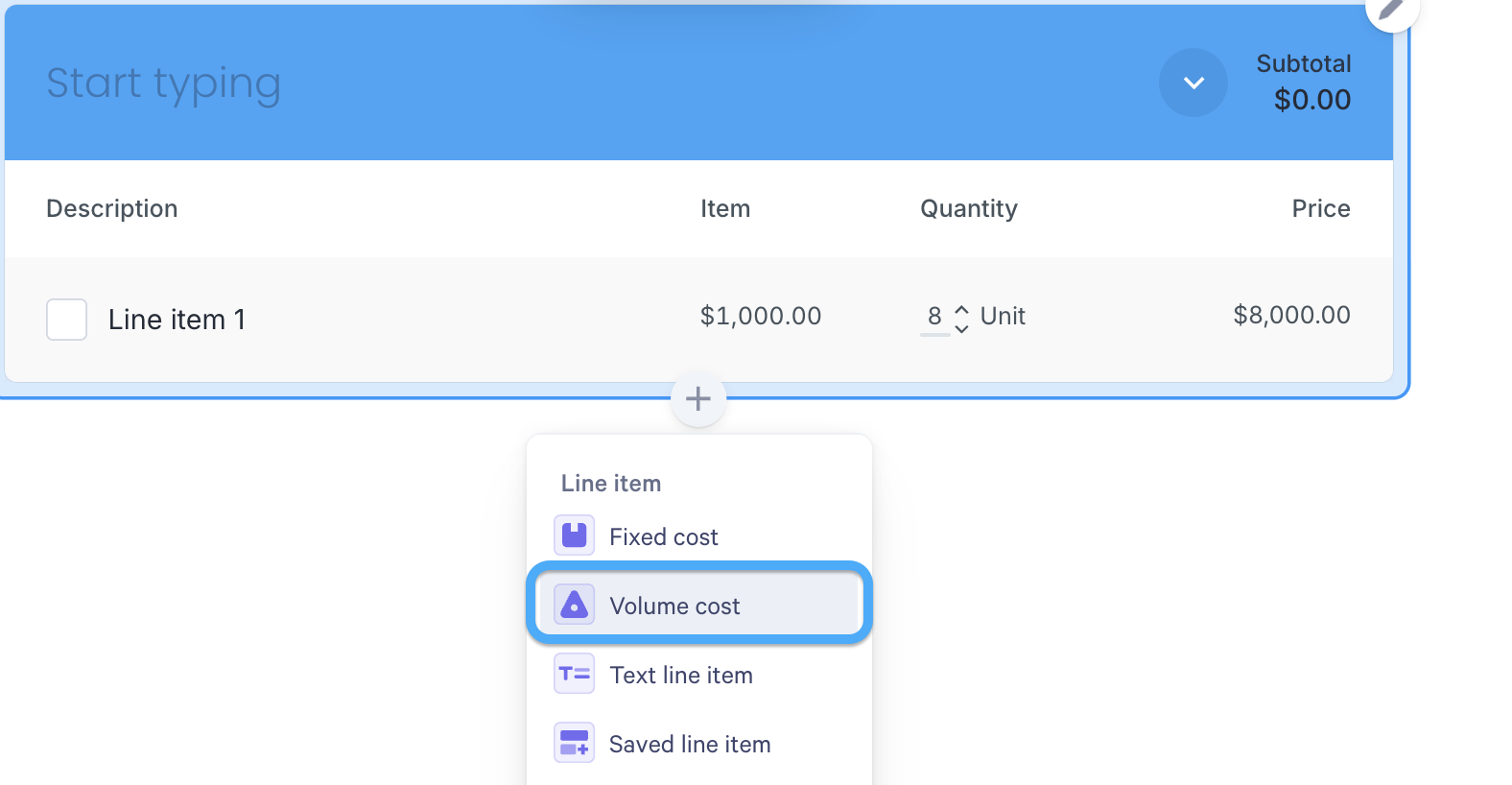
Step 2. Click into the description field and give the line item a name. Then click on the Item field. A drop down menu will appear.
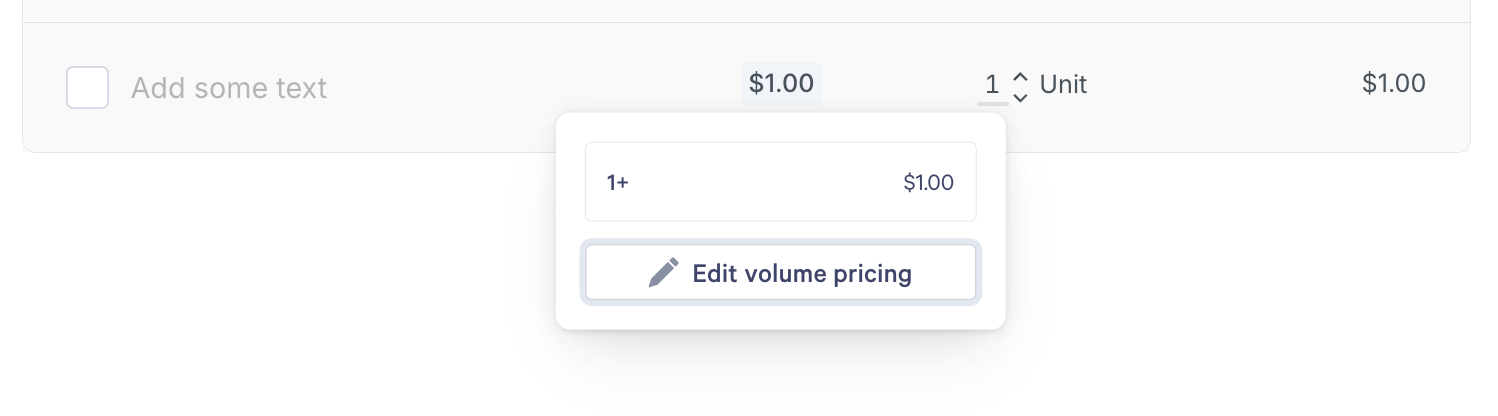
Click the item's price. A summary of its current pricing tiers appears, starting with a single tier that applies from 1 unit. Click Edit volume pricing to set up your tiers.
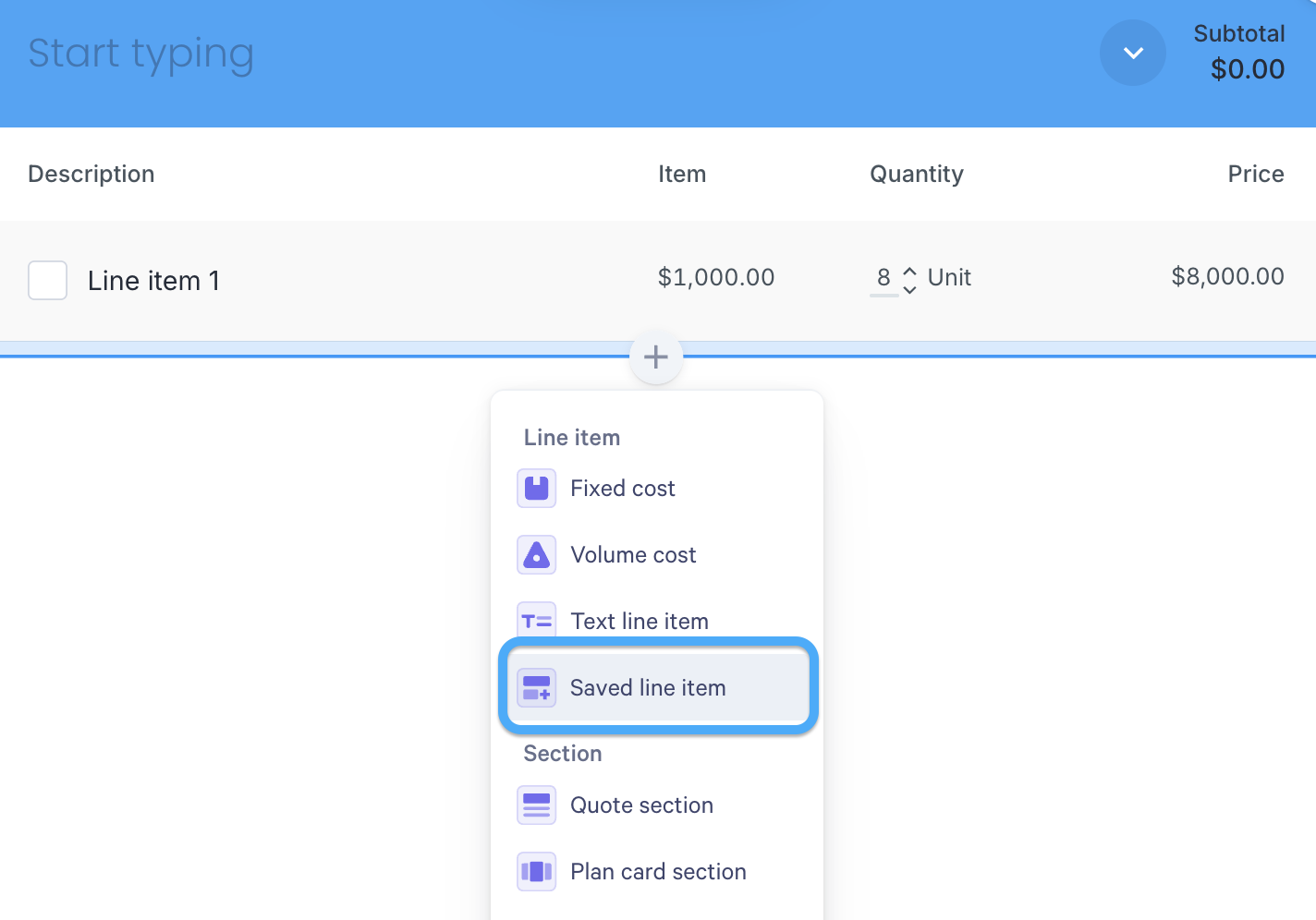
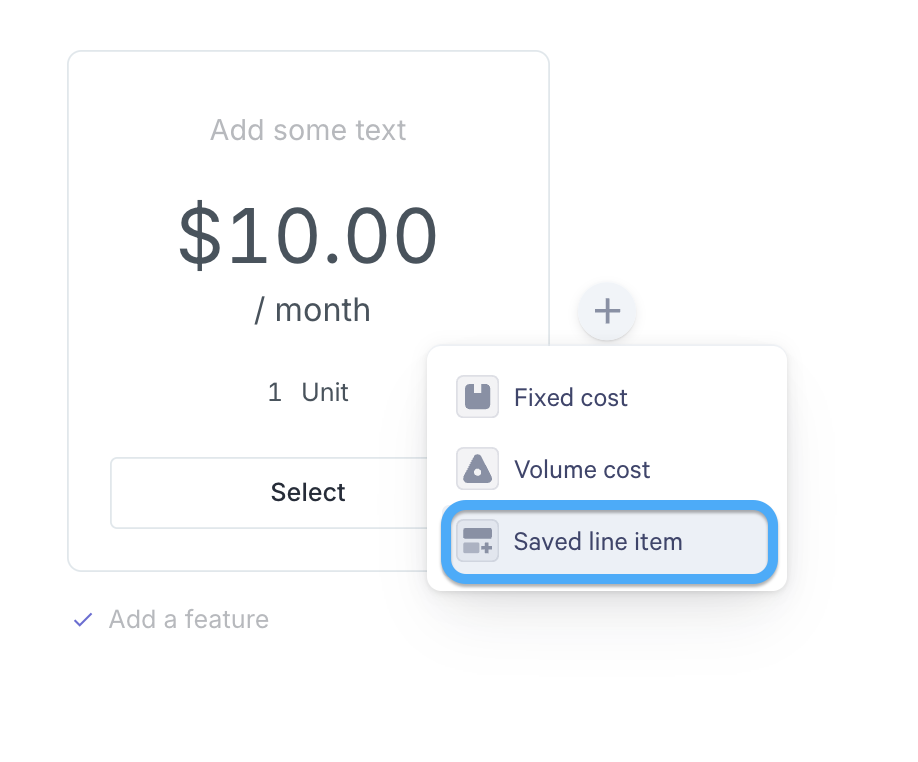
To access price ranges you've previously created, click the + icon below the last line item, then choose Saved line item.
Creating a price range: Plan card section
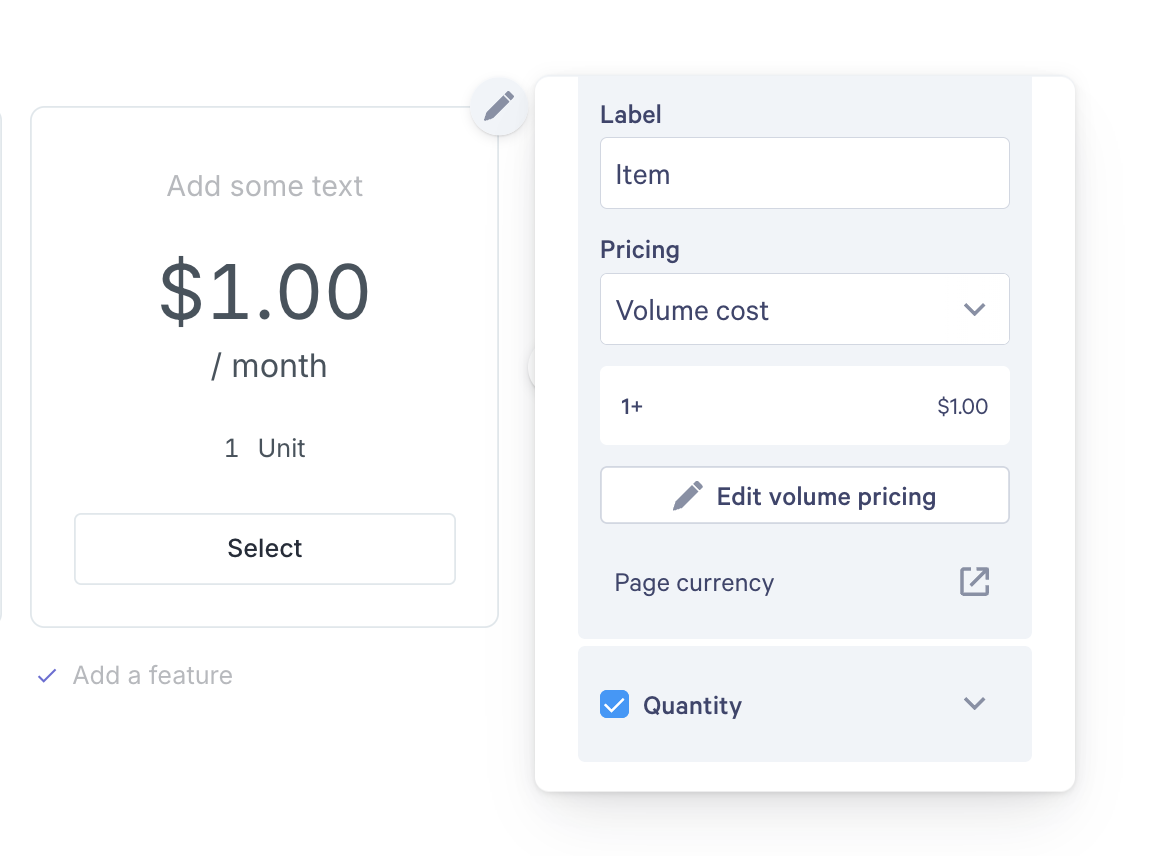
Step 1. If you're using a Plan card section, click the + symbol to add a new card, and then choose Volume cost.
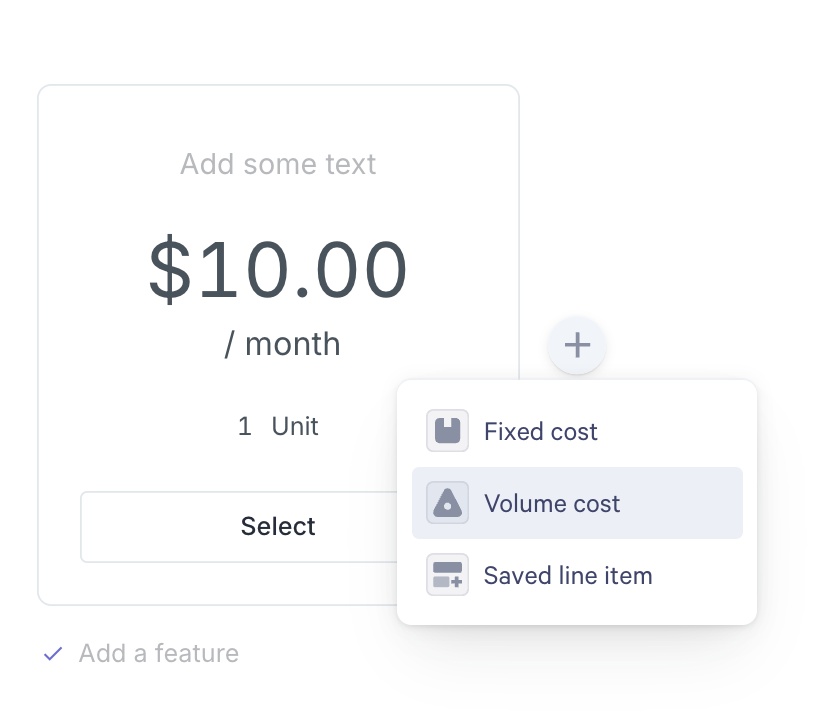
Step 2. Click the top field of the card and give it a name.
Step 3. Click the price on the card. A summary of its current pricing tiers appears, starting with a single tier that applies from 1 unit. Click Edit volume pricing to set up your tiers.
You can also get there by clicking the card's pencil icon, then Properties, and expanding Item.
To access price ranges you've previously created, click the + symbol to add a new card, and then choose Saved line item.
Setting up pricing tiers
When you're in the price range library:
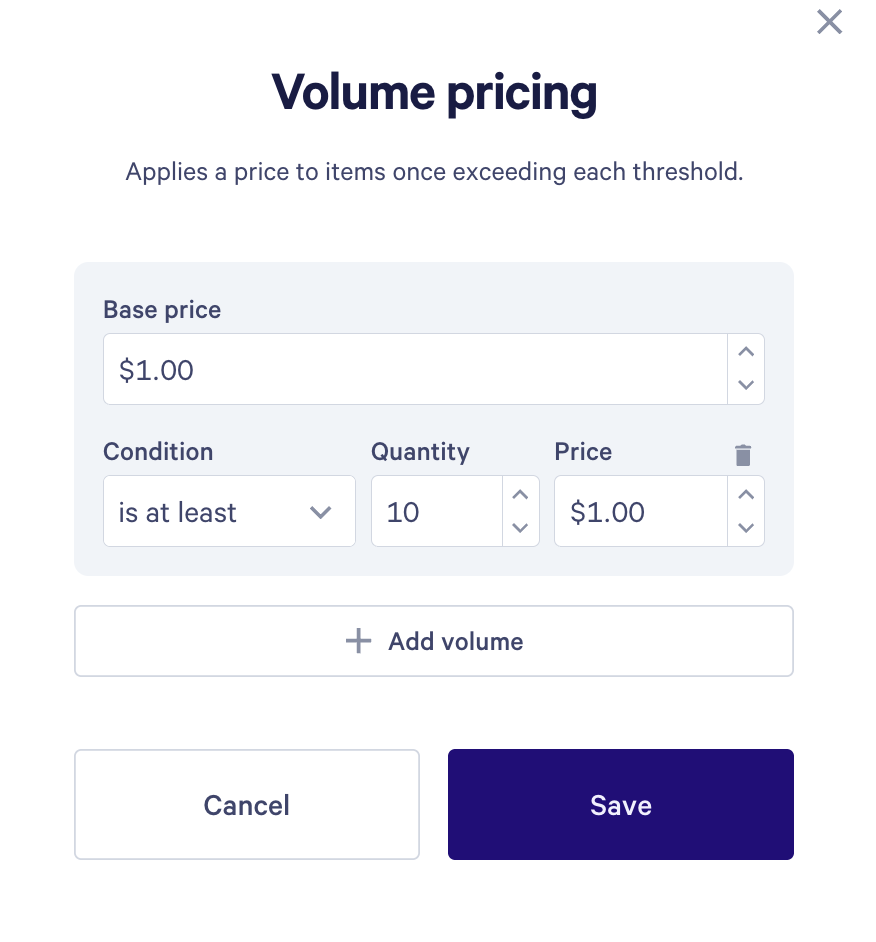
Step 1. Enter a Base price. This is the price per unit before any tier applies.
Step 2. Set up your first tier. Choose a Condition, enter the Quantity where the tier starts, and enter the Price per unit:
- is at least applies the tier from that quantity onwards. For example, "is at least 10" includes 10.
- is more than applies the tier only above that quantity. For example, "is more than 10" starts at 11.
Step 3. To add another tier, click Add volume. To remove one, click its bin icon.
Step 4. Click Save.
Once saved, clicking the item's price shows a summary of all its tiers.
Note: Volume pricing is set on each line item, so changing the tiers on one item doesn't affect any other item or page.
So, for example, let's say you sell bananas. Orders under 100 are $1.75 each, orders of 100 to 500 are $1.50 each, and orders over 500 are $1.00 each. You'd set it up like this:
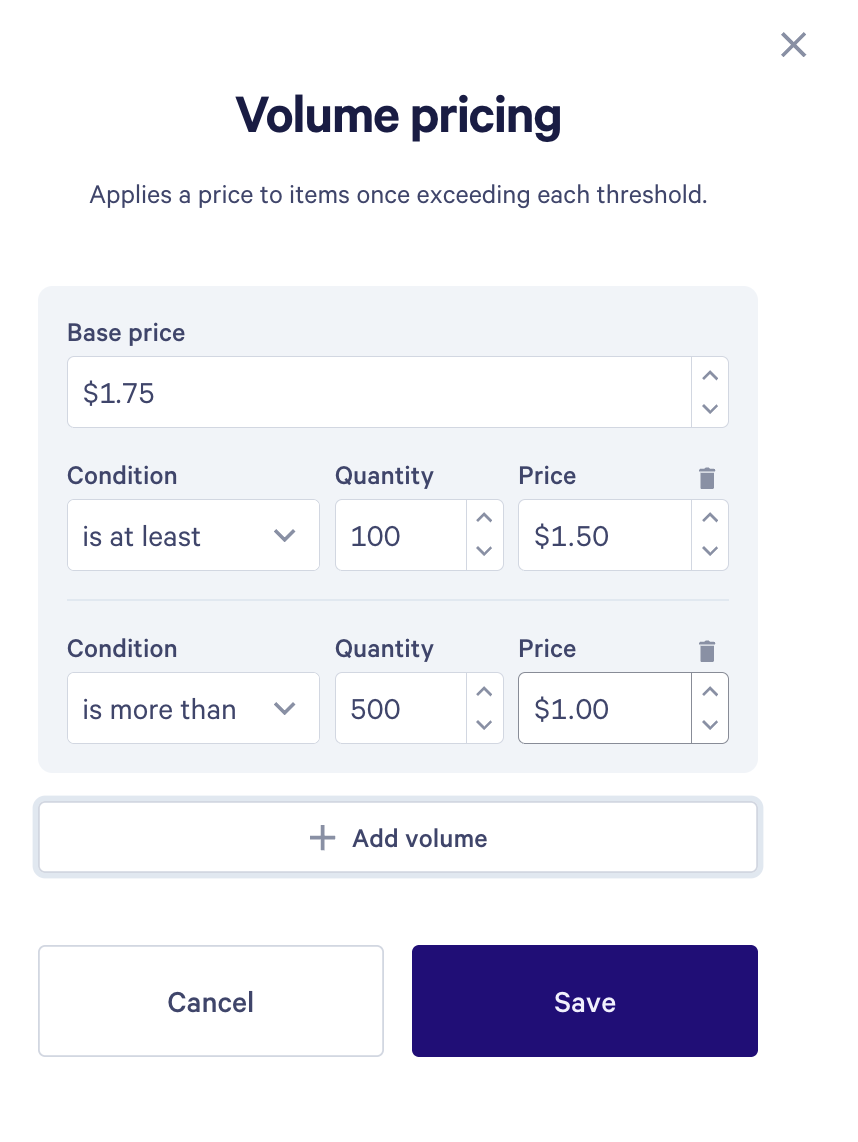
If your buyer orders 250 bananas, all 250 are charged at $1.50, for a total of $375.
Using price ranges in a quote
To use the same volume pricing in other quotes, save the item to your Saved line items. Click the item's pencil icon, then:
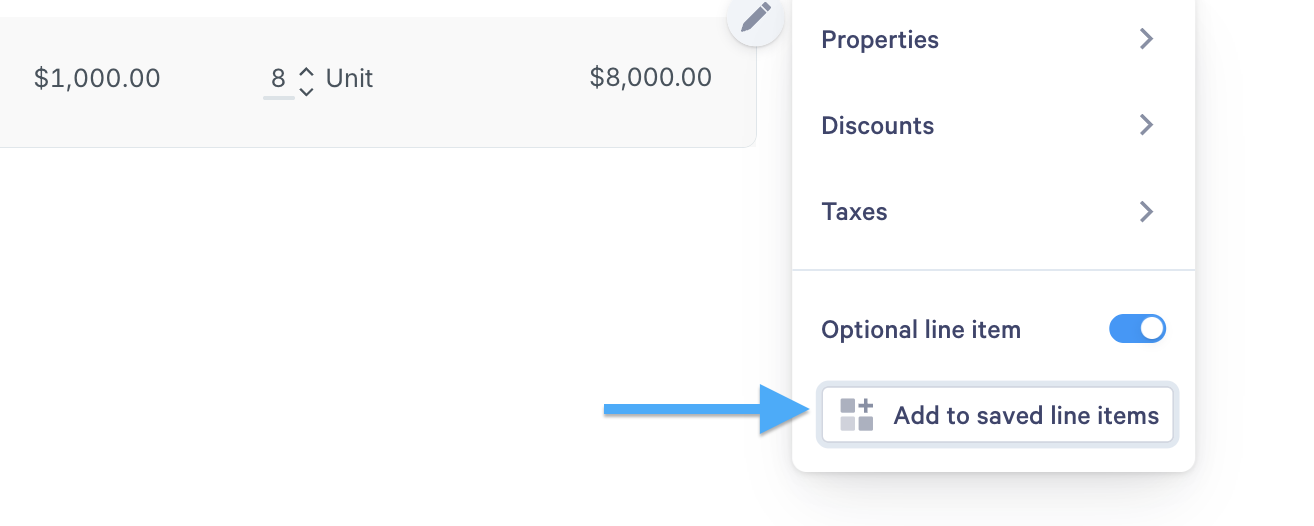
- in a quote section, click Add to saved line items.
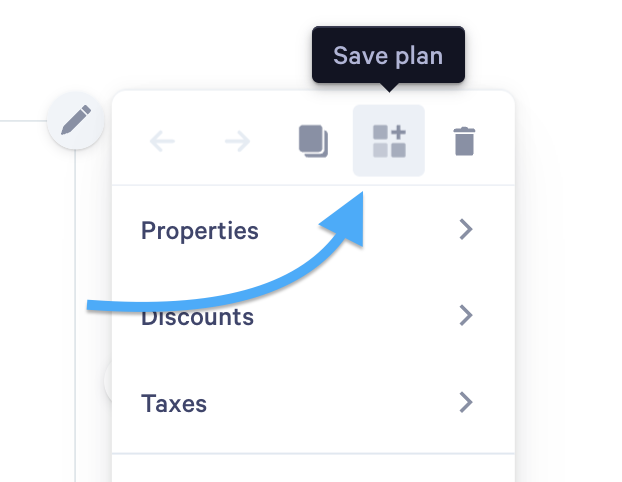
- on a plan card, click the Pencil icon and choose the Save plan icon in the toolbar.
To add a saved item, click the + icon below a quote section or beside the last card in a plan card section, then choose Saved line item.
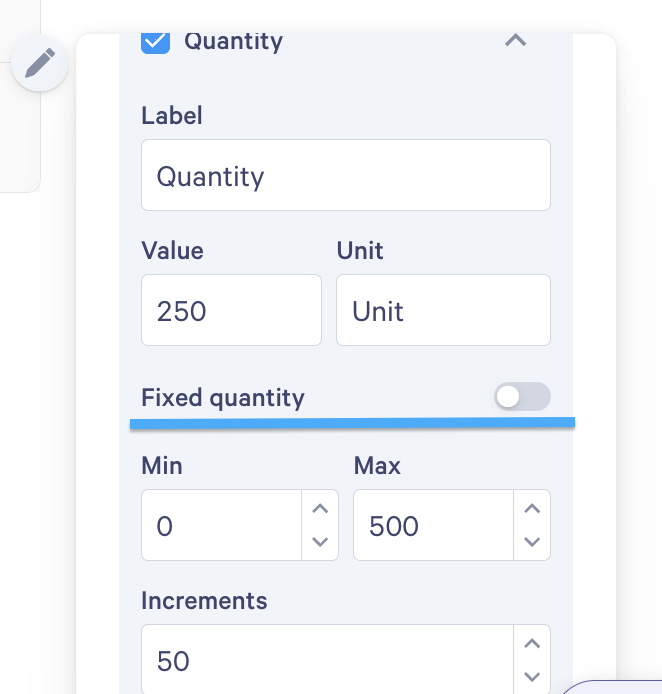
If you want your client to be able to choose their own quantity, be sure to set an optional quantity for this item and add a minimum and maximum.
Confused? Drop us a message at help@qwilr.com, and we'll clear things up for you.