
Quote Widgets (Beta)
Build interactive pricing for your buyers with the Quote Block or Quote Widget
Quote Widgets can populate quotes or interactive pricing plans with accurate data from your CRM, or by you if you don't use a CRM. You can recommend the best options as a seller, and even upsell buyers with add-ons while you’re there!

This article covers the basics of using the Quote Widgets but we have many useful quoting tools. Head to the bottom of this article for more details.
In this article:
- Using Quote Blocks and Widgets
- 3 styles of quoting
- Adding a new section
- Showing or hiding parts of a quote
- Managing and translating labels for Quotes
- Adding and customizing the Total Widget
- Formatting Currency
- Discounts with Quotes
- Taxes with Quotes
- Styling your Quote Widget and Blocks
- Quote Widgets in Columns
- Frequently Asked Questions
Using Quote Widgets and Blocks
There are two ways to easily add Quoting functionality to a Qwilr page. Either through adding a Quote widget or a Quote Block. The Quote Block is an easy shortcut to start a new block off with a Quote in mind, but is exactly the same as adding Quote Widget(s) to any other block type.
Adding Quotes as a Block
Think of Blocks like Lego pieces that stack to create more content. To add a new Block, first start by clicking the + icon at the top or bottom of any existing Block.

Then, select the Quote icon from the New Block Menu.

Adding Quotes as Widgets in Blocks
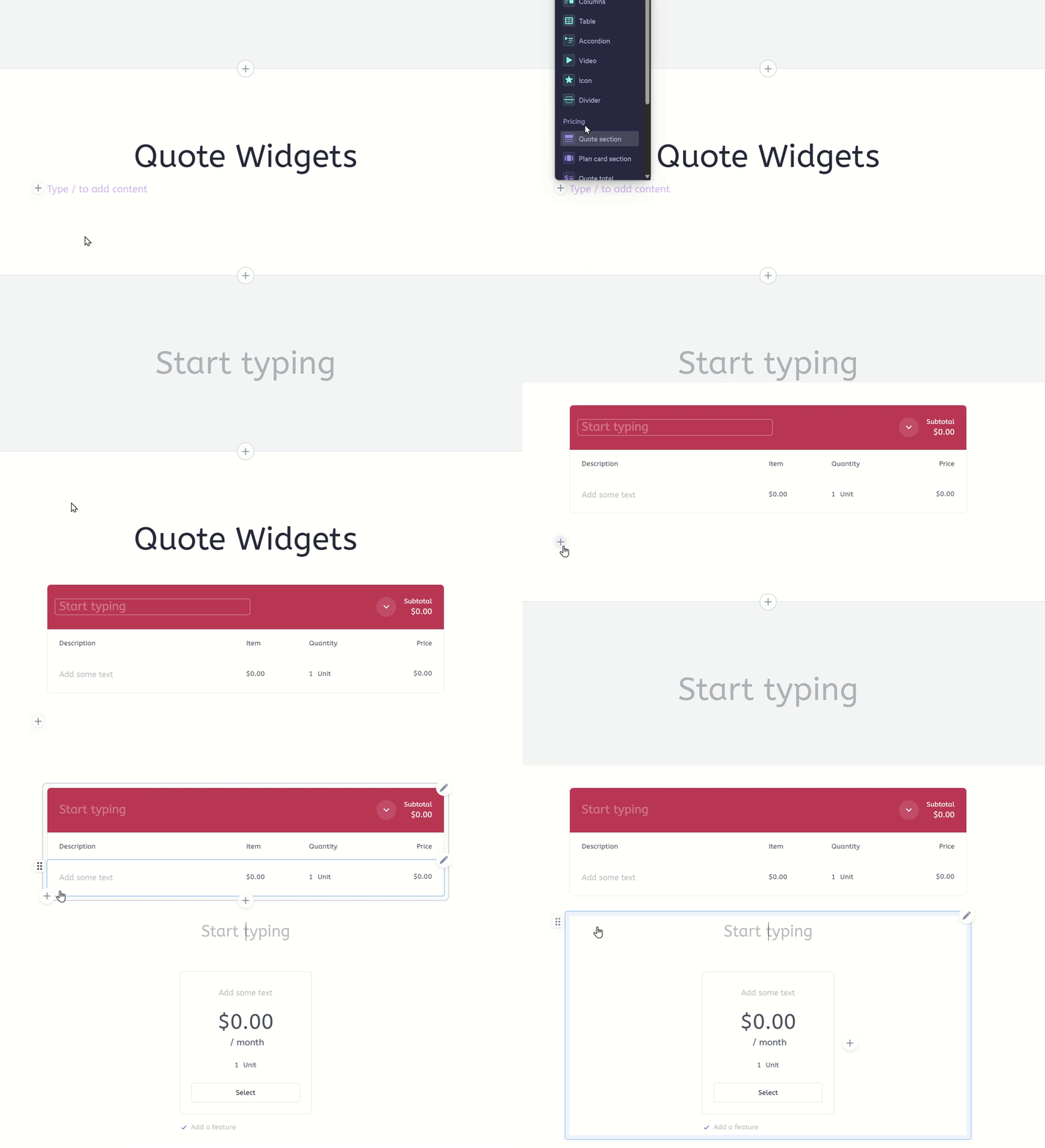
To add a Quote Widget, click on the '+' icon inside an existing block and select either Quote section or Plan card section under the Pricing group in our widget list.
3 styles of quoting
If you add a Quote Block preset you'll be prompted to choose a format for your quote. You can also recreate this with Quote Widgets by adding each piece individually. The presets are just to help you get started on a block focusing on quoting.
Depending on the quote you're building, you can mix and match two styles of presentation (click the links below to learn more):
- Standard Quote: presents your line items in a traditional table format.
- Plans Only: displays the same line-item details in a side-by-side card format.
- Combined Plans and Quote: contains both Table and Plan card sections

Adding additional Quote Widgets
Quote sections help you present a group of items in an organized way. Depending on the quote, you might use just one section, or many.
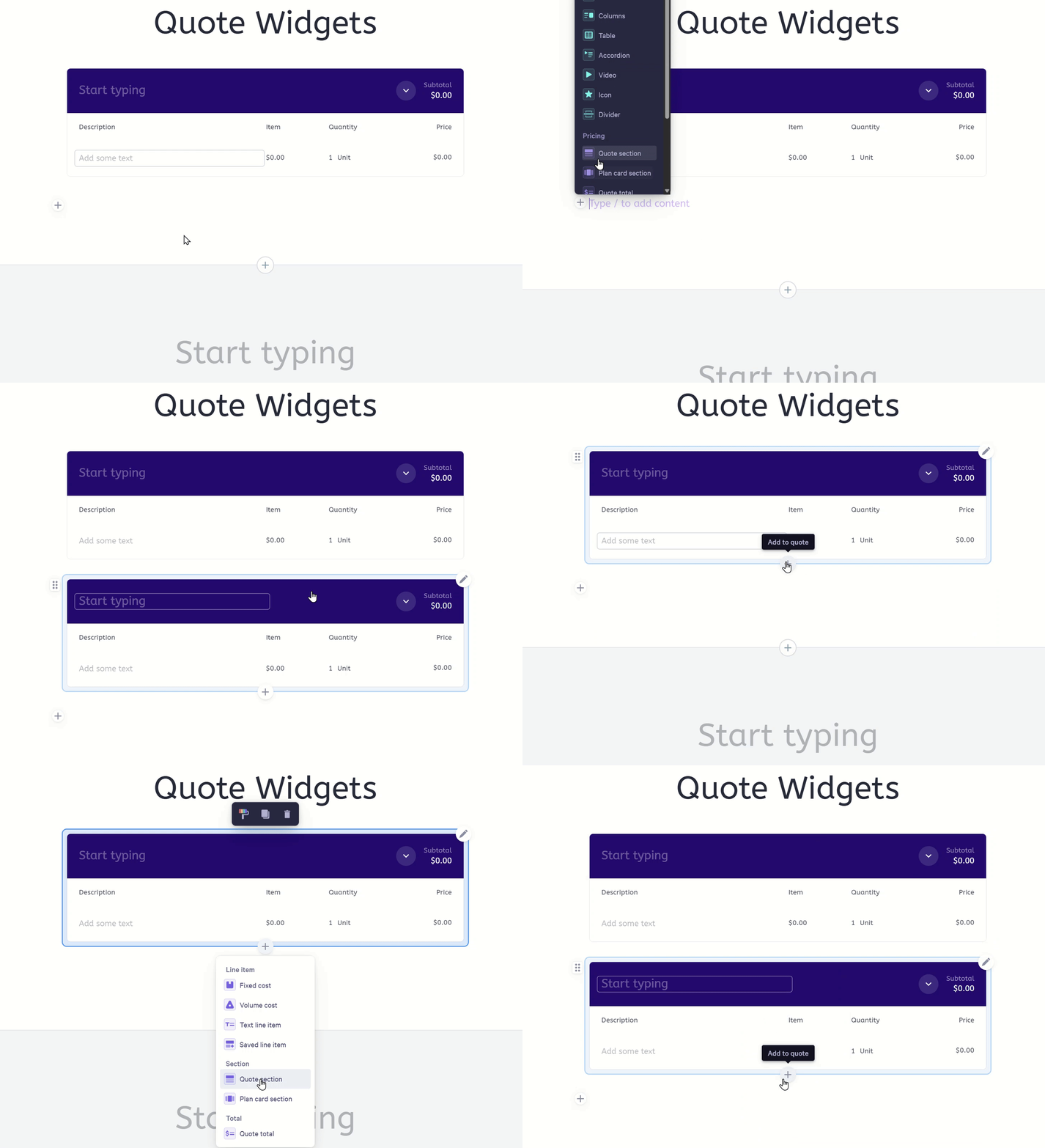
If you want to add a new section to your quote, you can either do so through the main widget menu on the line below your existing quote section, or you can click the '+' symbol that appears when you hover your mouse over an existing quote section and select Quote section or Plan card section as you can do in the main widget selector.
Showing or hiding parts of a quote
You can hide certain elements of your Quotes so they're not visible to your clients. This can happen in a normal, table-style quote section as well as a package card.
Hiding details in a Quote Table
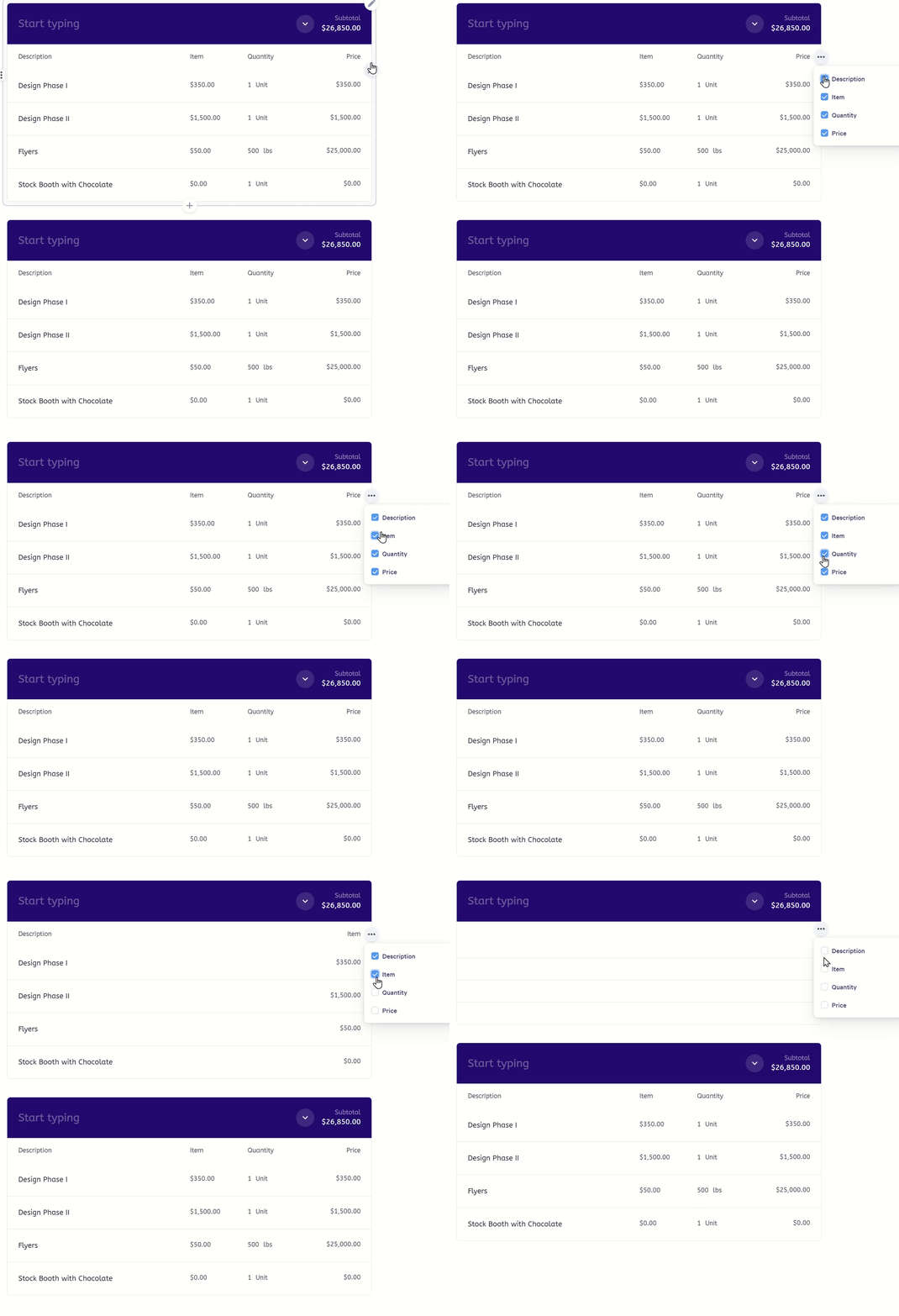
At the top row of a table for Quote items, you'll see a horizontal 3-dot menu to the right to Show or hide columns. This can show or hide each column. You'll also note that it only happens on the single Quote Widget you're working on and not the other tables or content in the block or across other blocks in your Qwilr page.
Hiding details in your Plan Cards
For Plan cards Quote Widgets the hiding functionality is a little bit more specific. Each plan card can be edited to hide or show different details within it.
For Plan cards, click the pencil icon at the top right of each card and then select Properties. Here you'll see you can show or hide the Description, Item, Quantity, and Price fields. Note that this only affects each card individually and not the other cards as a group in the Plan cards section.
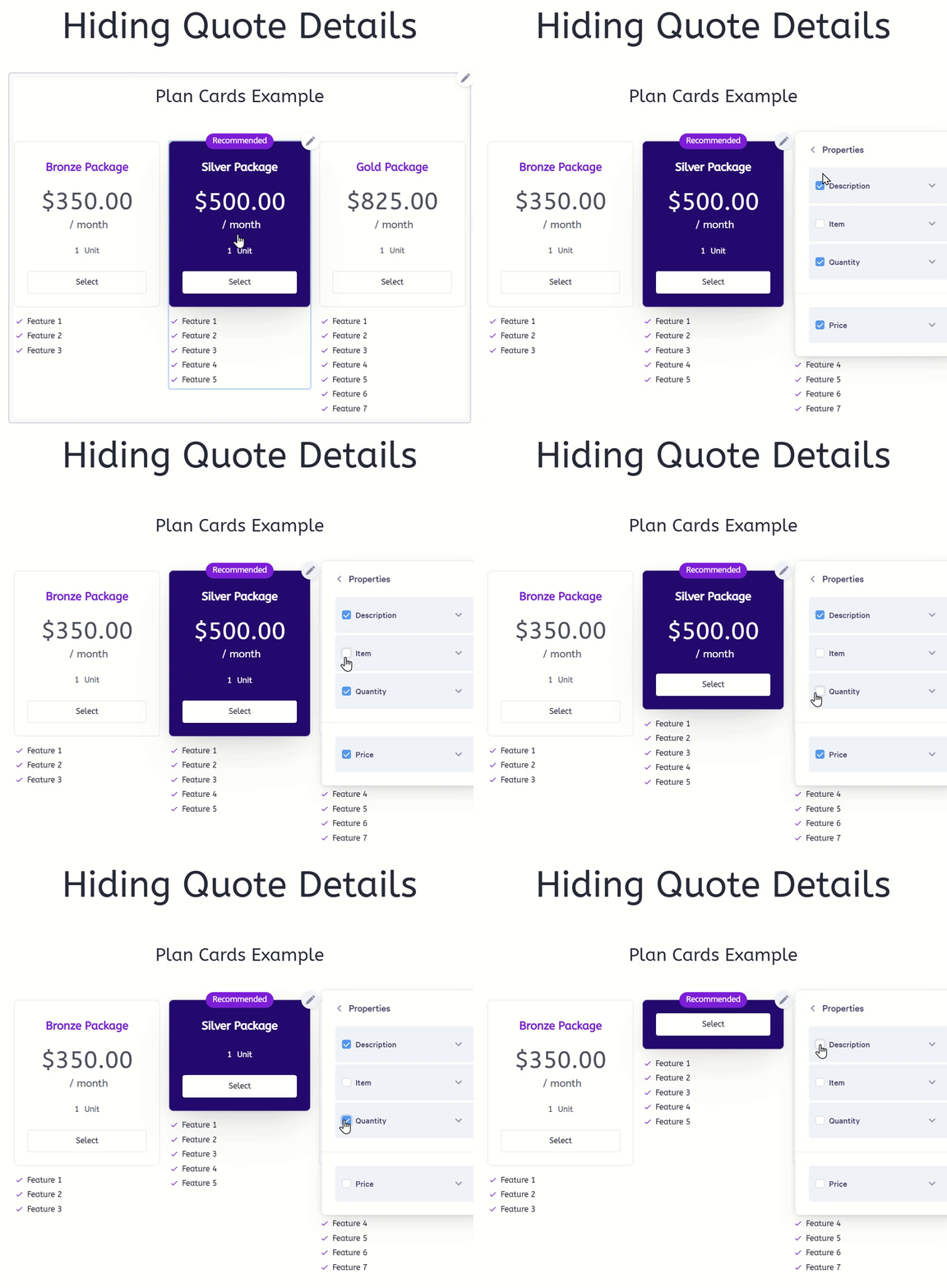
Note: The total of the quote will stay the same even if you've hidden some columns.
Updating the labels and language of the Quote Widget
Qwilr's quote widget has several default labels and language describing different aspects of the Quote. There are multiple locations to manage these updates across the Quote table, Plan cards, and the block options themself for any block that contains a Quote widget.
Updating the labels in a Quote table
In the Quote table widget, you can update the Description, Item, Quantity, and Price label directly in the table by click the text directly at the top of the table.
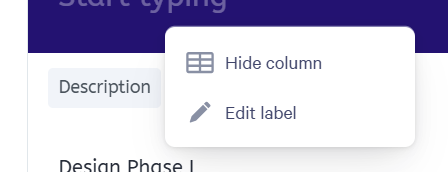
There, you will have the option to either Hide column or Edit label directly. This will have to be done on each individual Quote table widget in the page as they do not automatically update any other Quote widget.
Updating the labels in a Quote plan card
These labels are not as visible to the customer but you can still update them. First click on the pencil icon in the top right of the card and select Properties.
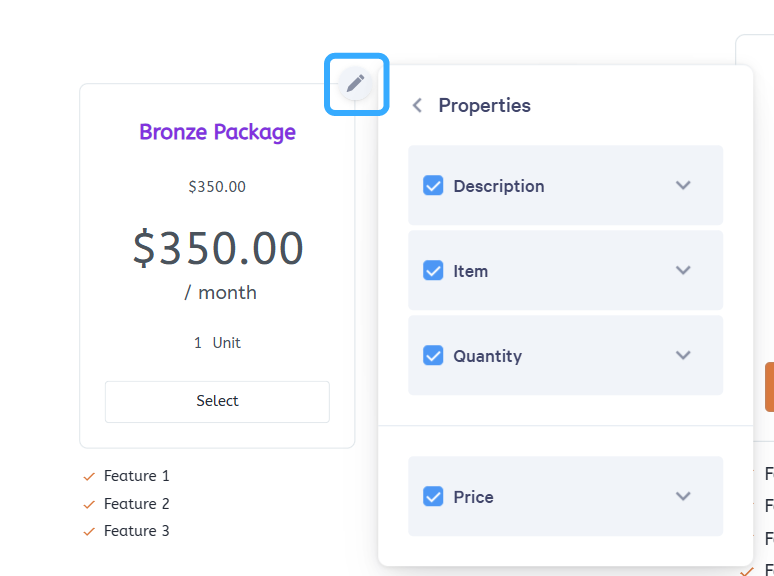
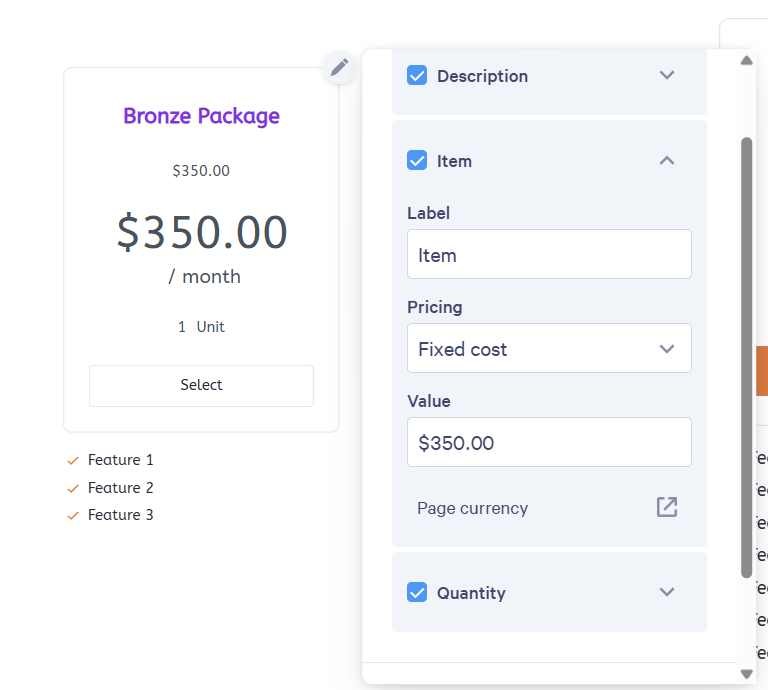
There you will see the ability to hide or show the Description, Item, Quantity, or Price and the expansion icon to the right of each. Each menu will have a Label field where you can edit the text of the label. Like the Quote table, this will have to be done on each card individually.
Updating the label set for the full all Quote widgets in a block
This is where you can set the these labels, as well as many others, in the block. Qwilr allows for Language overrides for labels within a Quote. This can act both for translating the Quote labels from English into another language, or just choose different labels for different terms within the Quote.
To get started, click on the block options of a block with a Quote widget inside of it and select Edit & manage overrides.
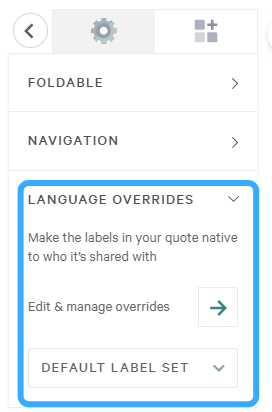
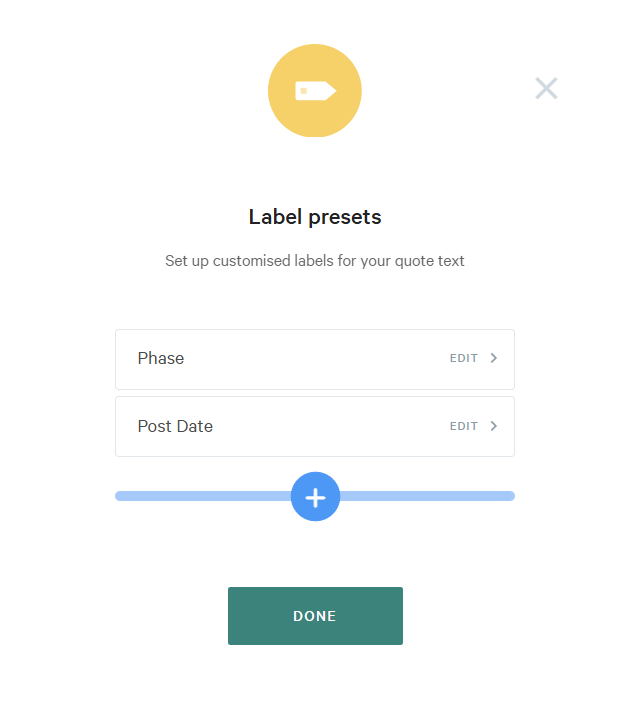
Once there, you will be on the Label presets screen. This is how to manage any label sets across the whole account. You can save multiple label sets for multiple uses and mix and match them through individual pages with Quote widgets. The label set will apply to any relevant labels within the block that it is applied to. For the purposes of the instructional page, we will select the '+' symbol to add a new label set.
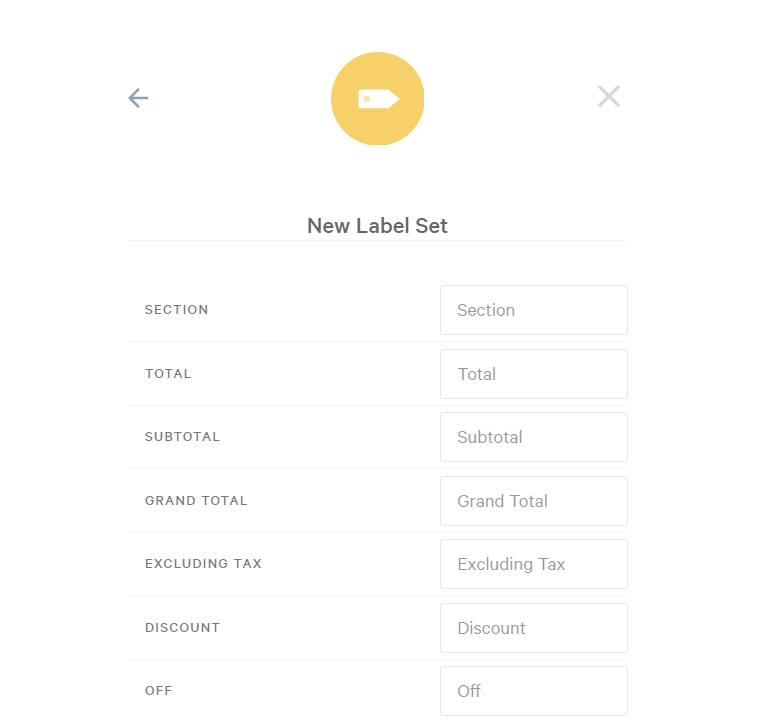
At the top of the Label set will be the title, which you can enter, and then a list of all the default labels that can potentially appear in a Quote. You can replace any word with the word entered in the field beside it.
After you've entered in all the label fields you want to replace, scroll down to the bottom and click Done to save the new label set.
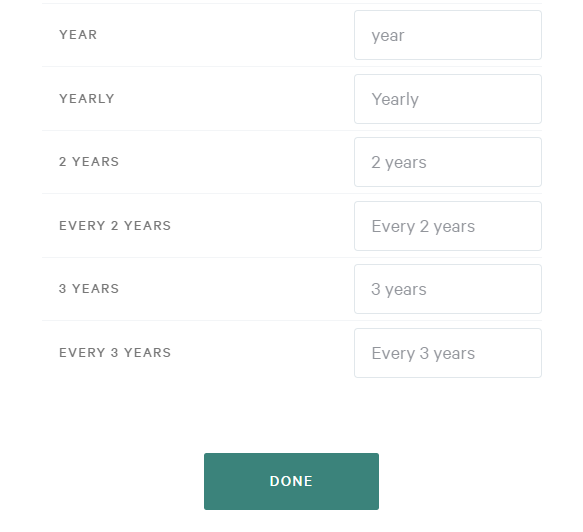
The below table lists all the labels you can rename with the Language override label set tool.
| Section | Select | Month |
| Total | Selected | Monthly |
| Subtotal | Recommended | 6 Months |
| Grand Total | Once | Every 6 Months |
| Excluding Tax | Due Today | Quarter |
| Discount | Due Today Excluding Tax | Quarterly |
| Off | One Off | Year |
| Description | Recurring | Yearly |
| Item | Week | 2 Years |
| Quantity | Weekly | Every 2 Years |
| Price | 2 Weeks | 3 Years |
| Per | Every 2 Weeks | Every 3 Years |
Note: You'll notice here that Description, Item, Quantity, and Price all appear in the label sets. Because these four labels are now managed in the application, they do not update via label set.
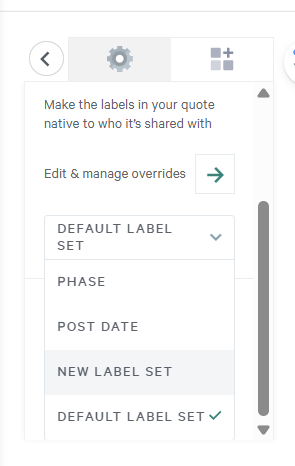
The last step is to go back and apply the New label set to the block containing the Quote widgets. When you create a new one it does not automatically apply that to the block. You can also select previous label sets you've saved. When you add or edit a label set, it will save for the full account. You also have the choice to go back to the DEFAULT LABEL SET.
Adding and customizing the Total Widget
The Quote total widget can be found under the Pricing section of the widgets selector by clicking the '+' symbol inside a block.
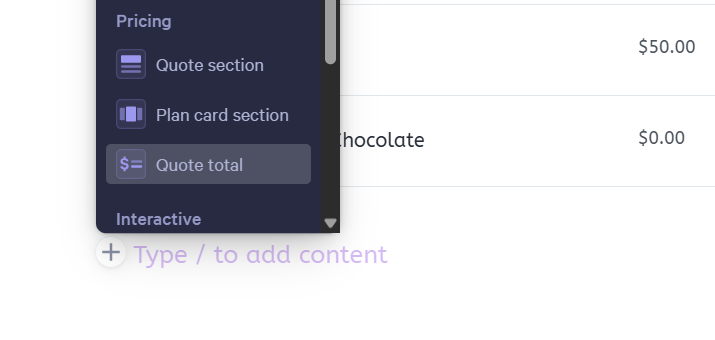
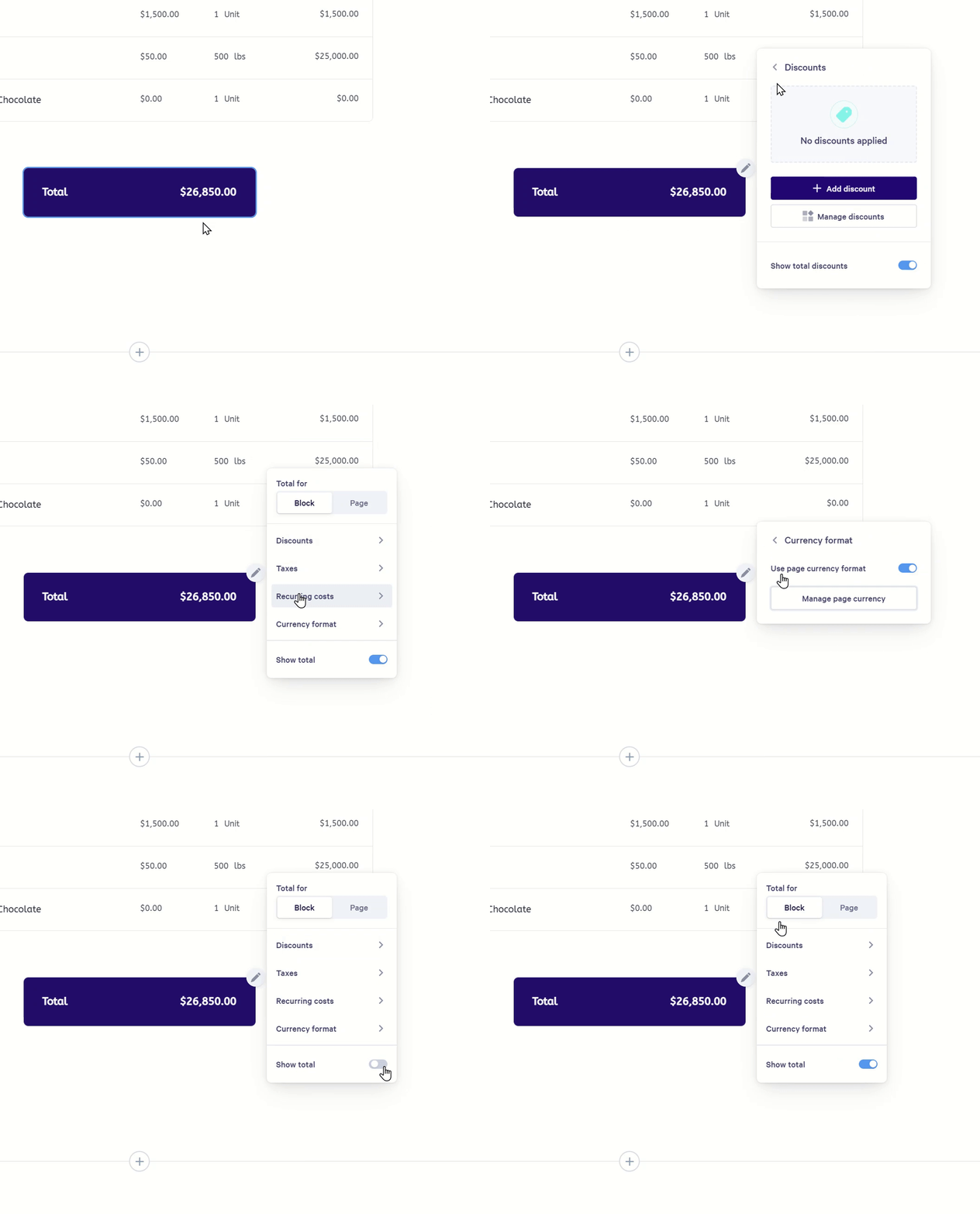
Once added you can manipulate details in the Total widget via the pencil icon in the top right.
- Manage Discounts applied to the total
- Apply taxes
- Recurring costs
- Currency format
- Show total
- Apply the total widget to calculate the totals of the Quote widgets forthe block it is on, or the entire page
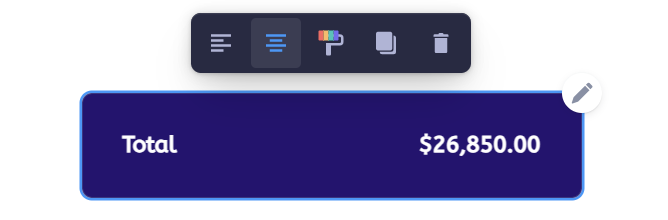
You can also Style the Total widget by click on it to bring up the context menu which will allow you to center or left align the widget, set the background color and border color via the paint roller icon, clone the total widget, or delete it.
The total lines and labels in the Total widget are generated automatically. For more info on how to change the wording of those labels please see this section of the help doc: Updating labels.
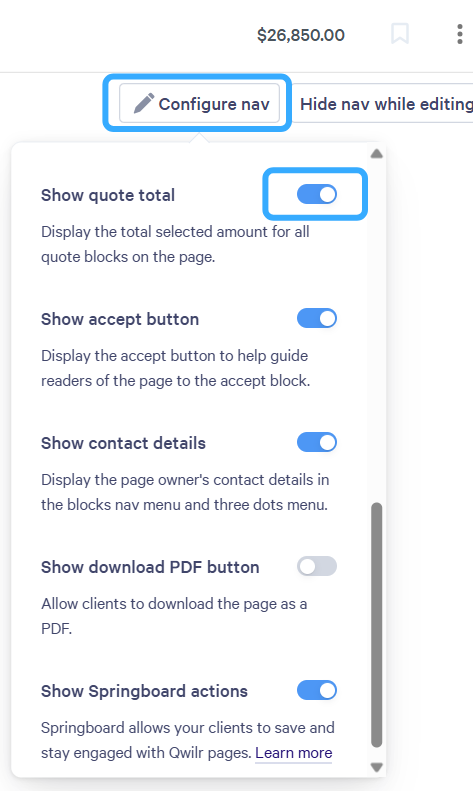
If you'd like to hide the top right overall total at the top of the page, hover your mouse toward the top right of your page editor and click Configure nav. There in the menu you can scroll down to Show quote total and toggle that off.
That will hide the overall total for all quote blocks on the page.
Formatting Currency
Selecting the currency of a Quote widget, or a page overall, and defining how it is displayed can occur in two places. At the page-level settings in the top right, and on the individual line items, quote tables, plan cards, and quote total.
For editing the currency of a page overall, head to the top right and click on the three-dot vertical menu, then select Page currency.
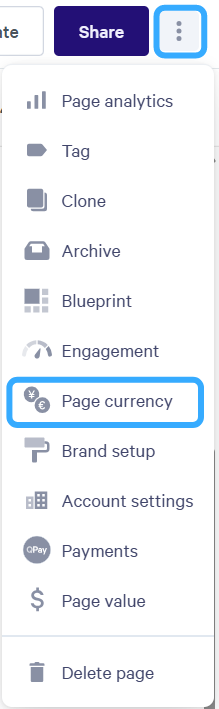
Once in the Page currency menu you can set the currency type by searching for the 3-letter currency code and also set the Currency format to display decimals or not.
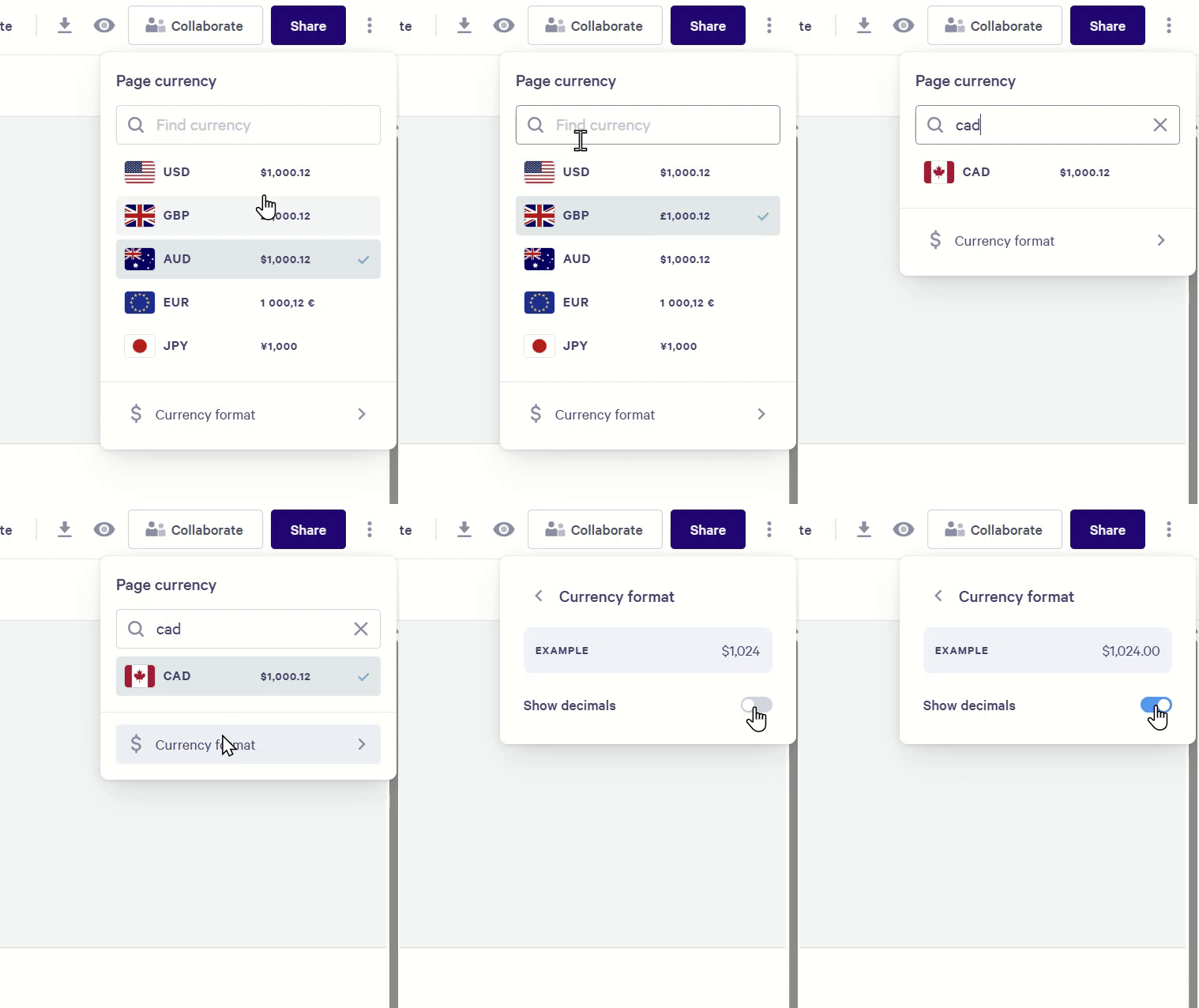
Note: Two things related to page currency.
- The default currency if unchanged is set to AUD as Qwilr is an Australian-based company.
- A page can only have one currency type across the page, regardless of how many quote widgets are available.
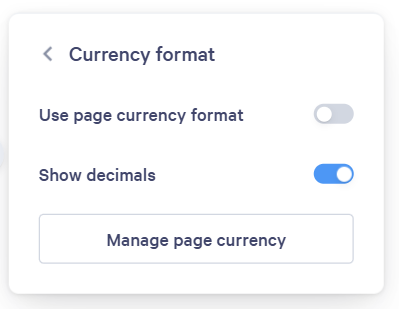
The Currency format can also be set at the Quote widget level on the Quote table options, Plan card section options, or the Total widgets options. Click the pencil icon to the right of any of these sections and you'll see a Currency format section. By default it is toggled on to Use page currency format. You can toggle that off and then decide if that particular Quote widget section does or does not have decimals.
Discounts with Quotes
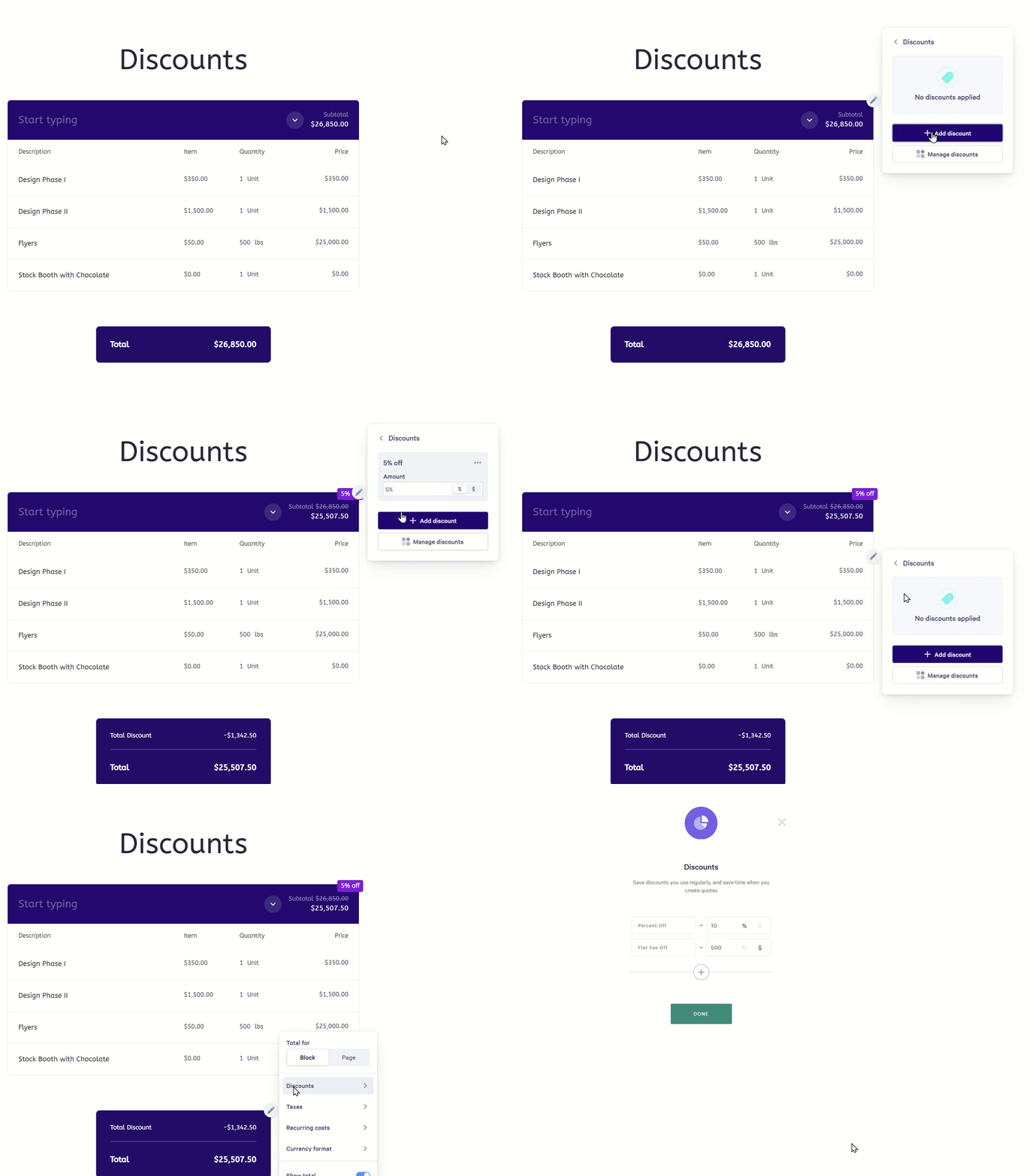
Discounts can be applied at multiple portions of a Quote Widget table, plan card, line item, or total. The Discounts menu will always live in the pencil icon to the right side. The discount will be applied at a the layer it is added. For example, if you add a 10% discount to a line item, then add a 10% discount to the Quote table widget the line item exists in, that will further discount the line item that already had the 10% discount. So make sure you've got your discounts organized!
When adding a discount you will be given the option to add either a previously saved discount, or add a Custom discount that can either be a flat dollar amount or percentage discount. The discount(s) will then be shown with the original price struck through and new price with the discount label. You can also Manage discounts from these menus to add new, account-wide saved discounts.
For Discounts on Plan cards
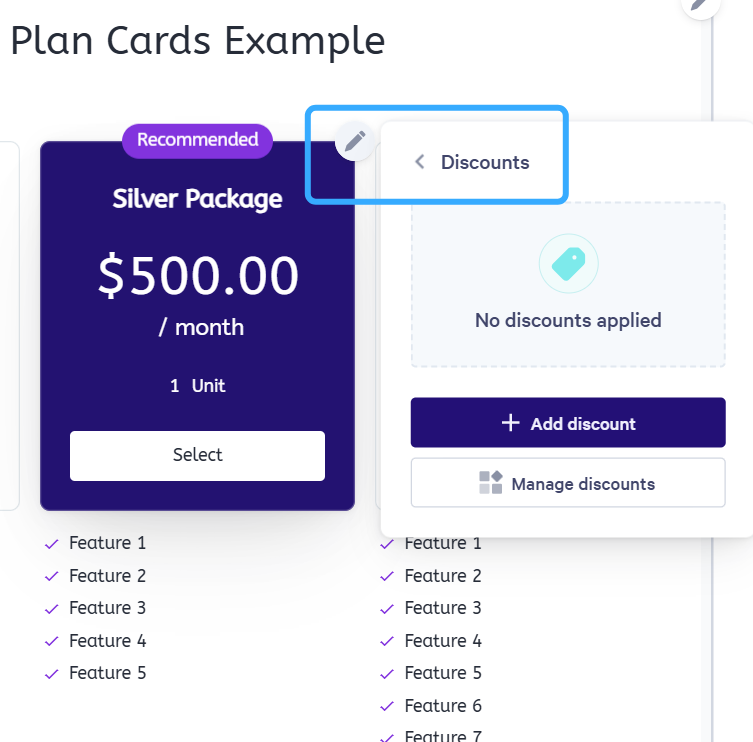
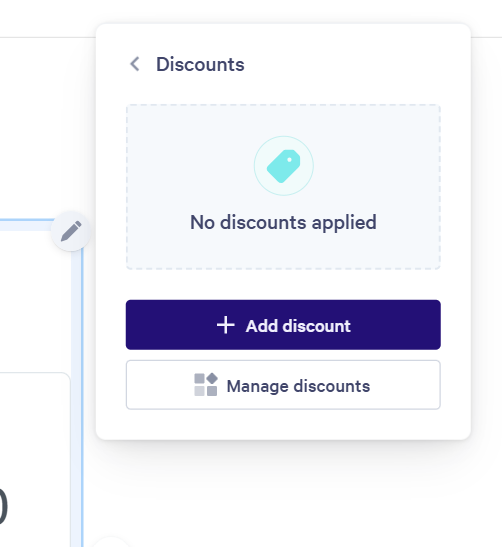
Discounts can be applied to plan cards on the card itself via the pencil icon in the top right or in the Plan Card section in the top right under that pencil icon.
Discount in a Plan card itself.
Discount in the top right for the full Plan card section.
Taxes with Quotes
Taxes can be applied at the line item level, the Quote table level, the Total widget level, and for plan cards and groups of plan cards. Similarly to Discounts, the ability to apply and exempt from these taxes can be found in the pencil icons to the right side of each of the above.
When navigating to add or remove taxes from Quote items, click the pencil icon and then select Taxes. This will bring you to the below screen.
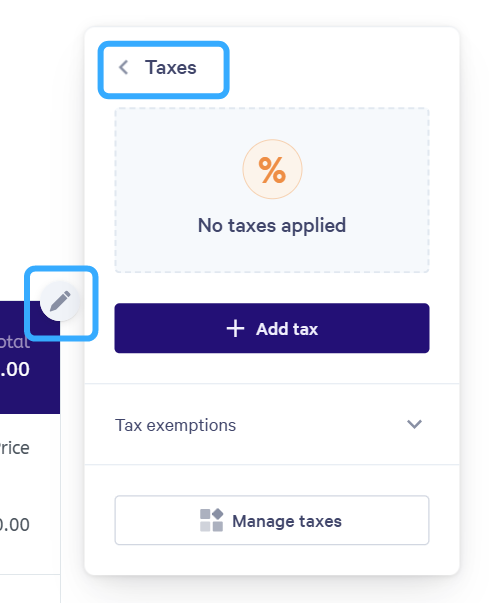
Here you will have a few options. It will show any taxes already applied, if any, have the Add tax button to add taxes, and the Tax exemptions drop down to show all taxes unselected for this item. You can also Manage taxes here for your whole account.
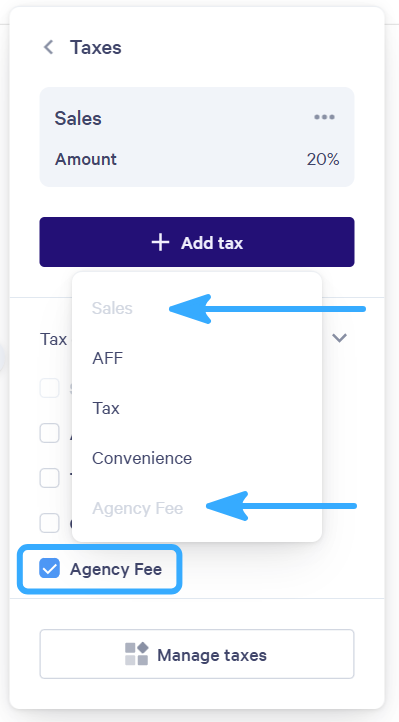
In the example image below, we've added our Sales tax of 20% and expanded the list to display our other taxes via the Tax exemptions expanded menu.
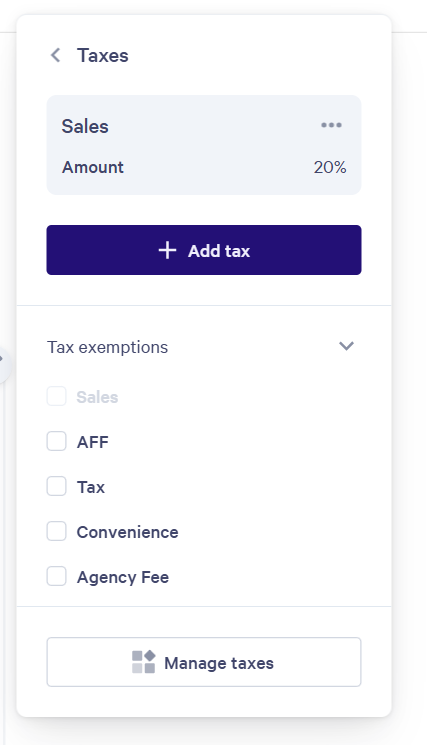
We can choose to check multiple taxes not-yet-applied to the item, which will prevent them from being added when clicking Add tax. In the continuing example below, you can see we've checked 'Agency Fee' in the Tax exemptions list and because Sales is already added, we only have the three remaining options to add to the item.
Now our Total widget displays those tax details by default. The Total widget also can apply and exempt taxes via the pencil icon > taxes menu, but has two more options in it. Show tax totals which will show the individual tax total amounts, and Show total excluding tax which will display that at the top of the Total widget.
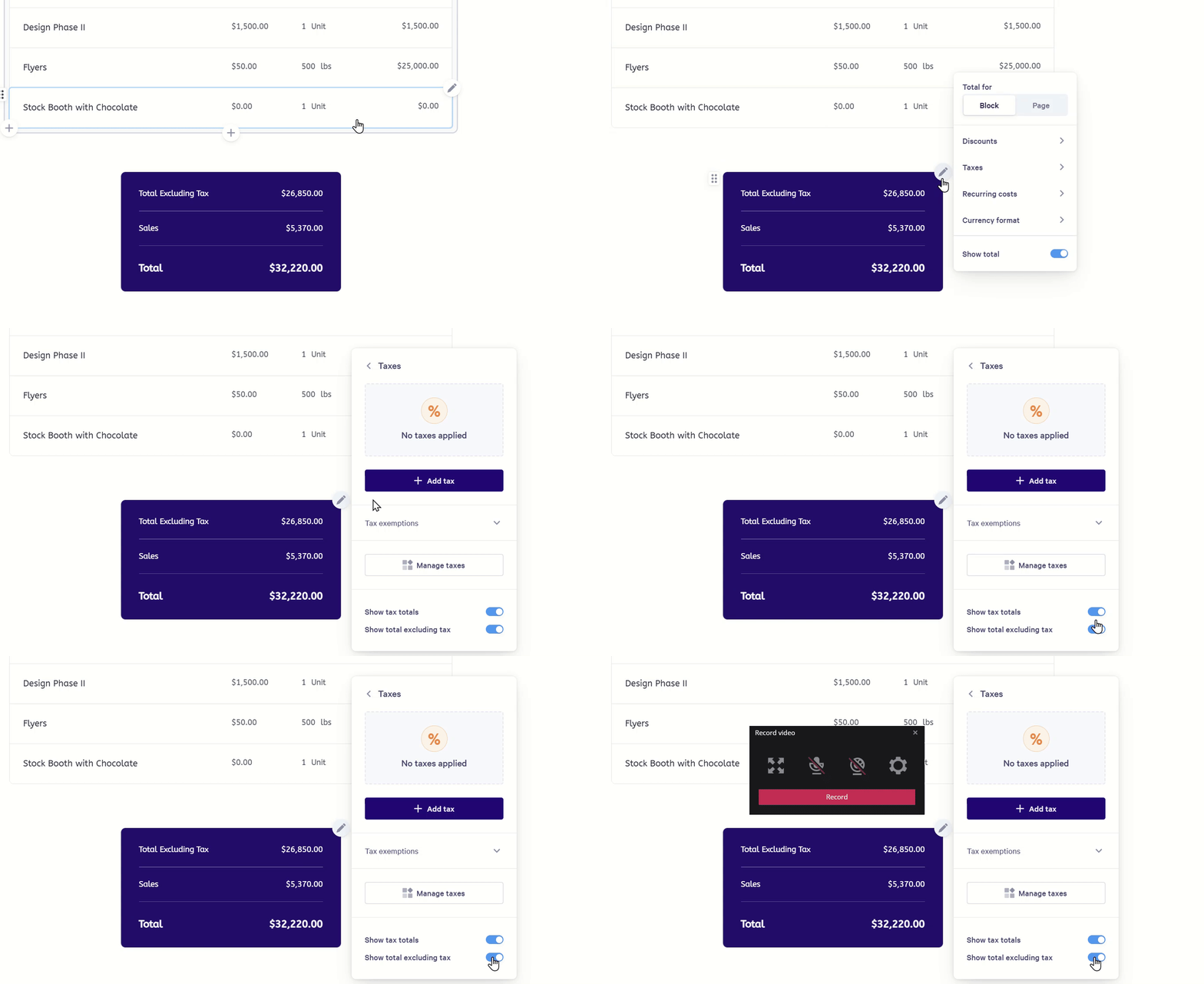
Note: Applying taxes to the Total widget will apply them to all products included in either the Total for Block or the Total for Page depending on which option you've chosen for the Total widget to include.
Styling your Quote Widgets and Blocks
For styling the background of a block that contains quote widgets, please see our Block Styles article. In this section we'll be talking about styling options for quote table, plan card, and total widgets.
Styling a quote table involves clicking on the top heading of the menu to bring up the context editor. There you will see our paint roller icon. Click on it. From that menu you can decide your:
- Header toggle on/off and header color
- Header border on/off and border color and opacity
- Background color on/off for table below the header
- Table board on/off and border color and opacity
- Highlight Color
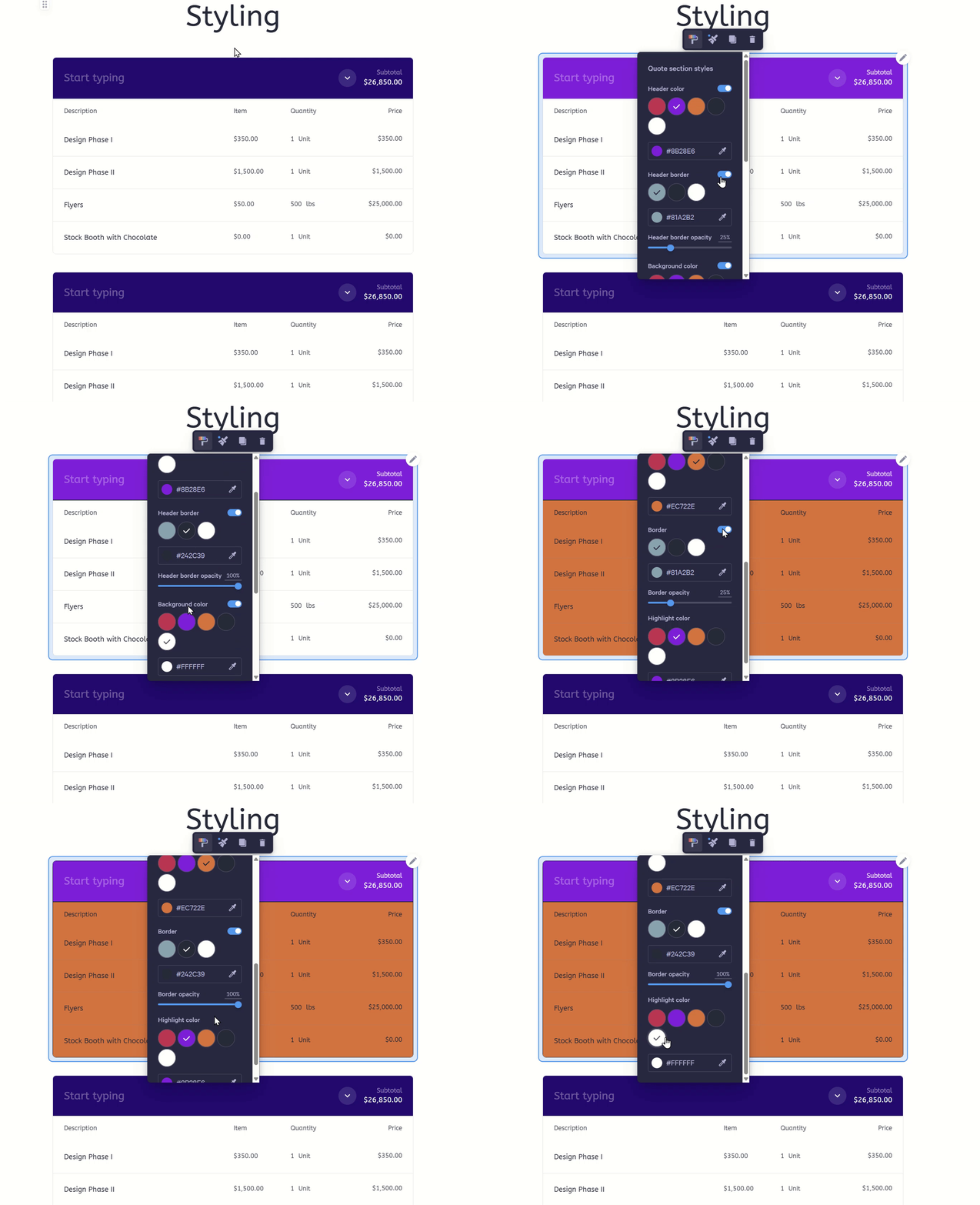
Note: As you can see from the gif above, the other tables on the same block do not automatically match styles. To design a table widget how you like and then populate it on the rest of the block, click the brush icon with the blue dot above it to have the option to Update block or Reset style to default.
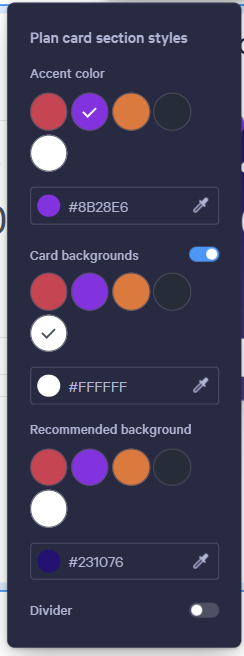
Plan card styling have a similar, but different set of options from the above instructions. In order to access them, hover your mouse toward the edge of the Plan card section and click the extern border to reveal the context editor. Then select the paint roller icon.
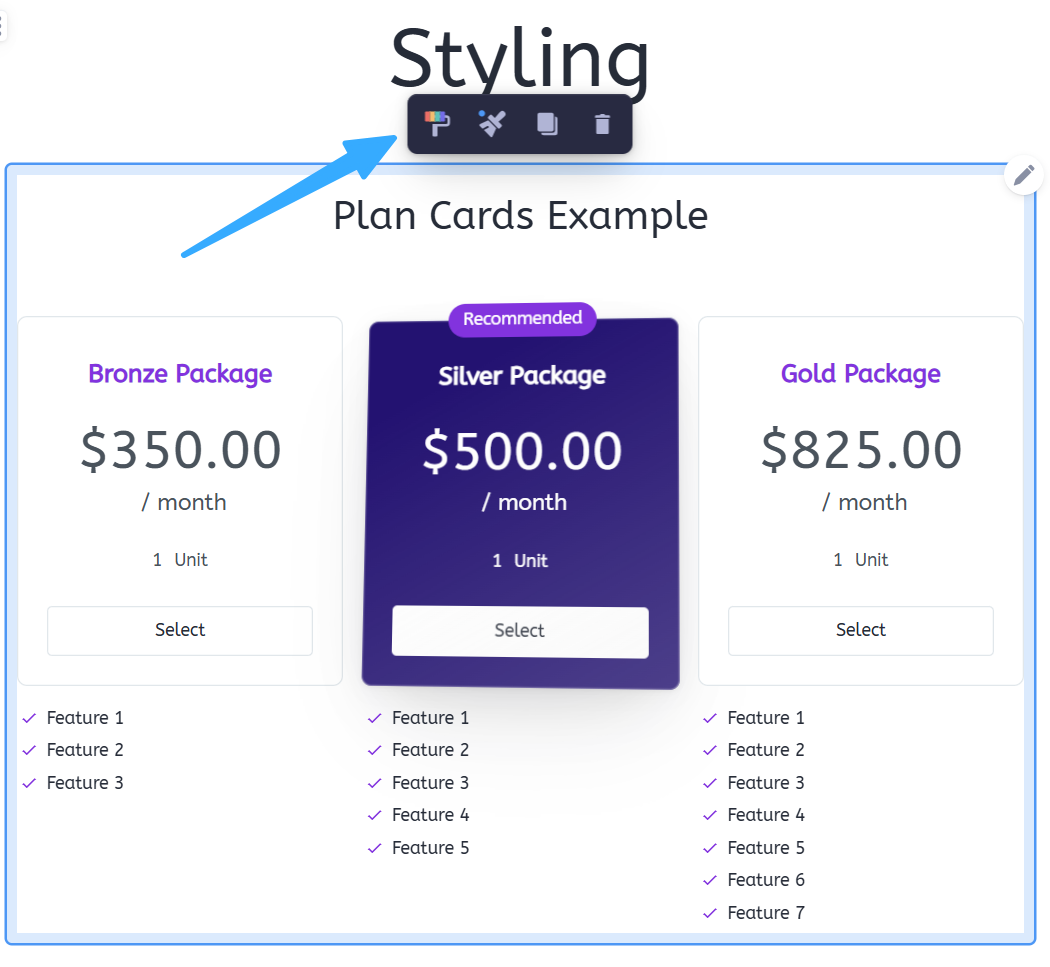
Here you will find your options to style the Plan card widget overall.
- Accent color for visual interest on recommended and selected plans
- Card background toggle on/off and background card color
- Recommended background color for if you recommend a plan in the card options
- Divider lines toggle on/off and setting the color and opacity of those lines between the plan cards
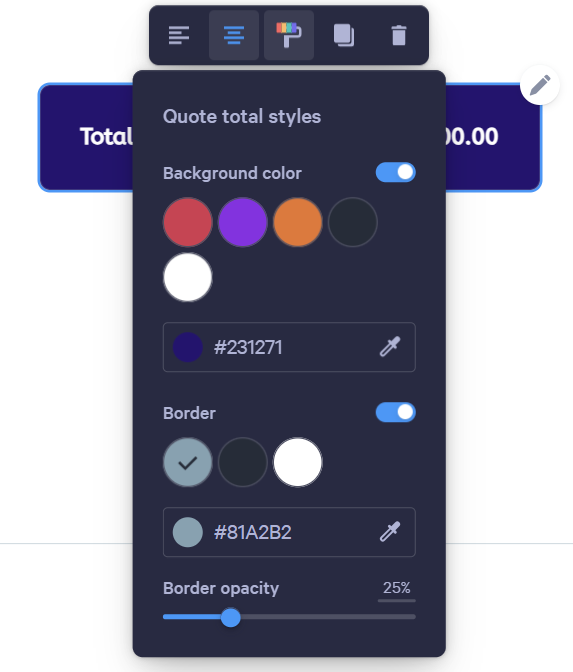
Total widget styling, like Plan cards, also has some differences. Click on the Total widget to bring up the context editor and then click on the paint roller icon to style your Total widget.
In the style menu for the Total widget you're find:
- Background color toggle on/off
- Border toggle on/off and the ability to select color and opacity
Quote Widgets in Columns
Quote widgets are able to be inserted inside of Columns widgets. This allows for more side-by-side content and flexibility with how your Quote is presented.
Add a columns widget by clicking on the widget '+' symbol in a block. Once your columns widget is added, click the '+' symbol to add a Quote widget inside on of the columns.
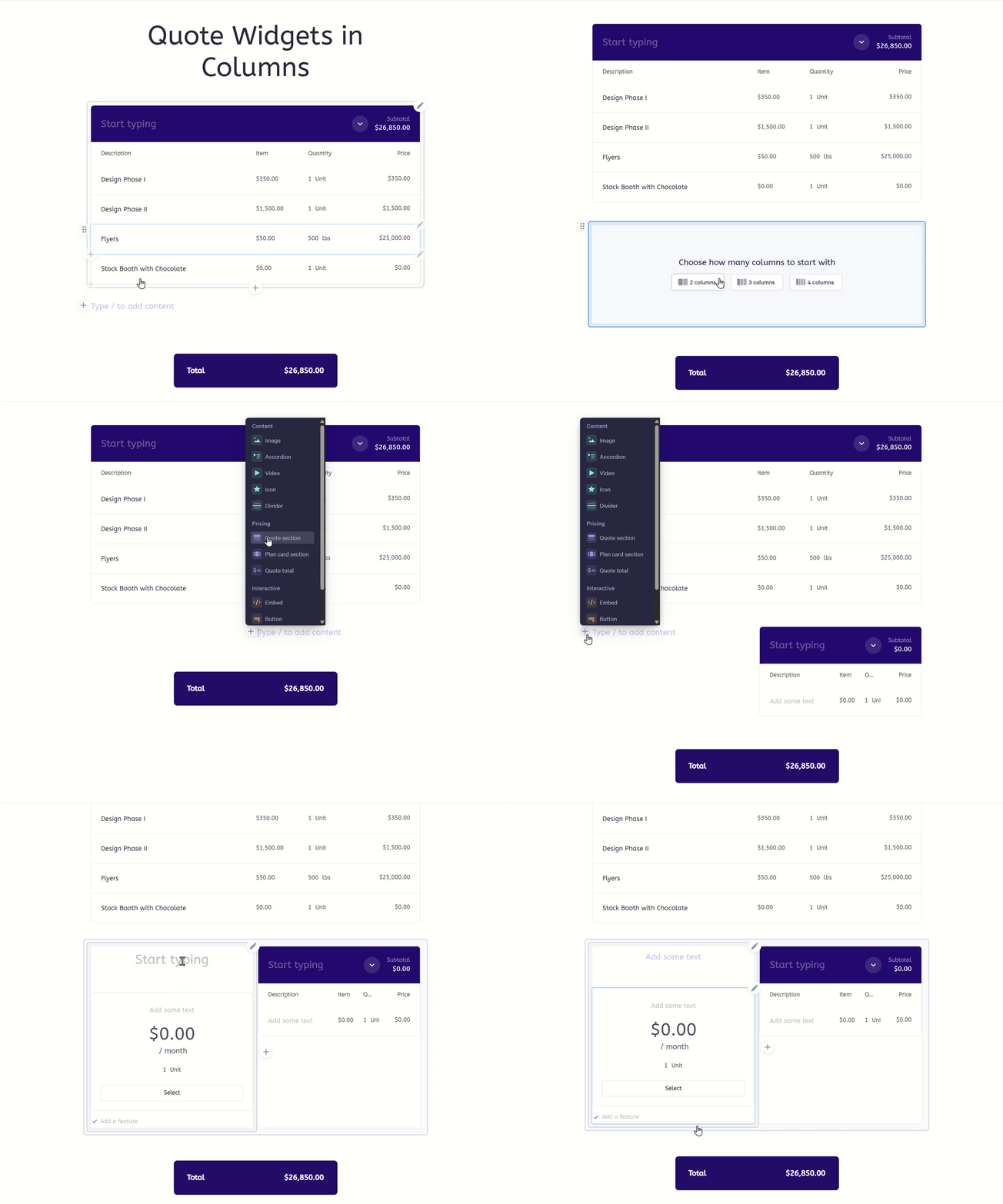
The images below are some examples on how you could format Quote widgets within a Columns widget, however, you are not limited to 2 columns only.


What's Next:
Here are some more things the Quote Block can do:
- Adding a table section
- Adding plan cards
- Setting the currency
- One-time pricing
- Recurring pricing
- Packages
- Price ranges
- Optional items
- Optional quantities
- Taxes
- Discounts
- Manual Page value
- Add an Accept Block to your page so your client can agree and sign.
FAQs:
Q: Can I save my blocks with Quote widgets in them and reuse it across different Pages?
A: Yep! If you like your new block, save it so you can reuse it again.
Q: Can I translate my quote into a different language?
A: Yes, while you can write the language inside of product descriptions and unit names in the language of your choosing, you are able to also change the label sets. See this section of this help doc article.
Q: How do I remove the Total box from my Quote Block?
A: The total boxes are no longer directly attached to a Quote block, meaning they can be hidden or deleted from any point in a proposal by clicking on them and select the trash can 'delete' icon from the context editor.
Q: Can I use bullet points or rich text in quote line item descriptions?
A: At the moment, bullet points and rich text formatting aren’t supported within Quote Block line item descriptions. If you need more detailed or formatted content, a good workaround is to add a Text Block above or below the Quote Block where you can include bullet points, styling, or additional context.
Let us know if you have any questions or feedback by emailing help@qwilr.com.